Business meetings are an old standby, as integral to most companies as a smile and a handshake. They’re the basic unit that measures how business gets done. But they’re also time-consuming and often inefficient, especially when it comes to getting multiple people in the same room. Travel time and travel expenses can drain a budget, especially for small businesses.
A survey conducted by the New York Times found that small businesses are hit disproportionately hard by travel and meeting expenses: they often find themselves sending fewer people longer distances, and that time lost to travel adds up quickly when you don’t have many people to spare.
But what could replace something as simple and unavoidable as a business meeting? Thanks to the Internet, there’s a new possibility out there: video conferencing.
I have been backing up my data online for several years now and haven’t had any issues with doing so. I don’t mind backing up my data to the cloud, for a few reasons with the most important being that my data is offsite. The fact that I can restore my data at anytime is also a huge benefit.
About six months ago I switched my data backups to Backblaze from Mozy. I didn’t have any issues with Mozy, but their pricing structure changed some time ago and it became too costly for me to keep my data with them, so I went elsewhere. After doing some research I settled on Backblaze. Since that time I have completed backing up over 500 GB of data to their servers and have had no issues with doing so.
Now that I have finally completed my initial data backup, I decided to put together a list of the 11 reasons (10 is too common) I like Backblaze for backing up my files.
1. Affordable Price
Being able to afford to backup my data was an important requirement when I was looking for an online cloud backup provider. Backblaze is very affordable for anyone regardless of how much data you need to backup. As with many cloud solutions, they offer three different pricing levels:
$3.96 a month for 2 years ($95 total).
$4.17 a month for 1 year ($50 total).
$5 auto-bill each month.
2. Unlimited Data Storage
Anyone that has heard of this term is skeptical if it really true. Many of us that have done business online realize that there is really no “unlimited” anywhere. Well, when it comes to online storage, many companies will list “unlimited” but may cap the bandwidth speeds at a certain amount of data stored. With Backblaze that simply isn’t true. I have almost 370 GB of data backed up with them, and not once did my upload speed get capped – my ISP bandwidth usage records can prove that. Every time I backed up I used the full upload speeds of my ISP (about 11 GB/day) regardless of how much I had backed up.
3. External Hard Drive Support
While this may not seem like a big deal, it is to me. All the data that I want to backup online is stored on an external hard drive. The other option I was looking at – Carbonite – required me to pay for a more expensive package in order to backup from my external hard drive. Backblaze allows you to backup data from external hard drives connected through a USB or Firewire. Network Attached Storage (NAS) drives are not backed up.
Here is a list of what is and isn’t backed up:
Backed Up
NOT Backed Up
USB Drives
Network Attached Storage (NAS) drives
Firewire drives
TimeMachine drives
Thunderbolt
BootCamp partitions
Internal Drives
Virtual Machines
Drive partitions
Mounted Volumes
4. Files are Encrypted
Besides being affordable another big requirement for me was security. I wanted to ensure that when I backup my data that I am the only one that has access to my files. When it comes to encryption, most online cloud solutions provide this ability. All my data is encrypted when it is stored on the Backblaze servers so I know that my data is safe. While the default is for Backblaze to use their own highly-guarded password, if you choose, you can use your own password instead, which will make your data that much safer.
5. No File Size Limitations
While not a huge requirement, I know some people may have very large files that need to be backed up. The largest files that I have are home HD videos that can be several gigabytes in size. Backblaze allows you to exclude large files, if you choose, or change it to “No Limits”, which essentially allows you to backup any file regardless of size.
6. Multiple Restore Options
A backup is only as good as its ability to restore your data. In this case Backblaze provides three methods of restoring your data:
Web Download (free)
You can download your files from a Web browser. A zip file will be generated that will contain all the files you wish to restore. Once the zip file is ready, you will receive an e-mail once your files are ready to be restored.
USB Flash Drive ($99)
If you have several gigabytes of files that would take a long time to download, or your ISP caps your bandwidth, you can have your files shipped to you on a USB flash drive. The maximum amount of data for this method is 128GB.
USB Hard Drive ($189)
For those with a lot of data, you can have your files shipped to you on a USB hard drive. The hard drive will be large enough to contain all your data. The maximum amount of data for this method is 3TB.
In my case, I also store my data on a 2.5″ external hard drive that I also store offsite, so if I were to restore all my data I would restore from the 2.5″ external hard drive and anything that is missing I would restore from Backblaze.
7. File Archiving
Backblaze is designed to help keep your files protected and will even keep multiple versions of a file for up to 30 days. This can be helpful if you accidentally deleted a file a few weeks ago and need to restore that file. With Backblaze you will be able to perform such an action. After 30 days, however, your file will be removed from your backup.
8. Automatic Throttling
While I mentioned that Backblaze can use the full speed of your Internet connection, there may be times that you want it to reduce the speed in order to allow other applications to access the Internet, such as Skype or online games. In this case, Backblaze will automatically throttle its bandwidth usage to allow other applications to access the Internet. If you wish, you can also manually throttle Backblaze to limit the speed it uses to upload your files.
9. Locate You Computer
This is an interesting feature of Backblaze. While I am on a desktop, I know that many people are using a laptop, and this feature will benefit you. If you have every misplaced, lost or had your laptop stolen, this feature of Backblaze can help you locate your computer. By logging into your account, the Backblaze application will report the last time the computer was online, and the last IP address of your computer. You can also use their mapping tool to map the location of your computer, that will hopefully help locate it. This feature is included without any additional cost.
10. Small Company
Backblaze isn’t a large, face-less corporation that I have seen online. Many online cloud solutions are run by a large organization that cares about their bottom-line. Backblaze is a smaller organization that doesn’t hide behind a logo, but are open to how they run their business, and how they manage their costs of data storage. I believe that are also making a profit, which is great because that will ensure they continue to provide their solution for years to come.
11. Keeps Their Costs Down
Since Backblaze isn’t a large organization, and they offer unlimited storage space for a low cost, they need to find ways to keep their costs down. Once method is that they design their own storage system to efficiently store all their client’s data. You can even read about how they create their storage system on their blog/website, where they also provide information on how you can create your own system just like theirs.
So there you have 11 reasons why I chose Backblaze to backup my data. If you are looking for a good online cloud backup solution I highly recommend you try out Backblaze. There is a free trial of Backblaze that you can take advantage of to see if Backblaze suits your needs.
On my Plex media server I run the Plex Media Server as a service, and the one issue that I had was not being able to update Plex from within the Web dashboard. The reason is that when running Plex Media Server as a service Plex is running as a service, any update through Plex can’t be done because the service needs to be stopped first before any updates can happen.
For me, another issue was that the Plex Media Server runs under a standard user account on my Windows 10 machine, and a standard user account can’t perform any application installs, which leads to another reason for me to disable Plex auto updates.
While I can’t have Plex auto update to the latest version, I have found another way of accomplishing the same goal. I created a small application called Plex Server Auto Updater that will perform the same update task when Plex is running as a service.
What does the Plex Auto Updater do?
The Plex Auto Updater makes it easy to update Plex when the Plex Media Server is running as a service. The updater will automatically perform the tasks that you would normally need to take when updating Plex.
Note:
Since the Plex Auto Updater needs to install the Plex update, the updater needs to be run under an administrator account. If you are logged in as a standard user, you simply need to right-click the Plex Auto Updater executable and select “Run as administrator” to allow the updater to perform the update.
The following actions are performed when the updater is run:
Stops the Plex service.
Stops any Plex processes that may still be running.
Installs the update.
Deletes the run keys from the registry to prevent Plex from auto-starting outside of the service.
Stops any Plex processes that may have started after the update.
Restarts the Plex service.
The updater will update Plex regardless of where Plex is installed, where the Plex local data directory is located, and which user account is running the service.
Getting the Plex Auto Updater
I created the Plex Auto Updater so that it is portable, which means it doesn’t need to be installed. It is a single executable that can be saved and run from any directory on your machine.
To get the Plex Auto Updater and use it, follow these steps:
Extract the psupdate.exe file from the zip file. You can extract the executable file into any directory.
Double-click the executable to perform an update. Later in this post I describe how you can run the updater so it updates Plex automatically.
To have the Plex updater perform an update, there is one thing that will need to be done in Plex to ensure the updater can find the updates, which I discuss below.
Configure Plex Media Server for Plex Auto Updater
Before running the Plex Auto Updater, it is important to first have Plex automatically download the latest updates. The Plex Auto Updater will check these downloaded updates to determine if it should install a newer version.
To enable Plex to download updates automatically, use the following steps:
Log into the Plex server Web dashboard.
Click the “Settings” option under “Manage” on the left.
Click the “Server” option from the top menu if it isn’t already hightlighted.
In the “General” section, check the “Automatically download updates” checkbox.
Click the “Save Changes” button at the bottom.
Once the above steps have been completed, and an update has been downloaded, the Plex Auto Updater can now perform the update.
Of course, you can simply run the Auto Updater executable, but the point is to have it update automatically without any user intervention. This can be done by simply scheduling a task to run the executable at a specified time.
Schedule the Plex Auto Updater
Once Plex Media Server has been configured to download any updates, you can now schedule the Plex Auto Updater to automatically check the updates to see if one is available.
To avoid updating the Plex Media Server when you are streaming media, you will want to schedule the updater at times when the media server won’t be streaming any media, such as early morning.
To schedule the Plex Auto Updater, use the following steps:
Click the Windows icon to bring up the Start Menu. Type “Task Scheduler”, and then select the “Task Scheduler” that shows up in the list.
Click the “Action” menu and then select the “Create Basic Task” menu option.
Enter a name for the task, and then click the “Next” button.
Select a schedule for how often you wish the Plex Auto Updater to run, and then click the “Next” button.
Enter the schedule information, and then click the “Next” button.
Select “Start a program” for the action.
Click the “Browse” button and then navigate to the location where you placed the psupdate.exe file. Click the “Open” button to select the file.
In the “Add arguments” field, enter “-silent” (without the quotes). This will cause the updater to run without any user interface. Click the “Next” button to continue.
Check the “Open the Properties dialog for this ask when I click Finish” checkbox, and then click the “Finish” button.
When the Properties dialog is open, ensure the user that runs the task is an administrator. If not, click the “Change User…” button.
Enter the administrator user’s name in the “Enter the object name to select” textbox. Click the “OK” button to continue.
Select the “Run whether user is logged on or not” option. Click the “OK” button.
Enter the administrator’s password and then click the “OK” button.
When the above steps is completed, you should have a task scheduled to run the Plex Auto Updater at a specified schedule, and using the administrative user account.
This application solves the issue I had when running Plex as a service and not having the ability to update Plex automatically. With the portable application I created, I can now schedule Plex updates so that my Plex Media Server has the latest release.
Your business runs on software. Human Resource teams have a multitude of software options to manage the full employee life cycle including benefits, attendance, and payroll.
Sales Teams also have quite a few different software programs available to make their process easier. Any search engine query will quickly provide a list of multiple options for either one of these services.
When speaking to different colleagues in the Accounting field it was surprising to find out that many are still using MS Excel for their Accounting needs.
We wondered why they are still relying on such a manual process for one of the most important parts of their business when there many old and new software systems to take the mystery and confusion out of the accounting process.
We put together a list of some of the most popular systems as ranked by TopTenReviews that we personally like the most. You can make your billing and invoicing a thousand times easier (and more accurate) by switching your accounting department over to any of these software tools.
FreshBooks
FreshBooks has quickly and efficiently become the Web’s favorite invoicing tool thanks to its beautiful simplicity. In just a few steps, anyone can begin creating and sending professional invoices ? no accounting experience needed.
The invoicing options are incredibly useful for a growing business, as adding new clients and services takes seconds, though its billing options are a bit rudimentary.
FreshBooks operates entirely in the cloud. This fact is particularly amazing considering the program’s intuitive functionality and brilliant design.
Xero
Xero has the potential to be the only absolutely perfect invoice software for your business because it is infinitely customizable to address your accounting team’s needs and wants.
Nearly every aspect of NetSuite can be altered to integrate better with your existing software, which means your invoicing and billing could work seamlessly with your other software systems used for sales, marketing or CRM.
However, not every business has the IT staff necessary to customize appropriately, and modifications can wreak havoc on your existing software if they are not performed correctly.
As mentioned before, Xero has a lot of potential, but you need a little more skill to get the full benefits of the software.
Zoho
More than just accounting services, Zoho is a complete online office suite offering tools for nearly all of your teams. Instead of attempting to incorporate new software into your existing business programs, you can replace everything with this neat, simple service.
Zoho’s invoicing module is flexible yet robust, meaning you can add and subtract from individual invoices fairly easily. Perhaps the most exciting feature is using multiple currencies on a single account, which isn’t commonly available in similar invoicing tools.
Zoho even offers an online payment portal so clients can complete their payments immediately online. Even if some clients fall delinquent or are slow to pay, having standardized invoices will make collecting much easier.
Kashoo
Another Web-based accounting application, Kashoo is an international accountant’s dream. With immediate currency exchange for invoices going to more than 56 countries, the service is perfect for businesses not confined to a single region.
Possibly best of all, Kashoo is exceedingly affordable. Lone entrepreneurs have access to simple tools ? including all of Kashoo’s invoicing capabilities ? for free, while startups and small businesses can unlock multiple accounts and more advanced features for less than $20 per month.
This online service is an excellent place to start, but it lacks a number of features of more prominent accounting software.
For example, Kashoo fails to provide customer records beyond basic contact information, and it fails to provide any inventory tracking options. Still, if all you need is invoicing and billing ? and you need it for international clients ? Kashoo might be your best option.
QuickBooks
QuickBooks is nearly ubiquitous in the accounting world, and it isn’t difficult to see why. As one of the first accounting programs created, QuickBooks has had many years to improve and build upon their software and processes.
QuickBooks is so universal that most accountants should have at least a working knowledge of the software before they graduate. Chances are most if not all accounting personnel in your office already have familiarity with at least an older version of QuickBooks.
One of the reasons QuickBooks is integrated into so many businesses and remains a leader for the Accounting industry is that the software offers a very robust line of products for just about any person or business.
Tracking payments and sending invoices to clients is just the beginning of its many features.
One of the many advantages of the installed software over other online versions is its ability to seamlessly integrate with other apps and services such as tax preparation providers, invoice factoring services, PayPal and even FreshBooks. Because it is such a comprehensive accounting tool, it makes nearly every business project run more smoothly.
QuickBooks does offer an online service to supplement the installed software version but it does not include many of the features.
All of these software programs became popular for different reasons such as practical features, intuitive function, attractive design, ability to integrate, etc.
We know that there is rarely ever going to be just one software or service that will fit the needs for all businesses which is why most providers offer a trial service to allow accounting teams to test before committing to one of the billing and invoice providers above.
Has it ever crossed your mind that you might lose data that is stored in various devices or hard disks? Is it secure to store data on them? What if a virus infects it?
I know some of you must have used DropBox or One Drive for storing all your precious data just to keep it secure and in reach all the time. All of this data gets stored in a cloud.
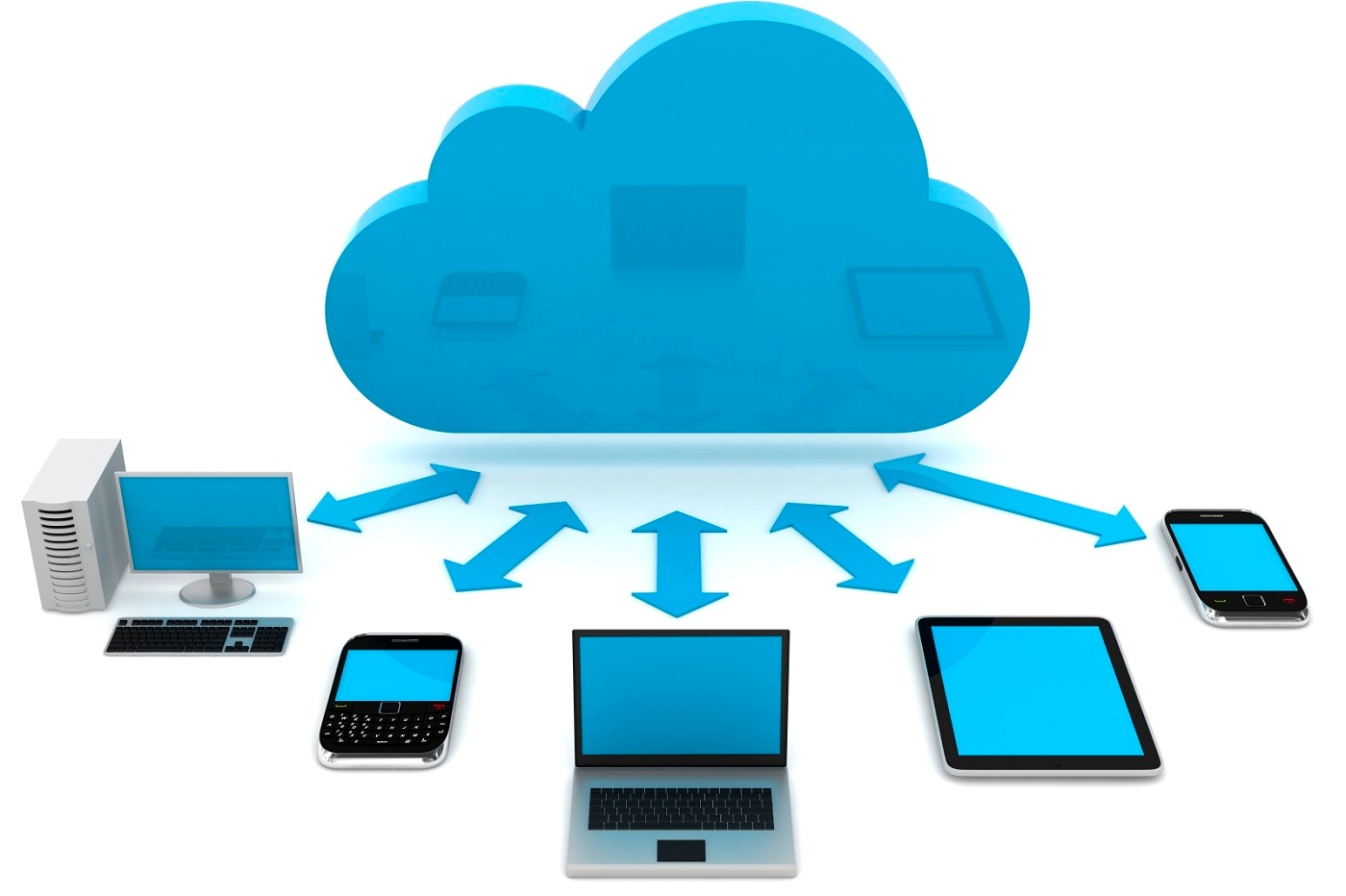
A cloud refers to an IT environment that has no limits for storing data. The symbol of the cloud is used as a metaphor for the internet as the cloud and the internet both, have no boundaries.
There are many clouds that are easily accessed via the internet. But there is single difference i.e. the Internet provides open access to many Web-based IT resources whereas, a cloud is a private zone area.
The usability of a cloud for computer backup is pretty useful. The delivery of computing services via the internet is known as Cloud Computing. It allows both business and individuals to utilize hardware and software that are being managed by third parties at different locations.
For instance, some of the places where cloud services are offered include social networking sites, webmail, file storage, and online business applications.
The model of a cloud computing is designed in such a way that it allows continuous access to a computer’s resources and information from anywhere, any time – with a network connection.
Here are a few amazing things that you need to know about cloud computing in order to reap its benefits:
Two versions of cloud
The two most popular versions of the cloud are Infrastructure-as-a-service (IaaS) and Software-as-a-service (SaaS). With SaaS, you can use a cloud service provider for hosting your enterprise applications and you can easily store its associated data on the servers.
By doing this you can gain access to the SaaS applications through your Web browser. But your company has to pay each month depending on the number of users.
Computer Mate Inc. is a software-based medical service; one of the best example for SaaS. As with IaaS, this cloud service provider actually helps you by offering virtual servers, storage, virtual machines and connectivity resources to run your applications on a pay-as-you-go basis.
However, you will be considered responsible for their maintenance and installations.
Flexible offers by Cloud Computing Service
Considering the dynamism of today’s business world, cloud services have made companies reach a new level and it is applicable to almost all the needs that a company may require.
A cloud service can is perfect for the companies as they can easily test the services and in case they don’t like them, they can easily go for another service next month. Example, for your new application, you need something latest but you are not sure about its growth.
\
Thus, a cloud computing service lets you expand and contract IT resources in sync with those cycles.
Cloud Computing gives you a fresh start
Those companies that are thinking about expanding, need a much larger server to be able to store all their confidential data. Their need of powerful virtual machines to run their applications is efficiently met by Cloud Computing.
They give the companies what they exactly need instead of buying new servers which can be pretty expensive.
The Cloud is economic
There are many data centers that are running out of space and they are forcing companies to either build new data centers or pay a huge amount of money for expanding the existing centers.
Here, cloud computing wins the race as it allows companies to move their applications on their provider’s infrastructure as it would help them save a lot of money through their comparably cheap payment programs.
Most cloud services offer a minimum of 5GB of free storage, which you can expand through a premium membership of the service. These services provide individual as well as business packages.
The Cloud frees staff for other projects
In any company, IT members are always busy in maintaining, managing and troubleshooting equipment or an application, thus, their maximum time is taken by these tedious jobs.
Cloud computing can be of great help to them as it offers management and infrastructure services allowing the company to offload all the tasks and as a result, free the extra IT members so that they can work on other important projects.
This can have a positive impact on a business’s productivity levels.
Additionally, Cloud Computing can help the companies in other ways as well such as making them more responsive to the changing market conditions while generating great revenue.
Moreover, if you wish to learn Cloud Computing, there are many online learning platforms such as Udemy, Zeolearn, and Cloud Academy where you can enrol and learn the basics of cloud computing.
Author bio
I am a Freelance writer by day and sports fan by night. I write about tech education and health related issues (but not at the same time). Live simply, give generously, watch football and a technology lover. Find me on twitter @ericadsilva1.
If you have grown-up children and they have made you proud grandparents, you will probably have noticed just how adept their kids are at using the internet and their tablet or smartphone, with many preschooler’s knowing their way around an iPad with amazing skill and dexterity.
Being a grandparent is great fun of course, but it also means that you are trying to catch up with the digital age and all that it has to offer.
Smartphones and iPad’s were not words that had been invented and neither had the internet for that matter, which means that you might just find everything associated with the internet and how to use it, a bit daunting.
The Grandparent’s Guide to the Internet is designed to get you up to speed and give you the confidence to explore what the web has to offer and how to harness its ability to make some of your daily tasks easier and more efficient.
The guide takes you through step-by-step, from explaining why you need a web browser, what a window is and how to navigate around a page, to sending emails, uploading or downloading pictures and videos, right through to how to get to grips with social media.
If you want to share your experiences and spend time catching up with what your grandchildren are doing and what they have been doing, the best way to do this these days is to learn how to use Facebook or Skype, so that you can communicate with your family and others in the only way that that really know how to these days.
After I published my post where I test out the Web download option for restoring my photos from Backblaze, a regular reader of mine had sent me an email asking several questions about Backblaze. One of the questions was about what file types can be backed up with Backblaze.
I indicated that so far I haven’t had an issue backing up any type of file that I needed to backup. All my files have been backed up without a problems and have been doing so for many years.
At the time I replied to the email I didn’t have the number of files or a list of files types I have backed up over the years. It has also been a while since I last looked closely at the number of files and the types of files I have been backing up, so this was a good reminder to do so.
For those that are interested in what can be backed up with Backblaze, then I will provide more clarity into what I have been able to backup.
What files can you backup with Backblaze?
Before going into detail about what file types can be backed up with Backblaze, lets look at how many files I currently have backed up and how much drive space the files use.
The current status of my file backup with Backblaze.
As you can see from the image above, I currently have 164,899 files backed up, and altogether they consume 745,199 MB (745 GB) of storage space. This has increased by about 4 GB since the previous post as I have uploaded some new photos.
Over 160,000 files backed up is quite a lot, so explaining what file types I have backed up off the top of my head is not possible. I do have an idea of the file types, but not an exact list.
Luckily, Backblaze does provide a high-level report that lists the type of files that I currently have backed up with them. It isn’t specific, but it does group my files into several categories.
The file type report is shown below.
A report of the file types backed up with Backblaze.
The report Backblaze provides groups the files into several categories, depending on the file extension. It then adds the total size of each category and displays it in the report. I’ll explain what I have stored in each category starting from the largest to the smallest.
Photos
As I expected, the largest type of file I have backed up are photos (541 GB), since I am always taking photos. There are different types of photos in this category, including JPEGs, RAW, and TIFF files. My Canon shoots both RAW and JPEGs at the same time, and most of the other JPEGs are those that I have automatically backed up from my Android phone and my wife’s iPhone.
This is the most important category of files because these files contain a history of my family, and the files can’t be reproduced if they were lost. This is the main reason why they are backed up with Backblaze.
Movies
This category includes files with many different file types. Movie file types are more diverse than photo file types since many different video formats have been used throughout the years. In this category I have older AVI files that were created with a standard-definition camera. Newer files include MOV from Apple devices, MP4 from my Android smartphone, and MTS from my HD camera.
There was a surprise here. When I ripped my Blu-ray discs for my Plex media server, I copied some MKV files into a folder that I originally didn’t include with Backblaze. At some point, Backblaze had included that folder and backed up the MKV files. I don’t really need those files backed up, but since they have been uploaded I’ll leave them for now.
Other
This category is the catch-all category for files that don’t fit into any of the other categories. Files in this folder will include data files that aren’t documents, spreadsheets, presentations, etc. I am not entirely sure what files are in this category as I do backup several computers to my server, including my wife’s Windows 8.1 laptop which could have many files that fall into this category.
Much like the movies category some files that are organized into this category is a result of Backblaze finding a folder with files that needed to be backed up. On my C drive on the server I have Python 2.7 installed. Backblaze automatically selected that folder to backup and now backs up all the Python source files. I don’t need that directory backed up, so I will probably go and exclude it in the future, but it does show that if you forget to include a folder, Backblaze may automatically find it and back it up for you.
Music
The bulk of files in this category are the songs my wife has purchased from her iTunes account. Both DRM-protected and non-DRM-protected music files are backed up without any problems. Other music files that are backed up include MP3 and FLAC.
Zip and Archives
This category is self-explanatory – any compressed files types – ZIP, RAR, 7z, etc. are included here. Apparently, I have over 9 GB of compressed files, which is not entirely surprising as I do have backups from past computers that I have zipped up into a single file.
Documents, Presentations and Spreadsheets
I am grouping two categories together since they basically contain anything related to office-type files. This is mainly my wife’s data as she is constantly creating documents and presentations. She apparently has quite a number of files on her laptop that I have backed up to the server, and these files go back to her school days several years ago. There are also probably duplicate files as she has upgraded laptops over the years and I have copied her files from one laptop to the newer laptop.
Anyway, any document that can be created by an office application is backed up by Backblaze.
Financial Information
This one is confusing. While I do backup my financial data, I always have it encrypted in a container, which is automatically backed up and is probably counted in the Other category. I am not sure what file(s) are in this category, as I don’t have any financial data stored outside of an encrypted container. Files from my wife’s laptop have probably been categorized here, or Backblaze determined that one of my encrypted containers contains financial information from the name of the container. Either way, 64 MB of financial data is backed up.
Browser Favourites and Bookmarks
Since I backup my wife’s laptop, this includes all of here Web browser favourites and bookmarks. These are important to her, so it is nice that they can be restored if issues occur with her laptop.
What isn’t backed up
Pretty much any file type that we need to have backed up can be backed up with Backblaze. With that being said, there are many files that Backblaze won’t backup. Backblaze provides a small list of file types that it won’t backup by default:
ISO (Disk Images)
DMG (Mac Disk Image)
VMC VHD VMSN (Virtual Drives)
SYS (System Configuration & Drivers)
EXE (Application Files)
For some of the above file types you won’t need to worry as they are usually installed by an application and don’t need to be backed up. Some files, such as virtual drives, you may want to backup, especially if you have created a virtual machine and don’t want to lose the drives associated with that machine.
If you would like to backup the above file types, Backblaze does allow you to remove the exclusions so those files can be backed up.
Is there a limit to the size of file Backblaze can backup? The answer is no.
Backblaze doesn’t impose a file size limit when backing up files. If a file is 20 GB in size, the entire 20 GB file will be uploaded by Backblaze to their servers. If you would like Backblaze to prevent large files from being backed up, you can set the file size limit within Backblaze.
By default, the limit is set to “No limits”, which means backup all files regardless of size.
Conclusion
I have over 160,000 files backed up with Backblaze, and there are many different file types that I need to have backed up. While there are some file type exclusions within Backblaze, I find that such exclusions haven’t prevented any of my data from being uploaded to the Backblaze servers.
If I find that the exclusions do prevent some of my important files from being backed up, I can always remove those exclusions and then Backblaze will continue to backup my files automatically.
Pretty much every computer monitoring software will let you track and monitor activities taking place on computers in your workplace – but their capabilities can differ quite a bit.
If you want to have a tool that can help you to increase productivity by minimizing time wastage and improper computer use, it is important that you look for software that has the features you need.
In particular, there are five features that you should look for in computer monitoring software that could make a world of difference:
1. Automated scheduled reports
Although sometimes it can be helpful to manually track employees’ activities, for the most part you will want to use automated reports.
It helps if these reports provide relevant overall data as well as specific information about individual employees that can be used to evaluate and assess them at predetermined intervals.
2. Logging and searching
By logging keystrokes it is possible to find data breaches or other security risks. However it is important that the keylogging itself is customizable, and provides a reliable and user-friendly way to search through logs rather than having to scour them line by line.
3. Web usage timers
Being able to filter out certain websites and online platforms is a useful part of most computer monitoring software, but it is even more useful to have web usage timers.
Essentially these timers will let you allocate a certain amount of free browsing time, in order to allow employees to access the internet freely for a fixed duration so that not too much time is wasted.
4. Easy installation and setup
The level of complexity involved in installing monitoring software varies – but one with an easy installation that doesn’t take long to set up is definitely preferable.
Not only will it make it faster and more convenient, but it will also mean that installing it on new workstations that you may eventually add will be easier as well.
5. Customizable alerts
Every company is bound to have different needs and may need to keep an eye out for specific types of computer activity. That is why it helps if your monitoring software has customizable alerts that you can set up to encompass any activities that are relevant to your company.
Ideally these alerts should instantly notify you of any issues, so that action can be taken immediately.
Of course in addition to these features you should make sure that the software you select is user-friendly and is something you can easily familiarize yourself with.
The user interface, controls, settings and other aspects of the software will all play a role in that regard.
As you can see the scope of computer monitoring software can vary quite a bit, and its features will definitely dictate exactly how it can be used to track and monitor activities.
By ensuring that these features are present, you should be able to choose a powerful monitoring software that can be tailored to suit any requirements.







![The Grandparent’s Guide to the Internet [Infographic]](https://technicallyeasy.net/wp-content/uploads/2016/10/gid-1.jpg)