Search results for: “label/Web Site – Review”

  • The New and Advanced Features of MS Word 2013

    The New and Advanced Features of MS Word 2013

    Microsoft Word is one of the popular applications for documenting by all cadres of users whether he/she is a student, or a writer, or writes something for his/her pleasures. Many applications have been developed to give competition to MS Word, but nothing has defeated it till date. This is because; in every new version of MS Word, Microsoft includes some impressive features that you need and love to have. Let us see what Microsoft has included in its most recent version i.e. in MS Word 2013, which will help you to work easily.

    • Cloud Integration – The complete support of MS Word 2013 with cloud allows you to keep your entire content accessible everywhere.
    • Keyboard, Mouse, Touch, and Pen – This feature enhances the support of MS Word with tablets, Smartphones, and all latest electronic gadgets, and hence lets you be productive all the times.
    • Windows 8 – With the compatibility to Windows 8, Word 2013 has become smarter in its working.

    (more…)

  • Small Business: Why Go Digital? What’s Wrong with the Paper?

    Small Business: Why Go Digital? What’s Wrong with the Paper?

    You might ask the following questions: what are the benefits of getting my business digital? What’s wrong with paper and why should I use technology instead? This article will convince you that a digital document management solution makes your everyday work much easier and time efficient as you no longer need to deal with tons of paper documents.

    The more society grows, the more complicated and slow the document exchange process becomes. Immediate access to information stored on paper is getting more and more difficult. But new technology is offering a variety of tools which can be used to transform paper documents into digital format which is more reliable, safe and organized. Having a paperless office doesn’t sound weird anymore: fewer and fewer business owners are likely to use paper and printers in their workflow. More and more modern businesses prefer to work “in the cloud” or use other document collaboration options offered by information technologies.

    (more…)

  • 5 Tips for Website Builders Who Want to Build an Educational Website

    5 Tips for Website Builders Who Want to Build an Educational Website

    Making a website for educational institution may seem to be in intimidating task to say the least, but with proper plans and strategies in place, it doesn’t have to be even half as difficult as it appears to be. You can easily land on a web builders list on Internet that will contain the information about proficient web designers who have enough experience in developing and designing educational websites.

    Let us take a look at 5 tips that help website builders to efficiently make a new educational website.

    (more…)

  • How to Secure the Linksys E4200 Wireless Router

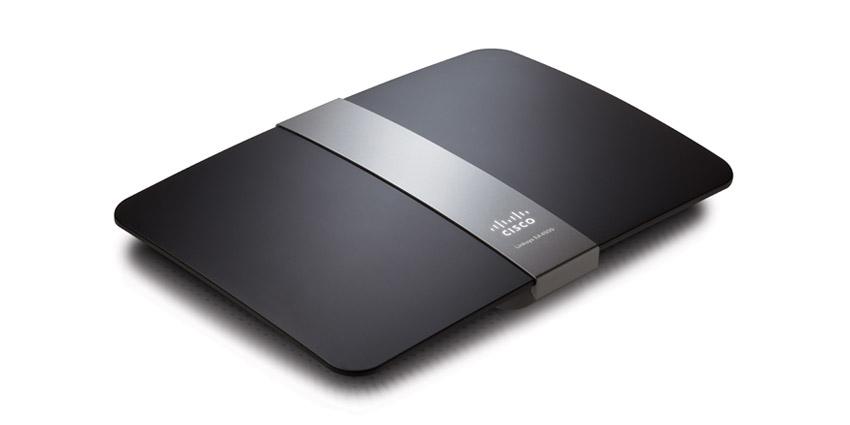
    How to Secure the Linksys E4200 Wireless Router

    As with any wireless router, it is important that you ensure you secure the Linksys E4200 wireless router to prevent unauthorized users from accessing your network. Ensuring that your wireless router is secure is the first step to keeping your data and private information safe.

    Included with this router is a CD-ROM that contains the Cisco Connect software that allows you to setup your router. This post, however, will provide the manual steps you can take to manually secure the Linksys E4200 wireless router.

    Steps to Secure the Linksys E4200 Wireless Router

    The steps outlined below will help you to secure the Linksys E4200 wireless router. Ensure you follow the steps exactly, and if you think you have missed a step, or are having problems, you can always reset the router back to factory defaults and start again.

    Note:

    When accessing the router’s administrative web pages, I recommend that you use Internet Explorer if it is installed. It seems many of the administrative pages in routers tend to be more compatible with Internet Explorer.

    1. Open up your web browser and then go to 192.168.1.1.
    2. When the router prompts you for a user name and password, leave the user name blank and type “admin” as the password.

    Change the Router Password

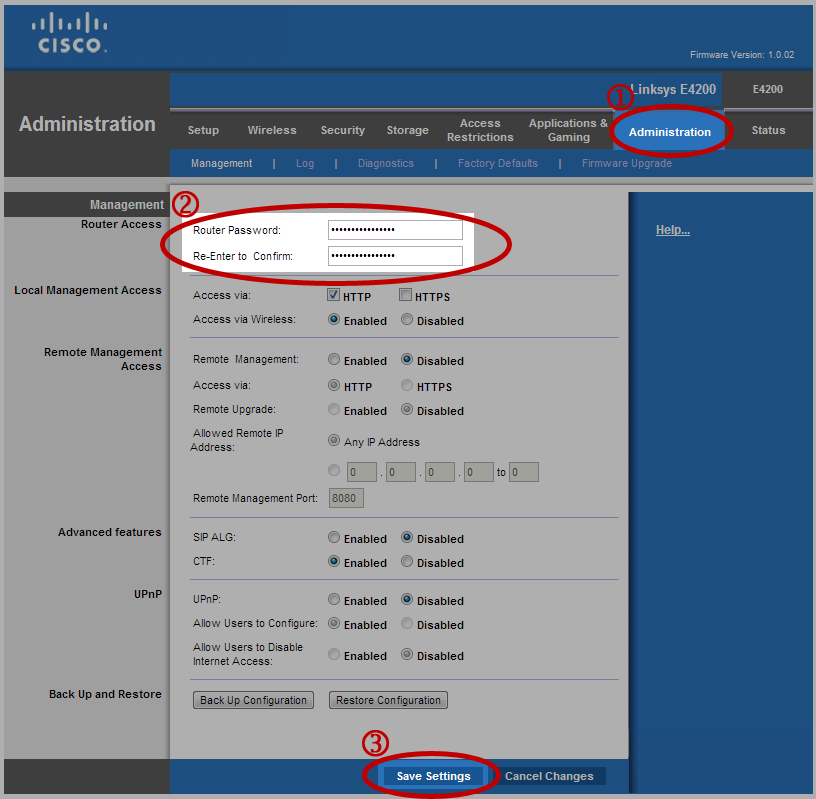
    1. Click the “Administration” tab the top, and then click “Management”.
    2. In the “Router Access” section, enter a new password for your login, and then enter the same password a second time to confirm it.
    3. Click the “Save Settings” button and then re-login with the new password. The user name will still be blank.
    Linksys E4200 Wireless Router - Changing the Administrator Password
    Linksys E4200 Wireless Router – Changing the Administrator Password
    (Click to enlarge)

    Set Network Name

    1. Click the “Wireless” tab, which should display the “Basic Wireless Settings” page.
    2. Select “Manual” for “Configuration View”.
    3. In the “Network Name (SSID)” field, in the 5 GHz Wireless settings section, enter a name for your network.
    4. In the “Network Name (SSID)” field, in the 2.4 GHz Wireless settings section, enter a name for your network.
    5. Note:

      You can use the same network name for both the 5 GHz and 2.4 Ghz settings. Doing so will allow devices to use either frequency band when connecting.

    6. Click the “Save Settings” button.
    Linksys E4200 Wireless Router - Setting the Network Name
    Linksys E4200 Wireless Router – Setting the Network Name
    (Click to enlarge)

    Secure the Linksys E4200 Wireless Router

    1. Click the “Wireless” tab.
    2. Next, click the “Wireless Security” option.
    3. In the 5 GHz section, for the “Security Mode” drop-down list, select “WPA2 Personal” or “WPA2/WPA Mixed Mode” for the best security, and enter a long passphrase that will be used to connect to your wireless network.
    4. Repeat the same steps for the 2.4 GHz section. If you used the same network name for both the 5.5 GHz and 2.4 GHz, then use the same passphrase, otherwise you can specify a different passphrase.
    5. Note:

      When creating a passphrase the length of the passphrase is important. The longer the passphrase, the better.

    6. Click the “Save Settings” button.
    Linksys E4200 Wireless Router - Setting the Wireless Security
    Linksys E4200 Wireless Router – Setting the Wireless Security
    (Click to enlarge)

    After following the above steps, you should now have a secured router. If you have problems in the future, you can reset the router and follow the steps again to secure the Linksys E4200 wireless router.

  • You Won’t Believe How Long Your Computer Will Last

    You Won’t Believe How Long Your Computer Will Last

    With Microsoft’s support ending for Windows XP, many people are looking to move to one of the newer versions of Windows – either Windows 7 (my preferred version), or Windows 8. I have been recently looking at helping someone upgrade a Windows XP system to a newer version of Windows, and have run into a bit of a snag. The desktop is old, and isn’t compatible with Windows 8. Windows 8 requires the processor to have the NX (No-eXecute) bit technology, and the processor in the desktop doesn’t have this technology.

    This got me to thinking how long a typical desktop will last if someone was to buy it new today. The thought is that computers go obsolete the moment you bring it home. That is a thought that hasn’t been relevant in probably 10 years. In fact, for many people a new desktop computer can probably last longer than any computing device they may buy.

    (more…)

  • The 4 Most Effective Tips to Protect Your Computer from Ransomware

    The 4 Most Effective Tips to Protect Your Computer from Ransomware

    Ransomware – a class or malware that restricts access to a computer until a ransom is paid – has been around for many years. In fact, one of the first known ransomware – the “AIDS” trojan – was found in 1989. Unlike other malware, ransomware has been in the background, not drawing much attention. In 2013, the ransomware called CryptoLocker began making news as it infected computers, and then began encrypting personal data files. Once the files were encrypted, a ransom message was displayed informing the user to pay a specified amount of money.

    Encrypting files isn’t new, of course, but now malware authors are using such encryption to extort money from unsuspecting computer users. The problem is that the encryption that is used cannot be broken by brute force methods, so either the data is lost, or the ransom needs to be paid. More and more ransomware are starting to make their rounds among computer users, and there could be much more robust, efficient ransomware, with stronger encryption, in the future.

    While this may sound disturbing, there are many ways that you can protect your computer from ransomware.

    1. Backup Your Files

    This first method is probably the most important one – backup your files. Backing up your files is probably the best method as you can just restore your files from the backup if they do become encrypted by ransomware. Of course, you want to make sure you have a clean system to restore your files onto, or you will just re-encrypt the files.

    With regards to backup, you should backup your files to “cold storage” to prevent ransomware from encrypting your backup files. Cold storage means that you can’t access your backed up files directly from your computer all the time. For example, if you backup your files to an external hard drive, only connect the hard drive when you want to backup your files, and then disconnect the hard drive from the computer. Another example of cold storage is when you backup to cloud service online.

    For me, all my backed up files are stored away on cold storage. The first is an external hard drive that sits beside my computer, but is always off until I want to get access to the files or backup new files. A second backup is stored on a portable external hard drive that is connected less often – only when I have many gigabytes of data since the last backup. A third backup is stored online with Backblaze.

    2. Use a Sandbox or Virtual Machine

    A great solution to protecting your data from ransomware is to limit what the ransomware can get access to. Two of the best solutions to this is to browse the Web and check e-mail in either a sandbox or virtual machine.

    A sandbox is the easier of the two to setup as it runs directly in the operating system of your computer. Basically a sandbox is a separate, tightly controlled area, on your computer that you can run applications in. Any application running in a sandbox has limited access to other resources on your computer – including your files. An application in a sandbox, may be able to read a file on your hard drive, but it cannot write to the file. You can also control what applications are allowed to run within the sandbox, access the Internet, and do other tasks on your computer.

    There is a great Windows sandbox application called Sandboxie that has been proven to contain ransomware.

    If you are technical you may want to look into setting up a virtual machine. A virtual machine is basically another computer that runs within your current computer. You main computer becomes the host to the virtual machine. Everything that happens in the virtual machine, stays within the virtual machine.

    With a virtual machine, you can install a Unix-flavor operating system, such as Ubuntu, to give good security, and then access the Web and your e-mail from the virtual machine. If you do download ransomware, it may not even execute in the virtual machine as it isn’t a Windows system, and if it does execute, then the ransomware can’t see the data files on your host computer.

    You can create virtual machines for free by using VirtualBox.

    3. Don’t Use an Administrator Account

    Windows users have always accessed their computers using an administrator account. This account has unlimited access to the computer, and up until recently was the only type of account used. Fortunately, starting with Windows Vista – although more with Windows 7 – Microsoft changed Windows to allow users to use a limited account.

    If you are using Windows Vista or later, you should not be logged in with an administrator account. You should always use a limited user account. The reason is simple: any application you run will run in the same context as your user account. This means that if your account has started a ransomware application, and you are logged in with an administrator account, than the ransomware application will have unrestricted access to your computer.

    While using a limited user account will not protect your data files if you accidentally ran a ransomware application, it will limit what files it affects or what restrictions it places on your computer. A limited user account can only see their own data files, and can’t change system settings, which will help limit ransomware.

    To stress the point about not using an administrator account, over 90% of Microsoft-reported vulnerabilities in 2013 could have been mitigated by using a limited user account.

    I have used a limited user account for 4 years with Windows 7, and haven’t had any issues with running applications. So if you are using Windows 7 or later, don’t log in with an administrator account.

    4. Don’t Open Suspicious E-mails

    While this tips has been mentioned for stopping malware all the time, it is still surprising that people still don’t follow it. CryptoLocker spread by an e-mail attachment, and infected hundreds of thousands of computers. That ransomware could have been stopped, or severely affected, if people just don’t open e-mail, or run attachements from unknown senders.

    Many attachments in e-mails are designed to trick users into opening the attachments. Such attachments would actually have two extensions – such as .pdf.exe or .doc.exe. All the user will see many times is the first extension and an icon associated with that extension. For example, a file called example.pdf.exe file would display just example.pdf with an Adobe Reader icon. Unfortunately, the .exe extension at the end means that the file isn’t a PDF document, but an application that will run when opened.

    One of the first things I do after I install Windows is to display hidden extensions of known file types, so I can exactly see all the extensions for all the files on my computer. This helps to determine if a file has a double or a single extension.

    There are many ways you can protect your computer from various forms of malware. What are some of the tips that you use to protect your computer from ransomware?

  • How to Secure the D-Link DIR-615 Revision E Wireless Router

    How to Secure the D-Link DIR-615 Revision E Wireless Router

    As with all wireless routers sold, the D-Link DIR-615 Revision E isn’t sold in a secured fashion. The security of the wireless router is the responsibility of the owner.

    While securing a wireless router may seem like a daunting task, most home wireless routers require the same settings to be changed to secure the router and wireless network.

    What needs to be changed for the D-Link DIR-615 wireless router are broken down into three sections, that will hopefully help to understand what is being changed on the router.

    To secure the D-Link DIR-615 wireless router, use the following steps:

    Note:

    Before securing your router ensure that you are connected to the router using a network cable, and not connected using wireless. Also, when accessing the administrator dashboard, it is best to try using Internet Explorer. Many router dashboards tend to work best with this Web browser.

    1. Changing Administrator Credentials

    The first thing you should do when securing your wireless router is to always change the admin password. Passwords will have a well-publicized default password for the admin account on your router, so changing it will make it difficult for unauthorized individuals to gain access to your router.

    Changing the admin password will only affect logging into the dashboard of your router – where the router settings are located. This won’t secure your wireless network, which is outlined in the next section.

    To change the admin password on the DIR-615 version E3, use the following steps:

    1. Open your Web browser and navigate to http://192.168.0.1. The login page will be displayed on the screen.
    2. Select “Admin” from the “User Name” dropdown list.
    3. Keep the “Password” field blank.
    4. Click the “Login” button.
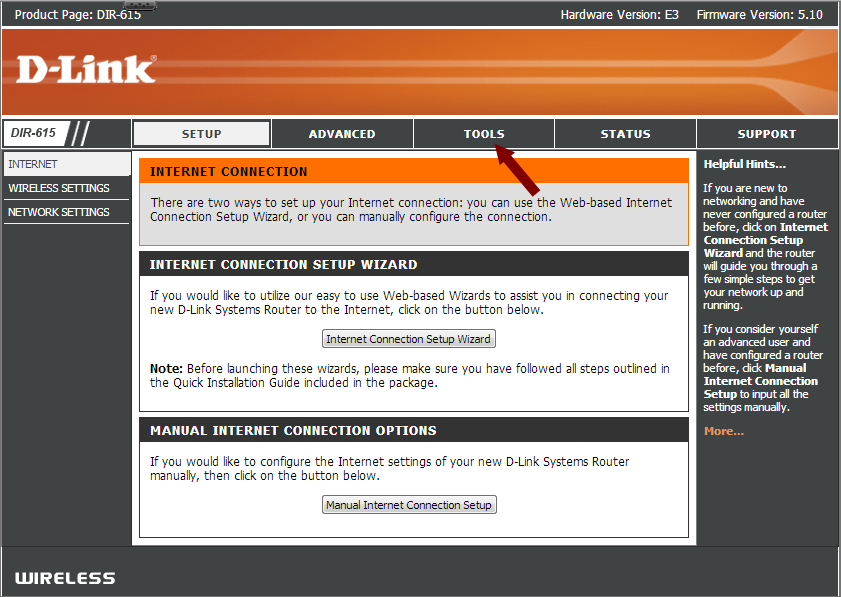
    5. From the top menu, click the “Tools” option.
    6. DIR-615 - Tools Option

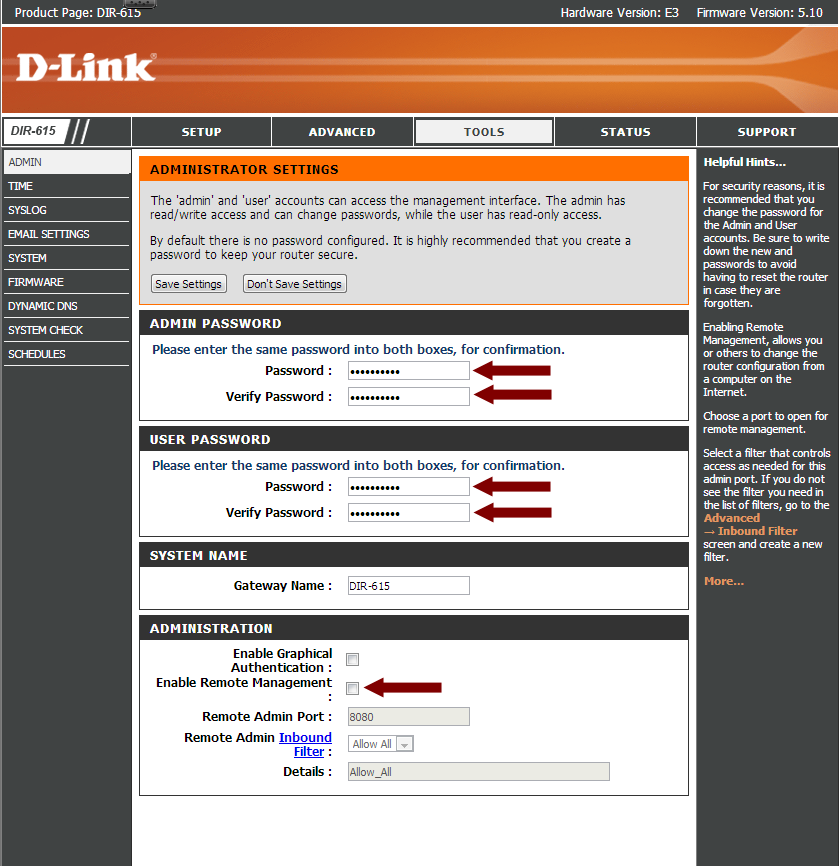
    7. Under the “Admin Password” section, enter a new password for the administrator. Ensure the password is long and complex to make it secure.
    8. Under the “User Password” section, enter a new password, but make it different than the admin password.
    9. In the “Administration” section, use the following options:
      • Enable Remote Management: Unchecked.
      • DIR-615 - Administrator Settings

      • Click the “Save Settings” button at the top of the page to save the passwords.
      • Wait for the settings to save, and then log in with the new admin password.

    2. Securing the Wireless Network

    After changing the admin password to your wireless router, you can now go ahead and secure the wireless network. By securing the wireless network, this will prevent unauthorized users from connecting to your network.

    To secure your wireless network, use the following steps:

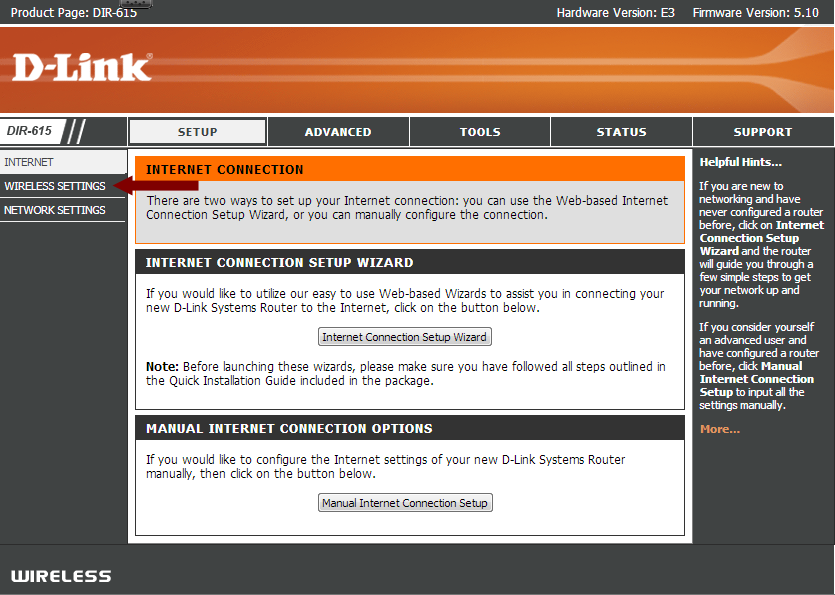
    1. Log in to the router with the “Admin” user if you have not already done so. Once the “Setup” page is displayed, click the “Manual Internet Connection Setup” button.
    2. From the left menu, click the “Wireless Settings” option.
    3. DIR-615 - Wireless Settings

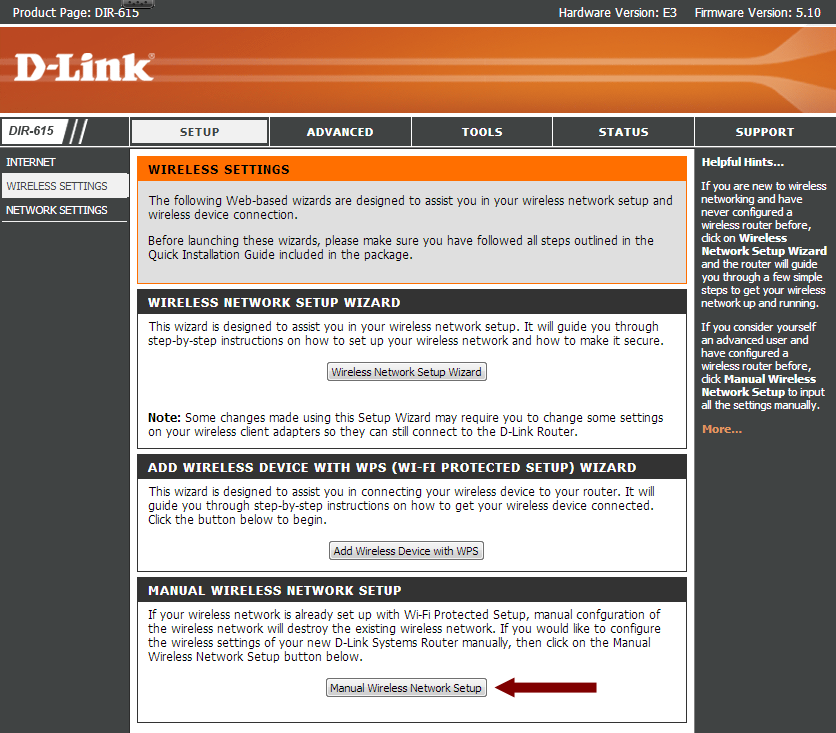
    4. Next, click the “Manual Wireless Network Setup” button near the bottom of the page.
    5. DIR-615 - Manual Wireless Network Setup

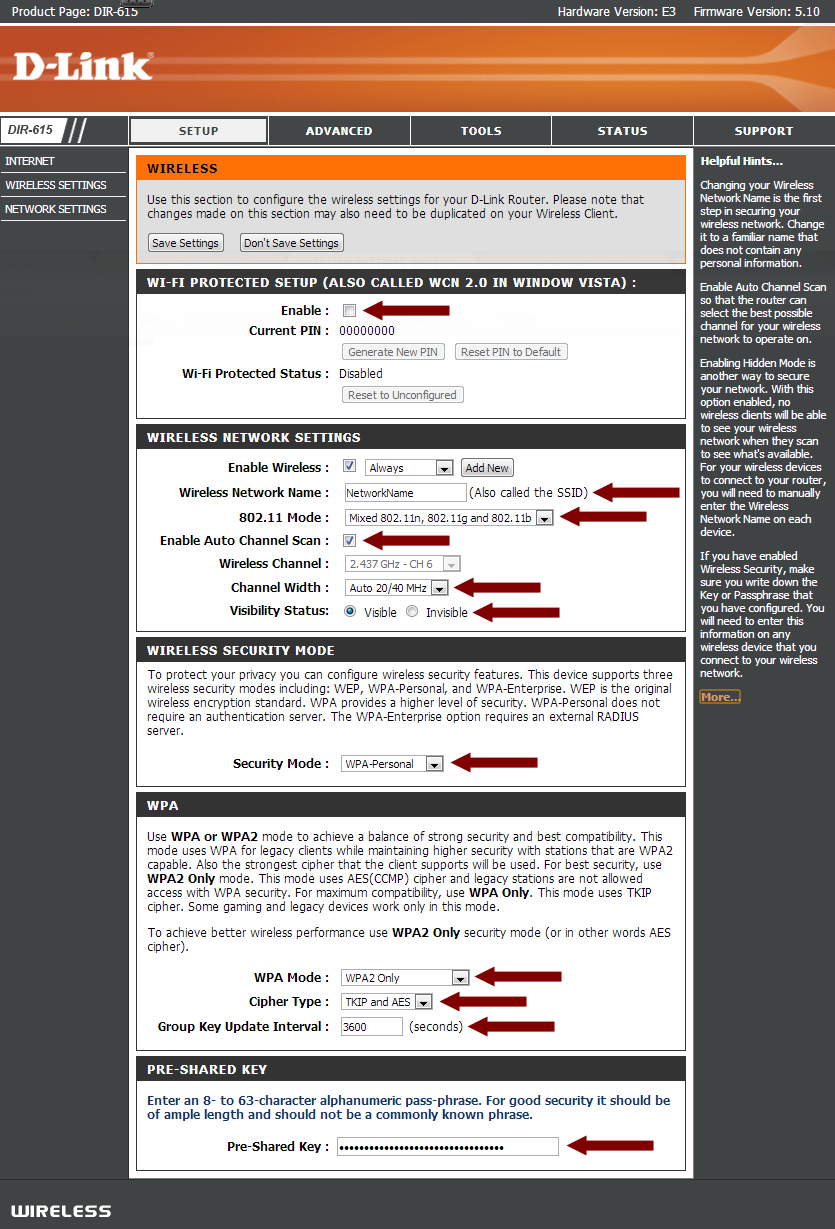
    6. In the “Wi-FI Protected Setup” section use the following options:
      • Enable: Uncheck
    7. In the “Wireless Network Settings”, use the following options:
      • Enable Wireless: Checked
      • Wireless Network Name: Enter a name for your wireless network
      • 802.11 Mode: Mixed 802.11n, 802.11g and 802.11b
      • Enable Auto Channel Scan: Checked
      • Channel Width: Auto 20/40 MHz
      • Visibility Status: Visible

      Note:

      There is always some debate about hiding – not broadcasting – your SSID. The truth is not broadcasting the SSID does nothing to secure your network. Hackers can see both visible and hidden SSIDs with the tools/applications they use. While the average user may not use such tools, they won’t be able to gain access to your wireless network if you have it secured with WPA/WPA2 and a good passphrase.

    8. In the “Wireless Security Mode” section, use the following options:
      • Security Mode: WPA-Personal
    9. In the “WAP” section, use the following options:
      • WPA Mode: WPA2 Only (If you have issues connecting with this option, then try “Auto (WPA or WPA2)” instead.)
      • Cipher Type: TKIP or AES
      • Group Key Update Interval: 3600
    10. In the “Pre-Shared Key” section, use the following options:
      • Pre-Shared Key: Create a long and complex key that will be used to gain access to your wireless network. This is the main security for your wireless network, so the longer the better.
    11. DIR-615 - Wireless

    12. Click the “Save Settings” button at the top of the page.

    At this time your wireless network is now secured. To connect a wireless device to your network, you wll need to selected the SSID from the list of wireless networks, and then enter the pre-shared key you created.

    3. Additional Security Settings

    There are a few additional security settings that you can do to provide even more security.

    1. Log into your wireless router using the “Admin” user and password.
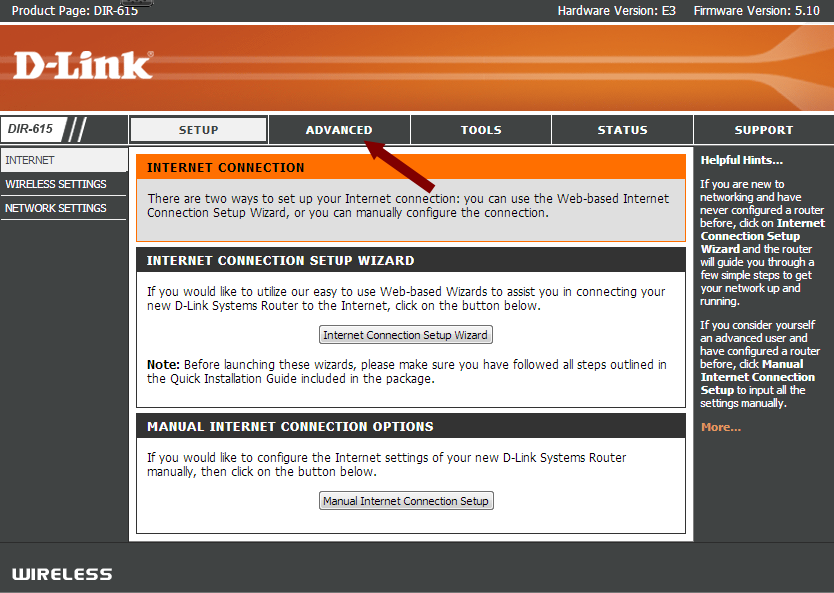
    2. From the top menu, click the “Advanced” option.
    3. DIR-615 - Advanced Option

    4. From the left menu, click the “Advanced Network” option.
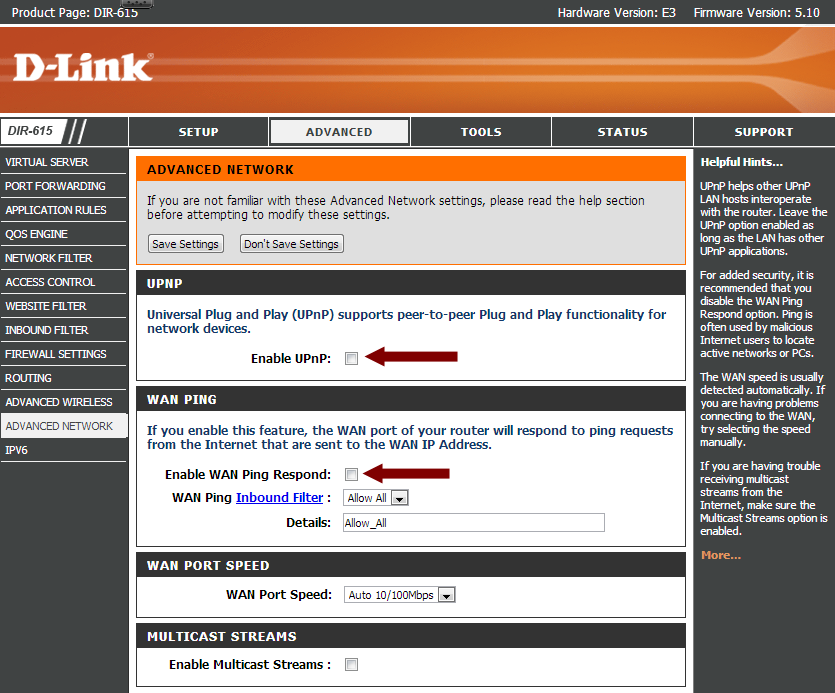
    5. In the “UPNP” section, use the following options:
      • Enable UPNP: Unchecked
    6. In the “WAN Ping” section, use the following options:
      • Enable WAN Ping Respond: Unchecked
    7. DIR-615 - Advanced Network Options

      Note:

      The following settings are optional, and unless you are comfortable with changing IP addresses, I suggest you leave them as the default and skip the next two sections.

    8. From the top menu, click the “Setup” option.
    9. From the left menu, click the “Network Setings” option.
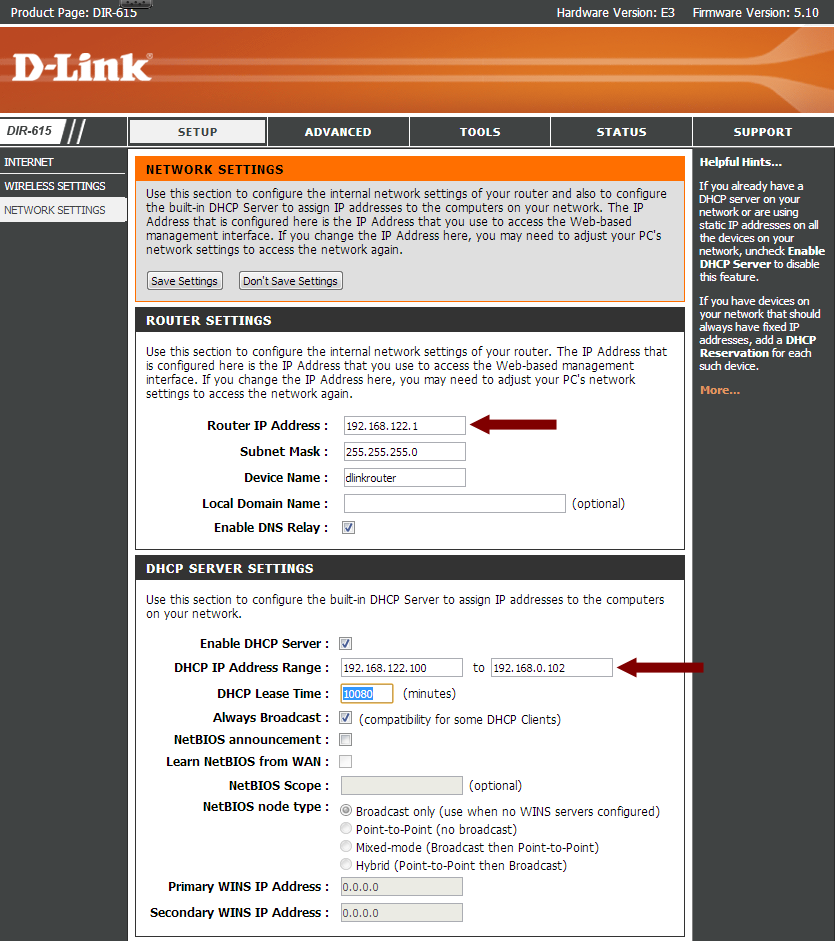
    10. In the “Router Settings” section use the following options:
      • Router IP Address: Change to something like 192.168.22.1
    11. In the “DHCP Server Settings”, use the following options:
      • DHCP IP Address Range: Set the range to the number of devices you will connect to your network. For example, if you changed your rotuer IP address to 192.168.22.1, and you have 3 devices, then set the range 192.168.22.100 to 192.168.22.102
    12. DIR-615 - Network Settings Options

    At this point your D-Link DIR-615 is about as secure are you can get it. You can feel comfortable that only authorized users will be able to log into your wireless network.