Search results for: “label/Web Site – Review”

  • Creating Clickable Web Site Header Images

    I like to write posts that can help others complete a task, whether it is with computers, web sites/blogs, networking, or digital photos. Some times, I come across questions that get asked on a frequent basis. While the questions may seem to be simple to answer for some, I also realize that many people don’t have the technical knowledge others may have acquired through the years.

    This post is going to talk about creating header images for a web site or blog, and how to make them link back to a home page. If you are new to HTML, creating such an image is very easy to do.

    (more…)

  • Can You Run a Real Estate Site Without Being a Licensed Broker?

    Can You Run a Real Estate Site Without Being a Licensed Broker?

    Real estate is one of the sectors of the economy that will always be lucrative. Well, there will hardly be a second real estate bubble but still real estate offers significant money making opportunities. This is why many people are considering it to be a good career field. In some cases all you need to do in order to get into the real estate business is enthusiasm but in other cases you can’t become a broker without getting licensed first.

    (more…)

  • Twitter App Review: How to Optimize Your Time on Twitter With BUFFER

    Twitter App Review: How to Optimize Your Time on Twitter With BUFFER

    With Buffer, you can manage your tweets on Twitter more efficiently that you could in the past. Twitters recent valuation at a whopping $10 Billion is a sign that Twitter’s seriousness and value for its users has increased significantly. It is no longer a black hole to express thoughts to everyone and nobody. It has turned into a source for valuable conversations and highly targeted traffic to one’s site.

    Therefore optimizing your time and effort on Twitter is more important than ever. In order to help with that, let me introduce you to Buffer. It is a new Twitter App that helps you to be more efficient on twitter, yet remaining a genuine personality.

    (more…)

  • Lenovo ThinkCentre M92P Review

    Lenovo ThinkCentre M92P Review

    The Lenovo ThinkCentre M92P is a device for the new-age office goer, who can work from home or a businessman with a fledgling business without the luxury of space. Although the device is called a PC, it is more of a tiny PC, a pocket size version, a computer with support. It’s compact and cute and you can place it under your desk or behind other system screens and optimize your system needs for your work place.

    So think of it as your adapter to which you connect all your monitors- up to four at a time.

    (more…)

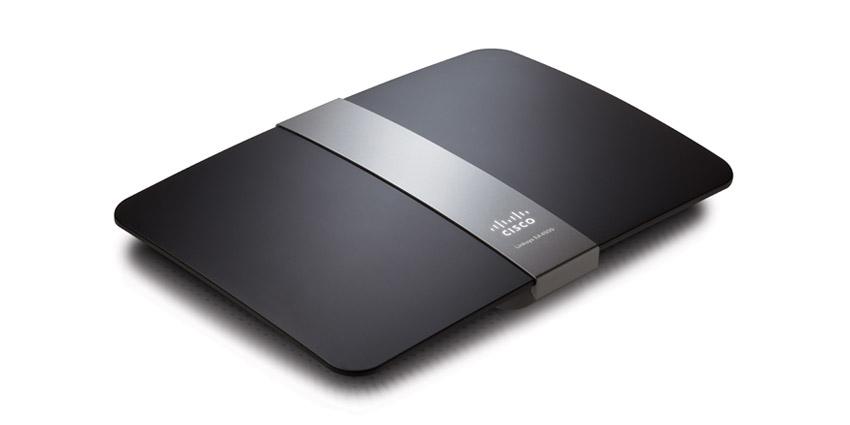
  • Linksys E4200 Wireless Router Review

    Linksys E4200 Wireless Router Review

    After about 6 years, my Linksys WRT54G finally packed it in, so I went out and bought myself a Linksys E4200 dual band wireless-N router. I have several laptop computers and a media player that have wireless-N adapters, so the new router will be a welcome change.

    Besides the added benefit of being able to connect using the 802.11n standard, the Linksys E4200 wireless router has a few additional features that were available on my previous wireless router. After I got the router up and running, I began to explore some of the additional features to see how well they worked. Considering this is one of Cisco’s top performance home wireless routers, I expected big things from it.

    Setting Up the Linksys E4200 Wireless Router

    The package contents were basically the standard items: the Linksys E4200 wireless router, a power cable, a network cable, and a CD containing the Cisco Connect software. I haven’t used any software that came with any of my routers in the past, so I really couldn’t see myself using this one. Although I may explore the software in the near future, for reasons you will read later.

    The router itself is smaller than my previous WRT54G router. While the width and length is about the same, the Linksys E4200 is slimmer, and there are no antennae sticking out from the top. This means that when I reach behind my desktop, I don’t have to worry about knocking into them.

    The setup of the router was pretty straight forward, and I set it up manually as I usually do. I basically logged into the router’s dashboard through my Web browser and configured the security settings for the wireless network.

    The dashboard, while it has change slightly from the WRT54G, basically looks the same, which made it easy for me to find my way around. The biggest change that I say while I configured my wireless network was the fact that you can create two separate wireless networks – one for 5 GHz, and a second for 2.4 GHz. Since this router is dual-band, devices can connect to the router on either frequency at the same time.

    Since I only wanted to manage one network, I changed the settings for both the 5 GHz and 2.4 GHz bands to be identical. Doing this didn’t cause a problem, and I was able to connect both wireless-N and wireless-G devices to the different frequencies without any problems.

    The one thing that bothers me about the Linksys routers is the inability to change the dashboard user ID. You can change the password easily, but the actual user ID you use to log into the dashboard can’t be changed from being blank. I have seen other routers that provide this ability, and I hope that Cisco will change this for future routers.

    Router Performance

    So far, I have been pleased with the speed of the router. I have a hard-wired desktop connected directly into the Linksys E4200 router, and it seems faster when downloading from the Internet. Although I haven’t done an actual speed test, the computer seems more responsive overall.

    A wireless-N laptop connects to the router at faster than the 54 Mps rating of a wireless-G connection. Although, the one aspect that I am disappointed with is the range the router has. From the opposite side of the house, the laptop connects with 3 out of 5 bars within Windows 7. The WRT54G router connected with the same number of bars, so there really isn’t an improvement in the connection range with the Linksys E4200. I am a little disappointed in this as I thought I would have a better connection to the router, and because of this I my connection speed is 74 Mbps. This is still better, however, than what I would have received from the WRT54G at 5 bars.

    Linksys E4200 External Hard Drive Connection

    The Linksys E4200 wireless router includes a USB port on the back next to the ethernet ports. This allows you to connect an external hard drive to the router and then share the data on the hard drive to the computers that are connected to the router.

    While this is a huge selling point for me, it was a nice feature that I was looking forward to trying. As I don’t have a NAS (network attached storage) device, having the Linksys E4200 router and my external hard drive act as one was a nice bonus.

    After setting up my router, I connected an external hard drive into the router and the router immediately identified the drive. I was able to setup user IDs and shares for the hard drive so I could connect to the hard drive from other computers. When I tried to map to a share on the hard drive, my desktop couldn’t connect to the share. I also tried to connect to the share from a laptop, and it, too, couldn’t connect. I decided to wait a few days and try again.

    The next time I tried, the Linksys E4200 wireless router couldn’t even detect the external hard drive, so I couldn’t even manage the shares. I unplugged the hard drive and plugged it back into the router, but the router still couldn’t find the hard drive.

    I saw read about a few people online that have also had this issue, so it appears to be a common problem. With the latest firmware update, you can also connect a printer to the router using the same USB port. I haven’t tried this, and from what I have read, you need to use the Cisco Connect software to get the printer sharing to work.

    Linksys E4200 – Pros

    • Dual band (2.4 and 5 Ghz) that allows you to connect to either band to avoid interference.
    • Ability to setup a separate network for each band.
    • Easy to configure – dashboard very similar to previous Linksys routers.
    • Connected to my ISP without any problems.
    • Connected wireless-G and wireless-N devices without any problems.
    • Lower profile – no antennae sticking out from the top.

    Linksys E4200 – Cons

    • No ability to change the router’s user ID.
    • The range isn’t much better than my 6 year old router.
    • Couldn’t get an external hard drive to connect to the router.

    With the exception of the external hard drive issue, I find the Linksys E4200 wireless router to be a good router. I was disappointed in the range of the router, but I do like the dual-band feature, and I had no issues with connecting any device to the router. If you can get the Linksys E4200 wireless router for a good price, I suggest you pick one up.


  • How to Create Printable Web Pages

    When I started Technically Easy the one thing that I wanted to do was make sure that my posts were printable. By this I mean I wanted the printed pages to not include the menubar and sidebars, only the content.

    Those who are just starting out in Web development may just create a second copy of the current page, and then create a text link to this page for printing. I wanted a more simple solution and realized the same task can be done easily with CSS.

    (more…)

  • Increase Your Web Site Performance with CloudFlare

    Increase Your Web Site Performance with CloudFlare

    I recently experienced some performance issues on this blog and changed the template to more of a basic look and feel. By doing so I reduced the number of requests for all the pages on my blog, as well as the number of bytes that was transferred. In an effort to increase the performance even further, I signed up with an online free service.

    While I was on Twitter several months ago I noticed a tweet from Michael Aulia from Craving Tech regarding a service he just started using called CloudFlare. This site talks about increasing a web site’s performance while also making the site safer. I have been using their service over the past few months, and so far I have been impressed.

    (more…)

  • AOL Users – Multiple IP Addresses

    A few days ago I was in a forum and someone mentioned that they noticed a discrepancy in their Web server logs. A visitor to their Web site was an AOL user, but they appeared to be making several requests from different IP addresses.

    If you are on dialup, you will probably get a different IP address each time you connect to your ISP, however, it won’t change as long as up don’t log off. How did the AOL user have multiple IP addresses even if they didn’t log off? I will explain that phenomenon in this post.

    AOL Proxy Servers

    Unlike regular dialup users, AOL users don’t get assigned an IP address that will show up in a Web server’s log file. This is because when an AOL user makes a request over the Internet; the request goes through what is known as a proxy server.

    A proxy server is a server that acts as an intermediary between a user and the Internet. This allows an enterprise to control security, caching and provide administrative support. The proxy server is the access point to the Internet from the internal network of an enterprise.

    How does this relate to AOL users? When a user connects to AOL, they receive an IP address from AOL. When they make a request to a Web site, the request is sent to the proxy server. The server then sends the request to the respective Web server. By this time the request has the IP address of the proxy server, and not of the AOL user.

    The Web server completes the request and sends the information back to the IP address of the proxy server. The proxy server then determines which user requested the data, and then forwards the information to the AOL user.

    If the AOL user makes another request, it can be sent to a different proxy server with a different IP address. The Web server will then receive a request from the same user, but this time the IP address will associated with the new proxy server. In this scenario, the AOL user has made two requests to the same Web server, but from two different IP addresses.

    Issues with AOL Proxy Servers

    There have been some issues related to the AOL proxy servers and AOL users. One issue is that Webmasters can’t get accurate data about their Web traffic. Usually, Web traffic data uses the IP address to determine unique users. If you get one user requesting data through multiple proxy servers, each with their own IP address, your Web data may indicate more users.

    Another issue has to do with the actual IP addresses themselves. Many times a Web site might prevent traffic from a specific IP address from accessing their site. If a Web site bans an IP address from one of the proxy servers, any requests by AOL users that are sent through that proxy server won’t be able to access the Web site. This has frustrated many AOL users in the past.

    Summary

    Since AOL uses proxy servers to connect their users to the Internet, you may see multiple IP address from a single user in your Web logs. Each request from an AOL user can come from a different IP address depending on which proxy server the request is sent through. Besides the skewed Web stats from the multiple IP addresses, AOL users can be frustrated if a Web site has banned any traffic from one of the proxy server’s IP address.