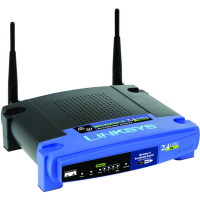
I discussed securing your wireless network in a post titled Securing a Wireless Network. I currently have a Linksys wireless router model WRT54G. When I work from home I use this router to connect to work through VPN, and have done it with out any problems.
The big issue with wireless networks is security. As anyone with a wireless network card within a few hundred feet of your router can connect to your router. To prevent this from happening, it is important to secure your router.
Securing Your Wireless Router
Note:
If you need to reset your router back to the factory defaults, then please read How to Reset the Linksys WRT54G Wireless Router.
To secure your Linksys WRT54G wireless router, follow these steps:
- Open your Internet browser and enter the following in the address bar: http://192.168.1.1.
- Enter the user ID and password for your router. If you haven’t changed it, the default password is admin. We will change it later if you haven’t already changed it.
- You should now see the Basic Setup Web page display in your browser. Scroll down the page until you see Maximum Number of DHCP Users.
- Count the number of computers that will connect to the router, and type it into the Maximum Number of DHCP Users textbox.
- Scroll down to the bottom of the Web page and click Save Settings. Once the settings have been saved, click Continue to return to the Web page.
- At the top of the Web page, click the Administration option in the menu bar.
- On the Management Web page, you should see two password text boxes. This is where you should change your administrative password. Type in a new secure password into both boxes. If you need help creating a secure password, please read Creating Secure Passwords.
- Once you have changed your password, click Save Settings at the bottom of the Web page.
- You may be prompted to login again, if you are then enter you new password in the password field.
- Navigate back to the Management Web page by clicking the Administrative option in the menu.
- We will now encrypt your connection to your router setup from your computer. To do this click the HTTPS checkbox next to the Access Server option.
- Once again, click the Save Settings button at the bottom of the Web page.
- In your browser, change the address to: https://192.168.1.1.
- Login with your password and then click the Wireless menu option.
- Beside the Wireless Network Name (SSID) option, type in a name for you network connection.
- Click the Save Settings button and the Continue button to return to the Basic Wireless Settings page.
- Click the Wireless Security sub-menu option at the top of the page. This is where we will provide the most important security setting.
- Next to Security Mode, select WPA – Personal from the drop-down list. If you have trouble connecting to your wireless connection, you can try selecting WEP, but your connection will be much less secure. For more information about WEP and WPA please read Wireless Security: WEP and WPA.
- Next to WPA Algorithms, select AES. Once again if you have trouble connecting to your wireless router, select TKIP.
- Now you must get very creative. Specify a long WPA Shared Key with a mix of upper and lower case letters, numbers and punctuation. Once again, please read Creating Secure Passwords for tips on how to do this. In this case the longer the better.
- Click the Save Settings button at the bottom of the Web page, and then the Continue button.
Note:
If you have changed the IP address of your wireless router, enter that into the address bar. By default, the address is 192.168.1.1.
This option will assign a specific number of IP address to computers. If more than this number of computers tries to connect to your router, they will not be able to.
You won’t get the settings saved page again because the URL in the address bar is not longer correct. Since you have changed your connection to HTTPS, it you need to specify that in the address when you connect to the router setup.
If you get a security error, ignore the error and continue to the Web page.
Make sure you write down this key somewhere, either on a piece of paper or in a text document on your computer. You will need this information when you connect to your wireless network.
Now you are all done securing your wireless router and network. All you need to do is connect to your network, and enter your WPA Shared Key exactly as you specified it. I won’t go into detail on how to connect to your wireless network, as I will save that for another post.
Wireless Router Security Connection Questions
Question: How come we didn’t disable the SSID broadcast? Won’t that help with securing my wireless connection?
Answer: It has been mentioned many times that disabling your SSID broadcast will help secure your network. The reality is that those who attempt to get into your wireless network will be able to easily pick up or SSID whether it is broadcasted or not.
You may also have problems connecting to your wireless router if you disable the broadcasting of your SSID. I keep it enabled.
Question: Why don’t you filter who connects to your wireless router using the MAC address by turning on MAC address filtering?
Answer: This is another tip you may see on the Internet about securing your wireless network. There are a few problems with turning on the MAC address filtering.
The first problem is that a hacker can easily spoof a MAC address, and therefore bypass the MAC filtering. The second is that you need to manage the MAC addresses of all network cards attempting to connect to your router. Since it really doesn’t provide a lot of security, it is just easier to keep it turned off.
Question: Why do you specify to use WPA – Personal first, and not WEP?
Answer: The reason is that WPA is much more secure than WEP, and therefore you should use that security mode over WEP. An experienced hacker can easily crack WEP encryption so it doesn’t provide as strong security as WPA. If you canèt use WPA, use WEP because it is still better than nothing.
Summary
This post provided step-by-step instructions on securing your Linksys WRT54G wireless router. After following the steps, you should now be confident knowing that you have a secure wireless Internet connection.
Related Posts
How to Reset the Linksys WRT54G Wireless Router
Securing a Wireless Network
Connecting Multiple Computers to Broadband
Wireless Security: WEP and WPA
Creating Secure Passwords
Broadband Internet Connection - Troubleshooting


Good One.. yet to try..
Thanks for clearing the fog and letting me see clearly what I need to do to secure my network.
nice guide
Thanks. Hope it helped.
All good information…but what if you have a teenage kid that likes to hack passwords from the computer to gain access to whatever he likes, and then can simply clear the passwords from the router by hitting the reset button and then reconfiguring it to get reconnected? I am solving the Windows password hacking problem, but what about the router? How do I disable the hard reset button?
I have followed this step by step and always have a problem at #18. When it is time to change the security mode from “Disabled” to “WPA-Personal”, i click the drop down box, select the choice, yet the page always refreshes to disabled before I can save settings. I even tried selecting “WEP” and it still reverts to disabled before I can save the change. Why wont it allow me to change the security mode?
i found the connection to my com . but where do i enter the Wpa pass ?
Are you talking about after you set up or network and are connecting to it through Windows?
hi i have done all those step but when i go to my laptop i click connect noting came out
This was a very helpful guide, thank you
Question… How can I set up a welcome page to my wireless network and have people sign on? I would like something like you find at a free airport hotspot, where you receive a greeting page and you enter a little info, before you are automatically connected to the wireless network. Any ideas?
(I use a WRT54g router.)
I cant get into the main scree. What is the user name and password? Is it in manual or what is the default user name and password? I have never accessed my router before. This is the fist time. Help!!
It should be written in the manual. You can also look up various default user names and passwords here:
http://www.technicallyeasy.net/2008/05/default-user-id-and-password-for.html
Paul,
I shouldn’t even be on this board. You guys are so far advanced. If I should take it some place else, tell me.
My question relates to this scenerio… You check into a hotel. Connect to their free wireless. Upon connection a page opens on your computer that has a welcome message. It may even ask a couple of social questions. After you agree to their Terms of Service, it then allows you to use the internet, as if you were at home on your very own wireless. Well, I’d like to have such a page open when someone attempts to connect to my wireless. Is there an application to help create such an opening page? Is such a welcome page kept on my computer, or does it reside on the router, or is it on my web host server? Am I too much of a novice for you to understand what I’m seeking?
Thanks for any guidance you may have for me.
=Fist=
@Kent: Don’t worry about being a novice. I try to help those who aren’t experienced in certain areas of technology.
As for a welcome screen, I don’t have much experience in that department. From what I have quickly read, it can be a complex operation.
I did manage to find a free tool that can help at: http://www.publicip.net/. The problem is that you need a dedicated PC running to use it.
Paul,
Thanks a lot. That seems to be the issue I’ve run into, also. Think I’ll try the hosting service (GoDaddy) and see if there is a way through that server.
Thanks again,
=Fist=
Thank you so much for the information. It worked great. Now my wireless is finally secured!
Now another question, completely different from the wireless router. Do you know how to take the music from Itunes from my old computer to my new computer saving the lists and star ratings. We do have a hard drive to download it to from my old computer.. Any help would be appreciated.
I believe you can find your music and playlists in your user directory in the Music folder. There should be an iTunes directory in the Music directory.
i have completed all the steps to secure my wireless network. How do I connect to my network and enter my WPA shared key? I can click on internet explorer and it pulls up my internet provider how page just like before I secured my network. What do I need to do?
thanks alot.
Worked for me.
Thanks for the instructions.
I have enabled https in the router, but i am not able to access it through https.
FYI i am still able to access through http. what could be problem. Thanking you in advance.
If you enabled https you shouldn’t be able to access the administrative pages using http. Did you click the “Save Settings” button at the bottom before navigating to another page?
Thanks for the guide Paul. Just one quick question, when we want to reset the password through IE, do we need to connect our laptop to the router with a cable or we can do it wirelessly. I am not good with all this stuff, so your help is very much appreciated.
Cheers,
Jazz
You can probably do it wirelessly, but when setting up my router I usually like to connect to the router with a network cable.
I just followed your step by step instructions on how to set up a secure connection on my router. Is there a way to test it or check to see if it is really secure?
thanks alot for your help
You will see something like “security-enabled”, WPA, or WPA2 next to your wireless network in the list of wireless networks in your area. You will also be required to enter a passphrase when you attempt to connect to your network.
This is a really good guide for starters like me. Just some quick questions. When you plug the Linksys into an outlet and plug one of it’s LAN port onto the Computer’s Ethernet port(to do the set up)…Do you also take the cable modem’s and put it into the linksys WAN port at the same time and do the router’s configuration (like the set up for the router) OR plug it in after you did the the set up for the router? Also, after the set up and all the wires are plugged in. The cable modem have to unplug it from an outlet and let it wait for a little while and plug it in to reboot to connect to the internet etc..This may sound kind of confusing. I got this from a website, it has a step to step guide on setting a wireless network for a mac using a Linksys WRT54G > http://lifehacker.com/software/wifi/geek-to-live-set-up-a-home-wireless-network-162754.php#viewcomments (please have a look at that). I’m trying to set up a wireless network for my imac g5 and my macbook *it’s my first time doing it and hoping I wouldn’t mess it up on my first try*. Thanks Paul hope you can answer my question
You don’t need to plub the cable modem directly into the router when you setup the security. In fact it is probably safer to setup the router first, and then connect the cable modem to the router.
Sometimes you may need to unplug the cable modem and then plug it back in if your router doesn’t receive an IP address from your ISP, but most of the time you could just keep your cable modem plugged in.
The good news is your really can’t mess up the connection, mainly because you could always reset the router back to the factory defaults by using the reset switch on the back. If you make a mistake just reset the router, and try again.
The one thing I would change from the article you posted (I did read it) is to use WPA instead of WEP. The article is a few years old, but WPA (and WPA2) are better to use today.
I did all the steps here to secure my connection. However, once I clicked the https box, my internet will not work at all. I have reset the router and tried undoing everything but still no luck. I have no idea what happened. Any help?
Thanks that clears things up.
Oh, one more question. In step 15 where it said you have to click on “HTTPS” in order to Access Server Option and in the website I listed above ( which is the one I listed a few days ago > a step to step guide to set up a wireless network for a macintosh) the person who did the guide didn’t list any steps on checking the box “HTTPS” to access the Access Server.. I’ve kind of have this mixed up now between your guide and hers. Could you clear this up a bit b/c I’m bit confused when I was looking back at your guide an hers and realized there was some difference among some of the steps. Thanks Paul!
Oh I almost forgot, sorry! When you finish configuring the router do you take the cord that is connected to the computer and router off or just leave it on?
@Chris: The HTTPS setting shouldn’t affect your Internet connection. Have you tried unplugging the modem and plugging it back in? Sometimes it may need a restart to assign an IP address to your router.
@Julia: Not all routers will have the HTTPS setting. I suggest you enable this setting so you have a secure connection between you and router when you load the administrative pages. It doesn’t affect your wireless security when browsing web sites.
As for the cord, you can disconnect that and just use the wireless connection. If you connect the cord, you will find that your computer will have both a wired and wireless connection to your router. I believe that in a situation such as that, data will be transferred on the wired connection rather than the wireless connection.
I hope that answers your questions. Let me know if you have any other questions.
Thanks Paul! Everything is clear now and my wireless network is up and running..Hope it won’t have any trouble in the future :). Thanks for your guidance!
[...] most popular posts on Technically Easy has to do with securing two different wireless routers: the Linksys WRT54G and the D-link DI-524. At this time I only have those two guides available on securing wireless [...]
December 28,2008
Paul,
Your article ‘Securing Your Wireless Router’ was very helpful and accurate that I was able to change my Linksys security setup from unsecure to secure in just less than 30 minutes. For years I was giving away freebie signal in my neighborhood that I noticed my house frontage
was a favorite ’stop’ of utilitity company service truck looking for wireless signal. It was time to put stop into this and in this world of hacking- router security is a must for everyone!
Thanks,
JC
This worked wonderfully for me except for one thing. When I got to the very last thing and tried to log back in and check my settings it will not let me. It keeps asking for username and pw and I have typed them and they will not go through. Also I can’t even get a username prompt with 198.168.1.1 after I saved my final changes. So I try 198.168.2.1. and get the prompt but it will not accept my password or username. I used them to first connect so I have no idea the problem.
Obviously, I’m not too smart with all of this.
Hi Missy,
When you entered in 192.168.1.1 did you specify https:// before the address?
[...] Securing the Linksys WRT54G Wireless RouterSecuring the D-link DI-524 Wireless RouterHow to Get the IP Address of Your RouterRouter Settings to Secure a Wireless Network [...]
Paul,
I followed your instructions and I still have a problem. But it’s not with the router, your instructions worked perfectly. Thank you.
hi Paul, i followed your instructions here and was successful in setting up the secured network. However, when i use my other laptop, im not able to connect to this network. Im requested to input the WEP key. I do not have any option to use WPA… please advise me on this. Should i change from WPA to WEP? thanks!
Hi,
I followed your instructions but when i went to access the wireless connections available, i saw mine but instead of saying secured network it said the settings on the computer do not match this network.. please advise
Did you enter your WPA key exactly as you typed it in your router setup?
Thank you soooo much. I found the information very helpful and easy to follow.
Thanks for the help. I knew that I needed to secure my wireless for some time but had no idea how to do it. Your guides are clear, effective, and, most importantly, easy to follow for those of us with little tech savvy.
[...] of the most popular posts on Technically Easy has to do with securing the Linksys WRT54G and D-Link DI-524 wireless routers. With many people using wireless routers at home, it becomes [...]