Search results for: “label/Web%20Site%20-%20Design”

  • About Scanning Photographs

    I have read many articles and posts on the Web on how to scan photographs. There are many opinions as to the best way to perform the scan, and I have my own. This post will explain the most common settings that I use when scanning photographs.

    Pixels Per Inch (PPI)

    There is some debate about how many pixels per inch to use when scanning a photograph. Some say 240ppi, others 300 ppi, and a few say more than 300ppi. My take on the situation is this: I try to aim for 300ppi. What do I mean by this? I’ll show you.

    Lets say you have a 4×6 photograph that you would like scanned in, and printed at 4×6. This is rather simple to do, simply specify 300 in your scanner software where it says PPI and scan the photo. When completed, you will get a photo that is 1200×1800 (4×300, 6×300) pixels in size.

    What if you want to increase the size of the photo to 8×10, and still print at 300ppi? You would increase the PPI in the scanner software to allow for a bigger print. In this case 600ppi would double the size of the print to 2400×3600 (4×600, 6×300), which allows a print of 300ppi at 8×12 inches.

    Most of the time, however, I would print the same size of picture that I scan in. This means that I would keep the PPI at 300.

    48bit Colour

    I always scan photos in at 48bit colour. I usually need to correct colour casts in the scanned photos, and 48bits provides me that extra overhead to change the colours of the photograph without any banding. Banding can be seen when using Adobe Photoshop using the Levels tools to view the distribution of pixels in the different tonal values. If there are gaps between the lines, then it shows that those tonal values don’t have any pixels, otherwise known as banding. One of the downsides to using 48bit colour instead of 24bit colour is file size. The size of the photos is double at 48bit, meaning more memory and hard drive space is needed. With the large hard drives and 1-2GB of memory in most systems these days, most people would have the space. Another downside to 48bit is that not all photos-editing software can edit photos at that colour depth. Many of the big name editors, such as Adobe Photoshop, are providing more functionality for editing 48bit images.

    Saving

    When saving photos for later use, I like to use the TIFF (Tagged Image File Format) format. This file format is uncompressed, can be used on many types of systems (PC, Mac, Unix), and supports layers and 48bits. The downside is that it can be much larger than a compressed format, such as JPEG. Since it is uncompressed, there is no data loss, so you can continuously edit and save the file with any image degradation.

    When sending the photo through e-mail or posting it online, I use JPEG (Joint Photographic Experts Group). This is the same format used by digital cameras, and can compress to a much smaller size than TIFF. The big downside to this format is that it uses a lossy compression, meaning every time the picture is saved, it is compressed and some information is lost. The compression can be adjusted to help balance between size and image quality.

    Summary

    Here is a summary of what I mentioned in the post to make things easier to remember:

    • I scan the photos in at 300ppi if I will printing the same size as the scanned picture. I will increase the PPI only if I’m planning to make a larger print.
    • I scan the photos in at 48bit colour depth to provide extra headroom when editing the photo, such as removing colour casts.
    • When editing photos, I save the photos in the TIFF file format.
    • When sending through e-mail, or posting to the Web, I will compress the photos using the JPEG format.

    In later posts I’ll describe how I catalogue and archive my digital photos, both scanned and those taken with my digital camera.
  • JPEG Or RAW Format

    As anyone with a digital camera knows, pictures are saved as files on a memory card. They can then be downloaded and printed. Some of the higher end digital cameras, however, have an option of saving the pictures in two different file formats: JPEG or RAW.

    Both formats are completely different. One can easily be used by many different systems and applications, while the other is proprietary and needs to be converted first. One is compressed, while the other isn’t (although some say it can be). One is result of processing performed by the camera, while no processing is performed to get the other. As you can see the two formats are completely different, and yet there is a great debate on which format to use.

    This purpose of this article is to discuss the differences to help you make a decision on which one fits better with our needs.

    JPEG

    The famous JPEG (Joint Photographic Experts Group) file format is beyond a doubt the most common digital camera file format. This format is used by all digital cameras, and can easily be downloaded and printed. It has the ability to compress images with 24 bits of colour data (8 bits each for red, green, and blue), or 16.7 million colours. This is more than enough colours to produce photo-quality images.

    A JPEG file is also compressed, and uses a lossy compression. A lossy compression discards some data when in compresses an image. Usually applications, or in this case a digital camera, have a method of controlling the amount of compression applied to the image. The less compression applied to the picture, the better it looks, but the larger the size. If the compression is set too high, JPEG compression artifacts may appear in the picture. These can be seen as irregularities in the picture.

    The JPEG format is very popular for posting images to the World Wide Web, or to send in an e-mail.

    RAW

    This format can be found in higher end digital cameras, such as DSLRs. Unlike the JPEG this format can’t just be downloaded and printed without first processing and saving the picture into another format. A RAW file is a proprietary format which is unique to each camera maker. This causes problems as vendor applications that provide the ability to edit RAW files must update their application to accept any new camera RAW formats. Usually, however, a camera will also include software that can edit the RAW format.

    The RAW file is unprocessed data from the camera, meaning it is exactly what the camera’s CCD sees. No in-camera sharpening, contrast, or white balance settings are applied to the file before being saved to the memory card. This provides the flexibility of being able to set these settings manually after downloading the file to a computer.

    While a JPEG file is 24 bits total, a RAW file stores up to 48 bits (16 bits each for red, green, blue). This provides more room for correcting the colour when processing the image on a computer.

    It is important to note that many of the DSLR cameras also have the option of saving both a JPEG and RAW file of the same image. The downside to this is that it will use up more memory since you will be saving two images instead of one.

    Comparison

    Item JPEG RAW
    File Size Small. Depends on the compression. Large.
    Compatible Can be used by any photo editor and Web browser. Limited to specific photo editors that support the format for the camera.
    Compression Lossy None, but if used the compression is non-lossy.
    Printing Can be printed right from the camera. Needs to be edited and saved to another format first before printing.
    Colour Bits 24bit (8 bits red, green, blue). Up to 48 bits (16 bits red, green, blue).
    Editing Ability Can be edited but not too much or banding may occur. Should not be saved too many times or artifacts will become worse. Can be edited many times before banding occurs. Should save to a standard non-compressed format such as TIFF when editing.
    Processing Time None. Can be printed from camera. Much. Must be edited (sharpened, colour balanced) and saved to another format first before printing. Could use automation and bulk-editing to reduce the time.

    Summary

    Determining which format to use depends on your photo editing skills. If you enjoy editing photos, and have a powerful computer then you may want to choose the RAW format. If you don’t feel like sitting in front of a computer and edit a photo, or can’t wait to print your photographs, then choose JPEG. In the end, it’s really a personal preference.

  • Backing Up Digital Photos

    There is much discussion on the Internet about the best method for backing up digital photos. Some say CD/DVDs are the best media, while others prefer hard drives or tapes. In my opinion there is no right way to back up digital photos as each method has its advantages and disadvantages. I will discuss the various media and their advantages and disavantages in this post, and then discuss the method I use to back up my digital photos.

    Optical Media (CD/DVD)

    CD/DVDs are perhaps the most popular method for backing up digital photos, as most computers now come with a burner and software. Most photo organizing software also include the ability to burn your photos to a CD/DVD.

    Advantages: Very little cost to storing your digital photos, as your computer probably includes a burner. You can buy CD/DVD spindles that include hundreds of blank discs for a few dollars. A single layer, single-sided DVD can hold up to 4.7GB, which means you can store thousands of photos on a single DVD.

    Disadvantages: The biggest and possibly most talked about problem with optical media is that they could develop problems as time passes. This could lead to you digital photos becoming unreadable. To help minimize read problems in the future, only buy name brand CD/DVDs.

    Another disadvantage with CD/DVDs is the fact that they are a progressing technology. This means that in a few years they will be replaced by another form of optical media. For example, the CD is now being replaced buy the DVD, which in turn is slowly being replaced by high-definition DVDs. This means that you will have to eventually move your backups to the next generation of optical media every few years.

    Hard Drives

    Hard drives can store enormous amounts of information, much more than either tapes or CD/DVDs. All computers come with at least one built-in hard drive so you don’t need to buy anything else. An external hard drive, however, is preferred for backing up data.

    Advantages: As mentioned they have massive amount of storage capacity, meaning one hard drive can probably store your entire digital photo collection. You would only have to purchase the drive and no additional media. An external hard drive is very common today, and can connect to your computer through the USB port. This keeps your data safe in case your computer fails and you need to reinstall your operating system. Unlike the other media, hard drives have been around for many years, and although the technology may change, you will still be able to use your current hard drive for many years.

    Disadvantages: The biggest problem that you can run into would be a hard drive failure. Always keep in mind that anything with moving parts can break, and a hard drive is no exception. If you take care of your hard drive, then it should last for many years.

    Magnetic Media (Tape)

    This is not as popular for a home user as it is for a business user. Tapes are popular for a business since they can store much more than a CD or DVD, and they are more reliable.

    Advantages: Tapes, as mentioned, can store a large amount of data, although not as much as a hard drive. Not only can they store a lot of data, but they can also be erased and rewritten many times. If you take care of your tape, then it can last for many years.

    Disadvantages: Out of the media mentioned in this post, tape backup is probably the most expensive. You would need to buy a tape drive, and then the individual tapes, and depending on the type you buy it can be quite expensive. This is one of the reasons tapes or used more in business than at home. Tapes can also degrade if used on a frequent basis, which could cause problems with your data, so just like the other media you will need to take care of your tapes.

    Online

    This type of backup isn’t discussed as frequently because most don’t think about using an online service to store their data. There are many places online that can provide you with enough disk space for your entire digital photo collection, but you will need to research the best Web site that suits your needs.

    Advantages: One of the biggest advantages is that you don’t need to worry about resaving your data as technology progresses. Your chosen online company will do that for you. Another advantage is that the online company probably has a good backup and restore system in place in case of a hardware problem (at least you hope). This will help ensure that you never lose your data.

    Disadvantages: You will probably need to pay a monthly fee to store your data on the servers, and depending on your budget, this may not work for you. You will also need to do much research into the online company first to ensure that your data is safe and secure. The last thing you need is to see your digital photos all over the Internet because someone accessed your backups.

    My Method for Backing Up

    After reading this post, you may be wondering how I choose to back up my digital photos. Here is what I do:

    1. First I copy the digital photos to an external hard drive. I use a Western Digital 250GB hard drive which has more than enough storage space for my needs. This also allows me to pull up the pictures at anytime without having to find a DVD first.
    2. I then backup the same photos to a DVD (usually one for each year). This allows me to keep my digital photos off site in case something happens.
    3. I also maintain my collection of digital photos on an online Web site. This provides extra protection for my photos.

    As you can see I don’t stick with one method of backing up my digital photos. The best thing you can do when backing up your photos is to make multiple copies. This way if one copy doesn’t work, you have another.

    Summary

    I discussed the various media that you can use to back up your digital photos. I have also described the method I use to backup my photos. After reading this post, I hope that you will be able to choose your preferred method to keep your photos safe for many years. Remember: always make multiple copies of your data.

  • Regular Computer Maintenance

    A little while ago I wrote a post titled How To Keep Your Computer Running Smoothly where I explain several tools you should install and use to help keep your computer running. In this post I will provide step-by-step instructions on what I do to keep my computers running without any problems.

    (more…)

  • Review: Moviecat

    I enjoy reading blogs and Web sites that are humorous, mainly because life can be serious at times, so reading something funny is a change of pace. Many of the funny Web sites, however, can have recycled content, or content that I have seen many times before.

    This week, I review a blog that, if you are a cat person, can be seen as amusing. I, myself, am more of a dog person, but I still found this week’s site rather impressive. I review the blog Moviecat (no longer exists) this week.

    (more…)

  • Types of Broadband Internet Access

    I remember when I first connected to the Internet I used a 56Kbps modem over the phone line. Back then, that was considered fast as many users were using 14.4Kbps or 288Kbps modems. Since then, however, the Internet has evolved and so has the connection methods.

    In this post I explain broadband, and the various types of options available to a home user. This post will not touch on all options, but it will explain the types of connections currently common today.

    (more…)

  • Dell Inspiron 6400 – Three Unknown Base System Devices

    Dell Inspiron 6400 – Three Unknown Base System Devices

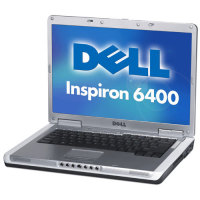
    I recently encountered a problem where a Dell Inspiron 6400 displayed three base system devices after installing Windows XP onto the machine. It originally had Vista installed, so I only had Vista drivers, which didn’t work with Window XP.

    About a year ago, someone I know purchased an Inspiron 6400 laptop from Dell and tried to get XP installed on it instead of Vista. They had no luck and ended up with Vista. Recently, they have decided to remove Vista and install XP on that same laptop, and asked me to do it. No problem, at least until I ended up with three devices that weren’t recognized by XP.

    If you have an Inspiron 6400 and have noticed three base system devices in the device manager, then I will explain how to correct that issue in this post.

    (more…)

  • Review: Workout Mommy

    There are many blogs and Web sites online that are devoted to exercising and health, and many of them indicate that it can take up to an hour each day to exercise. For many mothers, it is hard to find time to exercise when taking care of a child.

    This week’s review is a blog called Workout Mommy that is about exercising, and is especially geared towards mothers. The information provided can be used by anyone having trouble finding time to exercise.

    (more…)