Search results for: “label/Web Site – Review”

  • Organizing Digital Archives

    A few months back I wrote a post call Data Archiving Method where I talked about which media I chose to backup my scanned photo and negative archives. I also mentioned the labeling method I chose to keep track of each photo. I haven’t wrote much about archive since then so I decided to provide more information for those that are archiving.

    In this post I will elaborate on the organizing and photo properties that I have chosen for the archives.

    (more…)

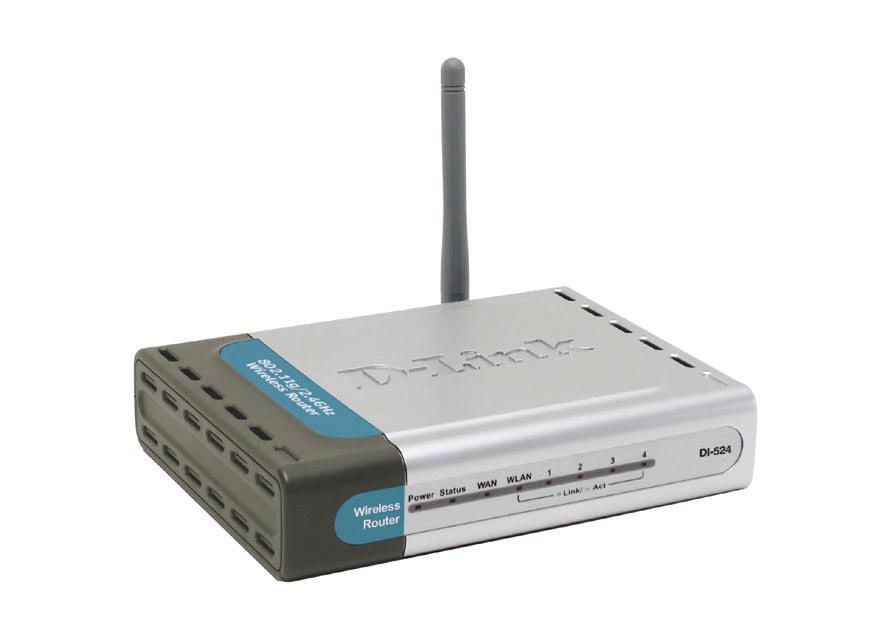
  • How to Reset the D-Link DI-524 Wireless Router

    How to Reset the D-Link DI-524 Wireless Router

    Some time ago I wrote a post titled Securing D-Link DI-524 Wireless Router. In that post I outlined the steps needed to secure that particular wireless router.

    More recently I wrote another post title How to Reset the Linksys WRT54G Wireless-G Router and decided to write a similar post on reseting the DI-524 router.

    Reset Button

    Note:

    Reseting the router to the factory defaults will delete any changes you have made to the router, including any security settings. This should be used as a last resort.

    The steps involved in reseting the router is simply pressing a button located on the router. The image below (courtesy of D-Link) shows where the button is located.

    Reset Button Location
    Location of the D-Link DI-524 Reset Button

    To reset your router, use the following steps:

    1. Press the reset button for 10 seconds. You can use a small object, such as a paper clip to hold down the button.
    2. Do not power off the unit while the router is being reset.

      The unit should now reboot, and once the WLAN light stops blinking the router should be reset.

    3. Open up your Web browser and enter 192.168.0.1 in the address bar.
    4. For the login, enter admin as the ID and leave the password blank.

    The router has now been reset. Follow the steps in Securing D-Link DI-524 Wireless Router to secure your router.

    Summary

    This post has provided the instructions you can use to reset your D-Link DI-524 wireless router. If you are having problems with your router, try reseting the router to the factory defaults, and then make the changes again and see if the router starts working.

  • How to Get the IP Address of Your Router

    I have written various posts about connecting your computer to the Internet, including how to connect using two different routers (Linksys’s WRT54G Wireless-G router and D-Link’s DI-524 wireless router), as well as various configurations.

    One topic I haven’t discussed is how to retrieve the IP address of your router. You may not know the IP address if, for instance, someone has configured your router and changed the default address. I will show you how to get it in this post.

    (more…)

  • What You Need to Secure Your Computer

    What You Need to Secure Your Computer

    I have written many posts regarding securing a computer in the past. Many of the posts have gone into detail about using specific software and hardware to secure your computer.

    In this post I will provide a more quick overview of the main components that you should have if you want to secure your computer.

    Hardware Firewall

    A good hardware firewall should be your first line of defense. This piece of hardware is connected directly between your modem and computer, so any data that is sent from the Internet to your computer passes through the firewall. This allows it to protect your computer from malicious traffic.

    I have both a wired and wireless router/firewall connected to my modem. My wired router/firewall is the Linksys 10/100 Mbps Router. My wireless router/firewall is the Linksys WRT54G Wireless-G Router.

    Software Firewall

    This piece of software performs a similar function to it’s hardware sibling. The biggest difference is that it is installed on your computer and runs once your operating system loads.

    You should use this in conjunction with the hardware version since it provides additional protection from bad traffic. Not only does a software firewall monitor traffic that is sent to your computer from the Internet, but it also monitors traffic from your computer to the Internet.

    Why should you monitor traffic sent from your computer? If you have spyware or a virus installed on your computer that is sending information to a server on the Internet, the software firewall will alert you. When you receive the alert you can block that software from sending information and then lookup how to remove it.

    ZoneAlarm is the most popular free software firewall to use. I have tried other free firewalls, but found ZoneAlarm to be the easiest to use.

    Virus Scanner

    Everyone who uses a computer has probably heard about viruses and the trouble they can cause. There are many software packages on the market that can easily help clean your computer from many of these viruses. It is important that you install this type of software to help keep your computer clean and secure from viruses.

    For a good free virus scanner, check out AVG. This is the one I currently use for my computers.

    Anti-Spyware

    Similar to virus scanners, these tools are used to remove malicious software it finds on your computer. Spyware is meant to “watch” you as you surf the Internet, or even record your keystrokes. Installing anti-spyware software will help keep your computer free from spyware.

    Two free and easy-to-use spyware applications are Ad-Aware and Spybot-S&D. I currently use both products on my computers.

    Common Sense

    This is probably the most effective “tool” you can use to keep your computer safe. Don’t open e-mails from recipients you don’t know, or visit questionable Web sites. You may also want to backup your data to keep it safe from computer crashes.

    Summary

    This post provided a quick overview of the tools you will need to keep your computer safe. Besides the hardware firewalls, there are good free alternatives of the tools that you will need.

    In the end, however, the best tool you can use is good ol’ common sense.

  • Technically Easy is Moving to WordPress

    After some careful thought I decided to convert Technically Easy from a Blogger blog to a WordPress blog. I had been mulling this conversion over for some time, but have put off doing it. I have liked using Blogger because of the ease of its use. Now i think it is time for me to move to a different platform.

    The conversion will not take place immediately, but over a period of time. Until the conversion is complete, Technically Easy will still be housed at Blogger. I will elaborate more on my thoughts regarding the conversion in this post.

    (more…)

  • How I Converted from Blogger to WordPress

    How I Converted from Blogger to WordPress

    About two weeks ago I decided to take the plunge and move Technically Easy to WordPress. At the time this blog was hosted on Blogger, and I wanted more control over all aspects of my blog.

    As I began to learn WordPress, and thought about all that I needed to do I was overwhelmed. I had never attempted moving a Blogger blog to WordPress before so I had no idea what I was in for. Today, however, I realized that it wasn’t complicated or difficult, and can now say Technically Easy is a WordPress blog. This post talks about how I did it.

    (more…)

  • Free Software that can Replace Your Expensive Software

    There are many great software packages on the market that can help you do pretty much anything you need with a computer. The problem is that the software can cost anywhere from $100 to over $1000 dollars, depending on the software.

    While the software you purchase will do what you need, many people don’t realize that there is similar software you can download online. The best part about this software is that the price is great: free. This post will provide a list of some software that you can use to replace some of the more expensive software for free.

    (more…)

  • What is Technically Easy?

    What is Technically Easy?

    Welcome to Technically Easy. Technically Easy is a blog that was started in June 2007, and has since grown to over 200 articles. This blog provides useful tips, tricks and guides to understanding various technologies in use today. Topics such as blogging, networking, digital cameras, PCs, security, and scanning are discussed.

    Below you will find many of the posts that are available on Technically Easy. The posts listed below are organized into several categories to help you find a specific post you may be looking for.

    I hope you enjoy reading the many articles available on Technically Easy.

    Networking and Security

    More and more homes include at least one computer connected to a router, and then to a broadband Internet connection. The following articles discuss networking, and more importantly – security.

    Types of Broadband Internet Access
    Let’s start out with discussing networking by describing the various types of broadband Internet available. While many may be using cable, there are definitely other options available for broadband.

    Different Methods of Connecting Multiple Computers to One Internet Connection
    There are many ways of connecting multiple computers to a single Internet connection. If you have more than one computer, you can create multiple networks that share the same Internet connection.

    Securing the Linksys WRT54G Wireless Router
    Securing the D-link DI-524 Wireless Router
    These are two of the most popular articles on Technically Easy. Securing a wireless network may not be easy for some, these articles walk you through the process step-by-step for two of the most popular wireless routers.

    Router Settings to Secure a Wireless Network
    For those with a different router than the onces outlined in the two previous articles, you may find this article helpful as it discusses the settings that you should modify to secure your Internet connection.

    Blogging

    There are millions of blogs available to read online, with many more starting up each day. Blogger and WordPress are two of the most popular platforms to use to create a blog. I have written various articles in each platform to help others do more with their blog.

    WordPress or Blogger: Which Platform to Choose?
    This article outlines the various aspects of each blogging platform, and allows you to make your decision on which platform suits you best. Many people have provided their opinions in the comments of this article.

    How to Create Static-Like Pages in Blogger
    Creating Static Pages in Blogger – Part 2
    Once of the pain points of using Blogger is the inability to create static web pages, such as this one. Through some template modification, it is possible to change a post into a static-like page so you can create pages such as a contact and about page on Blogger.

    How I Converted from Blogger to WordPress
    If you are currently on Blogger, and wish to move to a self-hosted WordPress blog, it can be intimidating to do. This post provides a brief outline of the steps I took to ensure a smooth transition.

    Backing Up and Archiving Data

    With the creation and use of digital cameras, there is more need to backup and archive your digital photos. I have been doing this for years, and have written several posts that discuss my archiving workflow.

    What is Your Archiving Workflow?
    I have a rather mature archiving workflow that involves many devices to store my data. I discuss the process I use to ensuring my data is safe and secure in this article.

    Four Months of Using Mozy
    One location where I backup my data is online. I have looked at various options, but explain which one I chose and why I chose it.

    How I Organize My Digital Photos
    If you are like me, you probably have thousands of digital photos. Organizing your digital photos can be daunting task, so I outline my method which allows me to find all digital photos of a person in a matter of seconds.

    Hardware

    All computers include hardware that can store data, display graphics on the monitor, and provide you with great sound. At times, you may have problems with this hardware. I have written several articles that may help use and find problems with some hardware in your computer.

    What is a UPS?
    What is USB?
    What is a Hard Drive?
    There are many articles that discuss various types of hardware. I try to keep the explanations simple and easy to follow, since descriptions can be confusing at times. A few of the articles are listed here.

    Recovering Data from a Hard Drive with Bad Sectors
    Many have lost data because of their hard drive crashing, or reporting bad sectors. In this article I outline a process you can follow to try and recover your data.