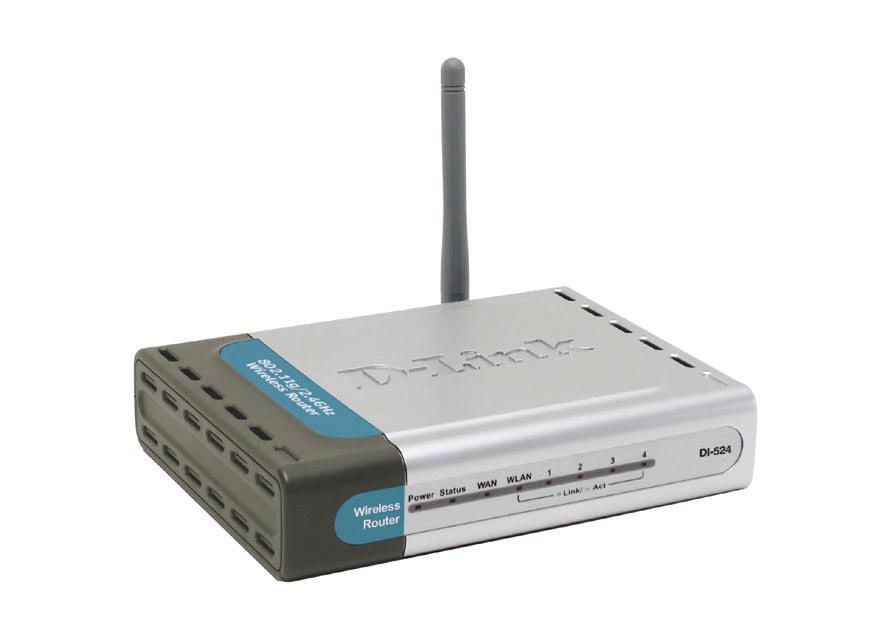
Securing the D-link DI-524 Wireless Router

I recently created a post titled Securing Linksys WRT54G Wireless router in which I provided step-by-step instructions on securing the WRT54G router. The Linksys WRT54G router is a popular router, but it isn’t the only one on the market. In this post I will discuss how to secure another wireless router, the D-Link DI-524.


Securing Your Wireless Router

Note:

If you need to reset your router back to the factory defaults, then please read How to Reset the D-Link DI-524 Wireless Router.

To secure your D-Link DI-524 wireless router, follow these steps:

  1. Open your Internet browser and enter the following in the address bar: http://192.168.0.1.
  2. Note: If you have changed the IP address of your wireless router, enter that into the address bar. By default, the address is 192.168.0.1.

  3. Enter the user ID and password for your router. If you haven’t changed it, the default user ID is admin and the password is blank. We will change it later if you haven’t already changed it.
  4. We will first change the administrative password. First click the Tools tab at the top of the page. The Admin page should be displayed.
  5. Within the Administrator Settings on the right, enter a new password for the administrator beside New Password and then again beside Confirm Password.
  6. Click Apply at the bottom of the page. The next time you access the administrative options, you will need to enter the new password with the admin user ID.
  7. Next, click the Home tab, and then select DHCP on the right. The DHCP Server Web page should now be displayed.
  8. We will now limit the number of IP addresses assigned by your wireless router. Count the number of computers that will connect to the router, and change the Ending IP Address to allow that many computers to connect.
  9. For example, if you have three computers that need to connect to your wireless router, enter 102 into the text box. The first computer will get the IP address 192.168.0.100, the second 192.168.101 and the third 192.168.0.102.

  10. Click Apply at the bottom to save your changes.
  11. Now we will secure you wireless connection to prevent others from connecting. Under the Home tab, click the Wireless option from the left.
  12. Beside the SSID option, enter the name for your wireless network connection.
  13. Beside Security, select WPA. If you can’t connect using WPA, then select WEP. Using WPA will provide a much more secure connection that using WEP. For more information about WEP and WPA please read Wireless Security: WEP and WPA.
  14. Click AES beside the Cypher Type.
  15. Make sure PSK is selected beside PSK/EAP.
  16. Now you must get very creative. Specify a long Passphrase with a mix of upper and lower case letters, numbers and punctuation. Once again, please read Creating Secure Passwords for tips on how to do this. In this case the longer the better.
  17. Make sure you write down this key somewhere, either on a piece of paper or in a text document on your computer. You will need this information when you connect to your wireless network.

  18. Enter your passphrase next to Passphrase and again beside Confirmed Passphrase.
  19. Click Apply to save your security settings.
  20. Now you are all done securing your wireless router and network. All you need to do is connect to your network, and enter your Passphrase exactly as you specified it. I won’t go into detail on how to connect to your wireless network, as I will save that for another post.

Wireless Router Security Connection Questions

Question: How come we didn’t disable the SSID broadcast? Won’t that help with securing my wireless connection?

Answer: It has been mentioned many times that disabling your SSID broadcast will help secure your network. The reality is that those who attempt to get into your wireless network will be able to easily pick up or SSID whether it is broadcasted or not.

You may also have problems connecting to your wireless router if you disable the broadcasting of your SSID. I keep it enabled.

Question: Why do you specify to use WPA – Personal first, and not WEP?

Answer: The reason is that WPA is much more secure than WEP, and therefore you should use that security mode over WEP. An experienced hacker can easily crack WEP encryption so it doesn’t provide as strong security as WPA. If you can’t use WPA, use WEP because it is still better than nothing.

Summary

This post provided step-by-step instructions on securing your D-Link DI-524 wireless router. After following the steps, you should now be confident knowing that you have a secure wireless Internet connection.

Related Posts

How to Reset the D-Link DI-524 Wireless Router
Securing a Wireless Network
Connecting Multiple Computers to Broadband
Wireless Security: WEP and WPA
Creating Secure Passwords
Broadband Internet Connection - Troubleshooting

If you would like to read more posts like this one, subscribe to my feed!. You can also follow Technically Easy on Twitter.

24 Responses to “Securing the D-link DI-524 Wireless Router”:

  1. Very helpful, thanks.

  2. Me says:

    I just want to be sure. I was able to do apply WPA - PSK. My question is my whenever I open my laptop, it automatically connects to the wireless network. Isn’t it that it should ask my network key first every time I open it? Or does my laptop remember the first time I entered my passphrase?

    Thanks. Hope you can answer me.

  3. Paul says:

    The passphrase is remembered so you don’t have to worry about entering it each and every time.

  4. Star says:

    Hmm can you explain me for this please: http://img517.imageshack.us/my.php?image=routerph5.jpg
    Its quite different from what you said
    P.S. My email is dedi4you@yahoo.com

  5. Me says:

    Thank you for replying. Now one more question if you don’t mind. There is no log out button in my router’s web page, 192.168.something. I just close the page, that’s it and I’m logged out?

  6. Paul says:

    You can simply close the browser.

  7. Me says:

    Thank you. You have been very helpful to me. :)

  8. [...] Technically Easy has to do with securing two different wireless routers: the Linksys WRT54G and the D-link DI-524. At this time I only have those two guides available on securing wireless [...]

  9. Best says:

    I have the same problem as Star who posted on November 19.

    “Star November 19, 2008 7:23 am
    Hmm can you explain me for this please: http://img517.imageshack.us/my.php?image=routerph5.jpg
    Its quite different from what you said”

    I can’t find anything after step 11.

  10. [...] the Linksys WRT54G Wireless RouterSecuring the D-link DI-524 Wireless RouterHow to Get the IP Address of Your RouterRouter Settings to Secure a Wireless [...]

  11. Joseph says:

    Thank you VERY much !!! your detailed instructions did the trick ! i must admit that i had spent hours searching and following other techs suggestions but once i stumpled across yours, it was a breeze. once again, thank you ! cheers ! … Joseph

  12. Caged says:

    thanks for the info on the D Link router, i am curious however as to teh pros/cons of using TKIP opposed to AES encyrption, also in my installation I have two wired PC (Cat5) and then a wireless link to a laptop, I also have a Cat 5 link running from the D-link to another wireless router to act as a “repeater” for being out in the garden (come summer) I am damned if I can get XP pro to let all computers have a file/printer share and shared drives, half the time I can’t get the PCs to see eachother, and even when they can I can’t access shared drives or print.
    Any suggests most appreciated.

  13. Oveis says:

    Thanks. but the problem is when I select WPA to prevent others from connecting, I don`t have Cypher Type. instead I have encryption which I select AES. then I don`t have any option for PSK /EAP. then it doesn`t ask me for Passphrase. instead, it asks me about “802.1X Settings” which contains questions about “RADIUS Server IP”, “RADIUS port” and “RADIUS Shared Key”.

    I don`t know what`s wrong with my router. but it seems that something is not in its right place. please help me.

  14. [...] re?eaua cu vreo doi ani înainte, a?a c? am c?utat ?i g?sit o surs? bun? de informa?ii aici. Am resetat ruteru’, problema era aceea?i. Dup? înc? vreo or? de bâjbâial? am [...]

  15. Toria says:

    Thank you for taking the time out to go through these steps! I haven’t tried it yet, but I plan to asap.

  16. Mike says:

    I’ve got the DI-524 all secure and ready to go, however it still doesn’t show up on my laptop when I try to find it. I think I need to change the channel but I don’t know what channel to change it to. Your help is much appreciated in advance. Thanks!

  17. Mike Mc says:

    Your article, and the one on resetting the router wonderfully helpful. However I have tried your instructions to secure the router soooo many times…. I can get the router to show up on the list of wireless connections and can then connect with it BUT I cannot seem to get into crypto or secured mode. (I thought I had it once but was so concused by it all that I wasn’t sure). ANY help greatly appreciated.

  18. ELLY says:

    hello,

    I have many problems with my dlink di524, sometimes i just can’t connect but i always have e very good signal. When I reset dlink it’s fixed. It happens once a month for a few times and then it’s once in two weeks.
    When it was daily I went back to my shop and said something was wrong with the dlink. They tried it but they had no probs.
    I took it home and it worked for a month until te probs started again. Try to explain that to a shopmember ;-)
    Do any of you have such probs?

    grtzzz

    • Paul says:

      Once in a while I do lose my Internet connection, although I can still connect to the router. When that happens I usually unplug the router and reset the cable modem. Once the modem is back online, I then power up the router.

      When you mention you can’t connect - does this mean you can’t connect to the Internet, or to the router itself? If it is the Internet, it may want to contact your ISP. If it is the router, it could be a hardware issue, even though the shop couldn’t find a problem. If your router is several years old, you may want to then look into getting a new one.

  19. Semana D says:

    [...] Tutorial: como deixar seu roteador D-Link mais seguro [...]

Leave a Reply