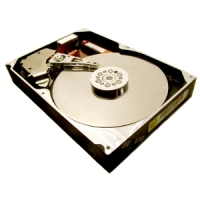
I have dealt with many hard drive failures in the past, and most of the time it was the result of bad sectors. Other times it was a complete failure where the hard drive wouldn’t even power up. In the latter instance there isn’t much you can do to retrieve your data.
As for bad sectors, you may still be able to retrieve your data, if you have the right tool. It is difficult to copy data from a damaged hard drive, especially in Windows since it would usually stop the copy when it encounters a bad sector. Recently, I managed to retrieve over 5GB of data from a hard drive with many bad sectors, and in this post I’ll tell you how I did it.
What are Bad Sectors?
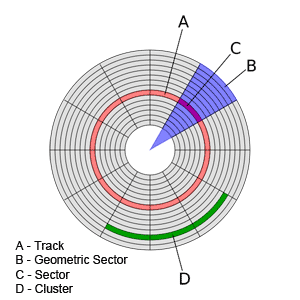
Hard drives consist of several circular platters that use magnetism to store the bits of data. Each platter is then divided into tracks, which run in a circular pattern around each platter. Each track is broken into many smaller pieces called sectors. To reduce overhead, sectors are grouped together in clusters.
A bad sector occurs when there is physical damage to a part of the hard drive. Modern hard drives are created with many spare sectors. When the disk controller’s firmware in the hard drive detects a bad sector, it remaps that sector to another physical sector on the hard drive. This remapping is transparent to the operating system. Once the hard drive runs out of space sectors, meaning it can’t remap existing bad sectors, the operating system will begin to detect these bad sectors. Once detected, the operating system will mark these sectors to prevent them from being used in the future.
As the hard drive accumulates more bad sectors, you may begin to lose data, have your system crash more frequently, or have your entire system become very slow and unresponsive. This means that you should be backing up your data and replacing your hard drive.
How do you go about backing up your data, if you already have bad sectors? Windows doesn’t handle copying data from a hard drive with bad sectors very well. Actually, it doesn’t handle it at all. For that you need to install another tool. The steps below outline how I managed to recover data from a defective hard using such a tool.
TestDisk from CGSecurity
When I recently received a hard drive with many bad sectors I decided to try and recover some of the data. The important thing is to see if the hard drive was still able to be powered, and that both the BIOS and Windows was able to detect the drive. As luck would have it, I was able to boot up my computer and detect the drive. Here is what I did to get the data:
- I connected the problem drive as a slave to an existing system. After configuring the BIOS for the new drive, I loaded Windows. Windows took much longer to load because of the defective drive, but it eventually was able to load.
- Next I opened up my web browser and navigated to the TestDisk page on the CGSecurity wiki web site.
- Once I downloaded and installed the tool, I started up the application.
- The first screen prompts for action about log files. I selectedt Create and pressed Enter.
- The next screen lists all hard drives detected by the tool on mysystem. I simply highlighted the hard drive with the problem and pressed Enter.
- Next I selected the partition type. For PCs select Intel, for other’s you would select the corresponding option. Since Intel was selected, I pressed Enter.
- I was now presented with a list of options. To copy the data I needed to select Advanced and then pressed Enter.
- The next step listed the various partitions on my hard drive. I selected the partition that contained the data I wanted to copy and pressed Enter.
- I know saw the partition I selected at the top. At the bottom was a menu. In the menu I highlighted List and pressed Enter.
- A list of directories on the partition was now displayed. I selected a directory I wanted to copy and pressed c.
- When I was prompted to perform the copy, I pressed Y to begin the copy.
- I was informed when the copy has completed, and whether any errors occurred. From this point I could have selected another file or directory to copy.
Using the above steps I managed to copy over 5GB of data very quickly from a hard drive that had many bad sectors. I haven’t checked all the data, but the files I did check opened up without an issue.
Have Your Say
- Have you lost data because of a hard drive crash?
- Were you able to restore data from a hard drive with bad sectors?