Search results for: “label/Web%20Site%20-%20Design”

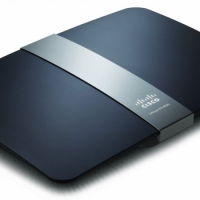
  • How to Secure the Linksys EA4500 Wireless Router

    How to Secure the Linksys EA4500 Wireless Router

    Wireless routers, by default, are unsecured when you connect a router for the first time. This is important to know as you will need to take the necessary steps to secure any wireless router that you have just purchased.

    With regards to Linksys routers, the steps to secure the router are very similar, so if you have trouble finding proper steps to secure your Linksys router, you can usually follow steps for another Linksys router.

    To make it easier for owners of the Linksys EA4500 wireless router, I will provide the steps to secure the router below.

    Steps to Secure the Linksys EA4500 Wireless Router

    If you have owned a Linksys router in the past, the steps I outline below make look familiar, that is because the firmware that is included with the various Linksys routers look very similar.

    I have divided the steps into several sections to make it easier to follow, and to indicate what tasks each group of steps perform.

    Loading the Router’s Web Interface

    Before securing your Linksys EA4500 you will need to access the Web interface. This is done by opening a Web browser and navigating to the router’s Web interface.

    Note:

    I suggest that you use Internet Explorer, if available, to access the Web interface. Many users have reported problems with accessing the Web interface for a router with other Web browsers.

    1. Open you Web browser and then enter 192.168.1.1 in the address bar.
    2. The router will then prompt for a user name and password. Leave the user name field blank, and type “admin” (without the quotes) in the password field.

    Change the Router Password

    Once you have access to the Web interface, the first steps you should perform are to reset the password needed to access the Web interface. Unfortunately, you can’t change the user name with the stock firmware, buy making the password long and complex should provide enough protection.

    1. Click the “Administration” tab from the menu at the top.
    2. Next, if the “Management” page isn’t display, then click the “Management” link at the top.
    3. In the “Router Access” section, enter a new password for the router, and then enter the same password in the second field to confirm.
    4. Click the “Save Settings” button at the bottom.
    5. The router will then save the new password, and you will be required to re-login again with the new password. The user name will still be blank.

    Setup the Wireless Network

    The steps outlined in this section are probably the most important steps to follow. These steps will secure your wireless networks from unauthorized users. Failure to perform these steps will allow anyone access to your wireless network.

    The Linksys EA4500 allows devices to connect to it on either the 2.4 GHz or 5 GHz frequency. In order to make a device connect to either frequency without having to change networks, we will be making both frequencies use the same network name (SSID).

    1. Log into the router, if you haven’t already done so, and then click the “Wireless” tab at the top.
    2. By default, Wi-Fi Protected Setup (WPS) is selected, which is unfortunate because WPS is not secure. Click the “Manual” option to switch from WPS.
    3. For both the 5 GHz and 2.4 GHz sections use the following settings:
      • Network Name (SSID): The name for your network. This is the name that will appear in the list of wireless networks that can be detected by wireless devices.
      • Security Mode: WPA2 Personal or WPA Personal.
      • Passphrase: Enter a long and complex string of characters, numbers and symbols. This is the most important element to secure your wireless network.
    4. Click the “Save Settings” button at the bottom to save your security settings.

    After you perform the steps outlined in “Setup the Wireless Network”, you can then select you wireless network from the list of available networks and then enter the passphrase that you have created. Anyone that connects to the wireless router will need to enter this passphrase – unless you setup guest access within the router.

    At this point your Linksys EA4500 wireless router is secured, and no unauthorized users should be able to gain access to your network or router.

  • Securing the Linksys WRT54GL Wireless-G Router

    Securing the Linksys WRT54GL Wireless-G Router

    Two of the most popular posts on Technically Easy has to do with securing the Linksys WRT54G and D-Link DI-524 wireless routers. With many people using wireless routers at home, it becomes more important to secure the connection to the router form a computer. When I turn on my laptop at home, I can see at least five wireless networks (all secured).

    I decided to write another “how to secure a wireless router” guide, to help those who may not have one of the two routers listed above. This guide will describe the steps you need to take to secure the Linksys WRT54GL Wireless-G router. The steps required are very similar to the WRT54G, but to avoid any confusion, I created this guide.

    (more…)

  • A Sneak Peek at Microsoft Edge – the Next Generation of Web Browser

    A Sneak Peek at Microsoft Edge – the Next Generation of Web Browser

    Internet Explorer has died. Well, let’s be honest, it has been on its last legs for some time now. Rumors of Project Sparta, Microsoft’s replacement browser, have been circulating for months. Then last April the software giant announced the creation of Microsoft Edge – a revolutionary new web browser.

    Featuring a clean interface that is much more consistent with the new direction Microsoft has taken their operating system, Edge provides a look at the future of browsing. Lightweight, stripped down (with over 222,000 lines of code removed), and much faster, all Windows 10 devices will include Edge as their default browser.

    One of the major problems that Internet Explorer has faced is its inability to compete in the mobile browser market – making Edge a little late to the game. Safari dominates iOS devices, while Chrome Mobile and Android’s native browser share the majority. Internet Explorer accounts for just 1.8% of the overall mobile browser usage. Microsoft Edge looks set to fix this. Designed to work across devices, Edge is a Web app that will make it a serious contender in the browser world.

    (more…)

  • Connecting Multiple Computers to Broadband

    Broadband, or high-speed, Internet connection is what many users currently use in their home. Along with high-speed Internet, many users may also use a router to allow multiple computers to connect to the Internet. This post will describe how a router is used to connect multiple computers. To make it easier to understand, I will use where you live as a comparison to how your computer is connected to the Internet.

    (more…)

  • How To Track Outgoing Links with Google Analytics

    I use Google Analytics to monitor the traffic on Technically Easy. It is a popular, free tool that provides a wealth of information about the visitors to your web site. The problem that I find with Google Analytics is that it doesn’t track outgoing links to my blog. I would be interested to know how many of my visitors click on some of the provided outgoing links, such as my RSS subscription link.

    I recently found the answer to my problem, and how I can use Google Analytics to not only track links to other pages in Technically Easy, but also the outgoing links to other sites.

    (more…)

  • Photoshop JPEG Settings

    Photoshop JPEG Settings

    I have written several posts in the past relating to digital photos, and more specifically JPEG files. I have talked about the differences between JPEG and RAW files. In one post I also compare JPEG and GIF files, and provided examples to illustrate when to use a particular file type. The JPEG and GIF post also listed the settings I used to get the resulting image in Photoshop.

    When you save an image you are provided with many options to optimize your image for size and appearance. In this post I will describe each of the features associated with JPEG files to hopefully help you make a better decision.

    (more…)

  • Photoshop GIF Settings

    I have recently wrote a post titled Photoshop JPEG Settings where I described the various settings for a JPEG image in Photoshop. The settings were available via the Save for Web option in the File menu.

    In this post I will discuss the settings that you can change when saving an image as a GIF. There are more options available for a GIF file, mainly because of the limited colours (256) that can be saved in a GIF image file.

    (more…)

  • Review: Fussy Baby

    As a parent of two young children, I know how frustrating it can be when your child is constantly crying and doesn’t seem to want to stop. Raising a child under such circumstances is very difficult, and at times can cause you to lose your nerves.

    This week I review a web site, not a blog, that provides information on getting you and your baby through the difficult days. Those with infants and young children may find the site very interesting.

    (more…)