
Search results for: “label/Web%20Site%20-%20Design”

  • Credential Stuffing is a Serious Issue Made More Popular by the Dark Web

    Credential Stuffing is a Serious Issue Made More Popular by the Dark Web

    Account takeover is one form of identity theft. Data breaches allow threat actors to steal credentials and then take over accounts for monetary gain. This creates a problem for businesses as well as consumers.

    SpyCloud offers protection by preventing account takeovers. They essentially do this through monitoring login credentials and alerting account holders when their credentials are breached.

    How security breaches occur

    First, a hacker will hack into a site and steal login credentials of account holders. This generally includes email addresses, usernames, and passwords.

    The Linkedin security breach of 2012 is one example of this. Over 160 million accounts had their login credentials stolen. An even larger breach involved the company Exactis, in which 340 million records were breached. Information included email addresses, physical addresses, and phone numbers.

    Data for sale

    Once the hacker has obtained these login credentials and potentially other personal information, they sell it online. The Dark Web offers much more anonymity, allowing lots of illegal activities to take place.

    The Dark Web is part of the World Wide Web. However, you won’t find these sites by doing a Google search. Instead, the Dark Web uses a Tor browser. Everything is anonymous and encrypted, with most transactions occurring through bitcoin to maintain anonymity.

    It’s easy to see why the Dark Web is seen as the place to sell information obtained from data breaches. Login credentials are compiled into lists, known as combo lists. These lists are then sold either through the dark web or the internet.

    Credential stuffing

    Given the number of accounts and passwords that people are expected to remember today, it’s not surprising that many people use the same login information for multiple sites.

    Credential stuffing was once something that had to be performed manually. If you wanted to find out if someone’s Paypal login credentials were the same as Linked In, for example, you would have to go to Paypal and enter the information in.

    However, now there are tools that essentially perform the attempts for you. You import the combo list file, and the program will test all the login credentials on many other sites.

    About 2% of credential stuffing attempts are successful. However, the sheer amount of data that can be obtained and the relative ease of credential stuffing with these programs makes it very lucrative.

    Account takeovers

    Once the criminal has found an account that can be logged into with the login credentials they purchased, they have access to the account. They can then use the account for a few purposes.

    First, they can use the account to gain even more personal information. This could include physical addresses, phone numbers, birth dates, or driver’s license numbers.

    Second, and more commonly, they can use the account for some type of financial gain. They may be able to make purchases on the site or transfer funds to their account.

    Other types of accounts are targeted as well. Services like Netflix and companies that offer loyalty programs and points are sometimes targeted.

    Cost to businesses

    Its estimated that credential stuffing costs businesses $6 million dollars each year. Unfortunately, only 30% of companies have taken steps to prevent account takeovers due to credential stuffing.

    This is likely because most people believe that the steps needed to prevent these types of attacks inconvenience legitimate users. In fact, 70% of people within organizations believe that taking steps to stop these attacks negatively affect the experience of legitimate users.

    Preventing account takeovers

    Spycloud uses a relatively simple system to prevent account takeovers. It essentially monitors login credentials. If these login credentials have been compromised in a breach, it will notify the account holder when they attempt to login.

    Instead of simply requiring them to change their password, it sends a reset password link to their email address. This is done in case the person attempting to login is the criminal instead of the account holder.

    Account takeovers are a big problem for consumers and businesses. Considering the ease and potential financial gain for criminals, it is also a problem that is going to be around for the foreseeable future. However, preventative measures can prevent account takeovers, keeping businesses and consumers safe.

  • Setting Up a Home Network

    With the increase in high-speed or broadband usage, it is more common to see more homes connecting multiple computers to the Internet. Setting up a home network to allow multiple computers to connect to the Internet is easy to do.

    Use the following steps to get your network running.

    1. Necessary Equipment

      Before creating a network, ensure that you have the necessary equipment. You will need the following:

      1. A broadband internet connection. This includes cable and DSL, but not dial-up.
      2. A router, preferably one that includes a firewall.
      3. A desktop or laptop with a network card. If you currently use broadband, then the card the modem is plugged into is your network card.

      Once all the equipment is unpacked and ready to go, it is time to connect it all up.

    2. Connecting the Router

      At this point you may want to print the instructions first before continuing. The next few steps will require your Internet connection to be disconnected temporarily while all the equipment is connected together.

      To connect the router, use the following steps:

      1. Disconnect your computer from the modem by removing the network cable from the modem. This will now prevent you from connecting to the Internet since you are no longer connected to the modem.
      2. At the back of the router, there are several ports. They look like large telephone jacks. Connect the network cable from your computer into one of these ports.

        Note: Some routers have a port that can be used to connect a computer or your modem into. These ports are usually labeled Internet or Uplink. Don’t plug your computer into this port.

      3. Connect the power cable into the router and ensure that it is on. There should be lights on that indicate which port your computer is connected to. If you are unsure of where to look, please read the documentation that came with the router.
      4. If the computer is off, turn it on and log in. Once the computer has finished loading, click Start->Run and then type cmd.exe in the Run window.
      5. A DOS command prompt should be displayed on the screen. At the prompt type ipconfig. If your computer is connected to the router correctly, you should see some important information:
        • IP Address This is the address assigned to your computer from the router. Usually it would be in the form 192.168.1.nnn, where nnn is a number between 1 and 255.
        • Subnet Mask This is also assigned by the router, and usually is 255.255.255.0.
        • Default Gateway This is the internal IP address of your router. This information is important because using a browser a connecting to that IP address will open up the router setup.

        Save the default gateway address, since we will be using that next.

      6. Open a Web browser (Internet Explorer, Firefox, Netscape) and type in the following address: http://Default Gateway IP Address where Default Gateway IP Address is the address from the previous step.
      7. When prompted for a user ID and password, use the one supplied by the router. You can find this information in the documentation that came with your router. Router makers have different user IDs and passwords.
      8. The first step to securing the router is to change the administrative password, and if possible, the administrative ID. One of the options in the setup will allow you to change the password. Make it easy to remember, but not easy to guess.
      9. Don’t close your Web browser just yet before we connect the modem. If you do, simply reopen the Web browser and navigate back to your router setup.
    3. Reconnecting to the Internet

      Once the router has been connected to your computer, it is now time to restore your Internet connection.

      1. Connect a network cable into the modem, in the same port as last time.
      2. With that same cable, connect it into the port labeled Uplink or Internet on your router. A good indication that a connection has been made is a new light may be lit on your router.
      3. Open up a new Web browser and try to connect to the Internet. If you get a Web page then your Internet connection is up and running. If you don’t see a Web page, then continue to the next step.
      4. Return to the router setup Web browser. There should be a page that indicates your IP address assigned by your Internet Service Provider (ISP). Once again, please check the documentation for the location of this page. This will usually contain a refresh button. Click that button to update the router information with that provided by your ISP. If an IP address is populated in that page, then you have now re-established your connection to the Internet.
      5. Open up a new Web browser and try to connect to the Internet. If you get a Web page then your Internet connection is up and running. If you don’t see a Web page, then continue to the next step.
    4. Troubleshooting

      If you are having trouble accessing the Internet after connecting the modem, use the following steps to solve the problem:

      1. Disconnect the power from your modem and router.
      2. Wait a few seconds, then connect the power to the modem.
      3. Once the modem has finished loading, connect the power to the router.
      4. Wait for the router to finish starting, then attempt to connect to the Internet.
      5. If you still can’t connect, click Start->Run and then type cmd.exe.
      6. At the DOS prompt, type ipconfig /release to release all your network connections.
      7. Once you get the prompt again, type ipconfig /renew to refresh all the network connections.

    Notes

    If you would like to disconnect the router and connect directly to the modem, which I don’t recommend, use the following steps:

    1. Power of the router.
    2. Remove the cable from the computer that is connected to the router.
    3. Remove the cable from the router that is connected to the modem.
    4. Connect the cable from the modem to the network card in the computer.

  • Securing the Linksys WRT54G Wireless-G Router

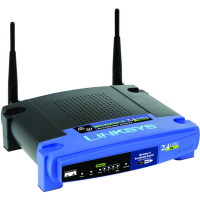
    Securing the Linksys WRT54G Wireless-G Router

    I discussed establishing good wireless network security in a post titled Securing a Wireless Network, but now I will discuss securing the Linksys WRT54G wireless-G router. I currently have a Linksys WRT54G Wireless-G router. When I work from home I use this router to connect to work through VPN, and have done it without any problems. It has made a great cable router for my broadband connection.

    The big issue with wireless networks is security. As anyone with a wireless network card within a few hundred feet of your router can connect to your router. To prevent this from happening, it is important to secure your router.

    Securing the Linksys WRT54G Wireless-G Router

    Note:

    If you need to reset your router back to the factory defaults, then please read How to Reset the Linksys WRT54G Wireless-G Router.

    To secure your Linksys WRT54G wireless router, follow these steps:

    1. Open your Internet browser and enter the following in the address bar: http://192.168.1.1.
    2. Note:

      If you have changed the IP address of your wireless router, enter that into the address bar. By default, the address is 192.168.1.1.

    3. Enter the user ID and password for your router. If you haven’t changed it, the default password is “admin”. We will change it later if you haven’t already changed it.
    4. You should now see the “Basic Setup” Web page display in your browser. Scroll down the page until you see “Maximum Number of DHCP Users”.
    5. This option will assign a specific number of IP address to computers. If more than this number of computers tries to connect to your router, they will not be able to.

    6. Count the number of computers that will connect to the router, and type it into the “Maximum Number of DHCP Users textbox”.
    7. Scroll down to the bottom of the Web page and click “Save Settings”. Once the settings have been saved, click “Continue” to return to the Web page.
    8. At the top of the Web page, click the “Administration” option in the menu bar.
    9. On the “Management” Web page, you should see two password text boxes. This is where you should change your administrative password. Type in a new secure password into both boxes. If you need help creating a secure password, please read Creating Secure Passwords.
    10. Once you have changed your password, click “Save Settings” at the bottom of the Web page.
    11. You may be prompted to login again, if you are then enter you new password in the password field.
    12. Navigate back to the “Management” Web page by clicking the “Administrative” option in the menu.
    13. We will now encrypt your connection to your router setup from your computer. To do this click the “HTTPS” checkbox next to the “Access Server” option.
    14. Once again, click the “Save Settings” button at the bottom of the Web page.
    15. You won’t get the settings saved page again because the URL in the address bar is not longer correct. Since you have changed your connection to HTTPS, it you need to specify that in the address when you connect to the router setup.

    16. In your browser, change the address to: https://192.168.1.1.
    17. If you get a security error, ignore the error and continue to the Web page.

    18. Login with your password and then click the “Wireless” menu option.
    19. Beside the “Wireless Network Name (SSID)” option, type in a name for you network connection.
    20. Click the “Save Settings” button and the “Continue” button to return to the “Basic Wireless Settings” page.
    21. Click the “Wireless Security” sub-menu option at the top of the page. This is where we will provide the most important security setting.
    22. Next to “Security Mode”, select “WPA – Personal” from the drop-down list. If you have trouble connecting to your wireless connection, you can try selecting “WEP”, but your connection will be much less secure. For more information about WEP and WPA please read Wireless Security: WEP and WPA.
    23. Next to “WPA Algorithms”, select “AES”. Once again if you have trouble connecting to your wireless router, select “TKIP”.
    24. Now you must get very creative. Specify a long “WPA Shared Key” with a mix of upper and lower case letters, numbers and punctuation. Once again, please read Creating Secure Passwords for tips on how to do this. In this case the longer the better.
    25. Make sure you write down this key somewhere, either on a piece of paper or in a text document on your computer. You will need this information when you connect to your wireless network.

    26. Click the “Save Settings” button at the bottom of the Web page, and then the “Continue” button.

    Now you are all done securing your wireless router and network. All you need to do is connect to your network, and enter your “WPA Shared Key” exactly as you specified it. I won’t go into detail on how to connect to your wireless network, as I will save that for another post.

    Wireless Router Security Connection Questions

    Question: How come we didn’t disable the SSID broadcast? Won’t that help with securing my wireless connection?

    Answer: It has been mentioned many times that disabling your SSID broadcast will help secure your network. The reality is that those who attempt to get into your wireless network will be able to easily pick up or SSID whether it is broadcasted or not.

    You may also have problems connecting to your wireless router if you disable the broadcasting of your SSID. I keep it enabled.

    Question: Why don’t you filter who connects to your wireless router using the MAC address by turning on MAC address filtering?

    Answer: This is another tip you may see on the Internet about securing your wireless network. There are a few problems with turning on the MAC address filtering.

    The first problem is that a hacker can easily spoof a MAC address, and therefore bypass the MAC filtering. The second is that you need to manage the MAC addresses of all network cards attempting to connect to your router. Since it really doesn’t provide a lot of security, it is just easier to keep it turned off.

    Question: Why do you specify to use WPA – Personal first, and not WEP?

    Answer: The reason is that WPA is much more secure than WEP, and therefore you should use that security mode over WEP. An experienced hacker can easily crack WEP encryption so it doesn’t provide as strong security as WPA. If you can’t use WPA, use WEP because it is still better than nothing.

    After following the steps, you should now be confident knowing that you have established a good wireless network security which provides a secure Internet connection through your Linksys WRT54G Wireless-G router.

  • Preventing Duplicate Content in Search Engines With WordPress

    I was recently looking at Google’s Webmaster Tools, and more specifically the robots.txt section. As I reviewed the robots.txt for my blog, I thought about whether I can make it better. For those who aren’t familiar with the file, it provides information to web robots about what files/directories they shouldn’t access. Search engines use web robots to add pages to their search results.

    As I was reviewing the robots.txt file, I was thinking about a more efficient method of preventing duplicate content from appearing in the search results without having to modify the robots.txt file. After performing a search I found a good way of handling it within WordPress.

    (more…)

  • Increase Online Privacy and Protection: Top Add-ons for Mozilla Firefox 4

    Increase Online Privacy and Protection: Top Add-ons for Mozilla Firefox 4

    Mozilla Firefox 4 is a great web browser to use—not only is it fast, but thanks to its strong anti-phising filter, it can help protect users from a variety of cyber threats, including hackers and viruses. But just because Fire Fox 4 is one of the leading web browsers doesn’t mean users shouldn’t take caution when surfing the internet.

    In fact, users should go one step further and boost their privacy protection by downloading add-ons—extensions that are designed to improve Firefox’s performance and efficiency.

    (more…)

  • Most Essential Web Design Elements For Business Websites

    Most Essential Web Design Elements For Business Websites

    The accessibility of websites is increasing rapidly with the mobile phones, smart phones, tablet pc, laptops, joining the ranks for internet use, as the overall trend shifts towards greater mobility and extensive bandwidth.

    Furthermore, there is an increased competition between different business websites for online domination.

    Surviving such cutthroat market conditions is not an easy task for most small businesses in their early stages.

    Regardless of the size of the enterprise, they all are looking for an adequate online presence and identity that can do justice to their business and increase their overall sales output.

    In order to get full benefit from their websites, businesses should give emphasis on the following web design elements and request the hired web design company to do the same.

    (more…)

  • Server Header Responses 101 [Infographic]

    Server Header Responses 101 [Infographic]

    When you request a web page online there may be times where you may see an error page appear on the screen. While it can be frustrating to see such a page, mainly because that means the content you were looking for won’t appear, the error number that appears actually has meaning to the owner of the web site.

    There are many different status codes defined for requesting and sending data online, and all pages sent from the Web actually return one of several different status codes.

    (more…)

  • 10 Tips for Choosing the Right Web Hosting Company

    10 Tips for Choosing the Right Web Hosting Company

    Starting an online business or personal website requires a secure and reliable host. If you are new to the industry, it may be confusing to determine what to look for in a hosting company. What’s important? What are the key differences? Below are a few tips to keep in mind when choosing a host for your site.

    Some of the key elements when selecting a host are: support, down time, backup options, plugins or widgets, whether you can upload using FTP, whether you have access to a control panel, what other sites would share your IP address, where their servers are located, price by bandwidth and site.

    (more…)