Search results for: “label/Web Site – Review”

  • 8 Best WordPress Security Plugins for Your Blog

    8 Best WordPress Security Plugins for Your Blog

    Most of you are already familiar with WordPress and the way its countless plugins make life easier for you, right? But have you ever wondered about the exact number of WordPress plugins populating internet right now?

    This might surprise you, but WordPress hosts about 43,458 WordPress plugins as of now, easing out millions of people in everything from niche blogs to comprehensive eCommerce sites.

    In fact, according to this report by W3Techs, 59.2% of all websites with content management system known to us, use WordPress, which equates to about 26.3% of all websites.

    Despite the entire boom internet is enjoying as a phenomenon right now, online security remains its one of the weakest areas. But the good news is that WordPress is striving hard to cater to the security requirements of billions of its users.

    In this post, I have brought up 8 of the best security plugins you might like to consider safeguarding your WordPress blog. So, here you go:

    1. Wordfence Security

    Also referred to as the most downloaded security plugin on WordPress, Wordfence Security is really best at what it does, occupying the top spot in my list also because it’s totally free and open source.

    Currently, It enjoys over a million active downloads backed with a solid 4.9 out of 5 stars ranking.

    Some of its major features include:

    • It aptly blocks known attackers on real-time basis, automatically updating your WordPress blog/site for any attacker it blocks on some other site it is installed on.
    • It can also secure you by blocking entire malicious networks with the help of firewall, thanks to advanced IP and Domain WHOIS it features.
    • Also offers two-factor authentication, enabling you to sign-in through your cell-phone, which is also referred as ‘cell-phone sign-in’.

    2. iThemes Security (formerly Better WP Security)

    The iThemes Security plugin serves best in protecting your WordPress blog/site by hiding away its critical areas, securing vital files and guarding from forceful login attempts.

    Until now, it’s been downloaded more than 700,000 times, having 4.7 out of 5 stars in ranking.

    It offers some rally amazing security features in its pro version, some of which include:

    • Helps you in tracking activities of users like logging in, logging out and content editing.
    • You also get two-factor authentication feature with it.
    • Assists in saving time when setting up multiple WordPress sites by taking care of import and export actions.
    • Empowers you to manage functions like system scans and user-banning right from your WordPress dashboard.

    3. All In One WordPress Security

    If you want to enhance your WordPress security to the next level, All In One WordPress Security & Firewall plugin is your best bet.

    It not only runs security checks to identify any vulnerability in your site, but also implements and enforces latest security practices and techniques as recommended by WordPress.

    It enjoys over 300,000 active downloads with an astonishing 4.8 out of 5 stars ranking. Some of its major features are:

    • Its Login Lockdown features make sure your blog is protected against ‘Brute Force Login Attack’.
    • Enables you to create strong and secure passwords with its Password Strength Tool.
    • Enables you to view a list of users logged into your site at any particular time.
    • You can ban users by blocking whole IP address ranges.

    4. Sucuri Security

    Offered free to WordPress users, Sucuri Security is a popular WordPress plugin having over 200,000 active downloads with a 4.6 out of 5 stars rating. Its major features include:

    • Auditing all security activity.
    • Monitoring file integrity.
    • Remote malware scanning.
    • Security notifications.
    • Blacklist monitoring.
    • Website firewall (add on).

    5. BulletProof Security

    Want to make sure your WordPress site is protected efficiently? Choose BulletProof Security plugin like 100,000+ WordPress users worldwide, ranking it a handsome 4.7 out of 5 stars because of the value it delivers.

    It has a regular version and a pro version. Major features include:

    • Set it up conveniently with one-click setup wizard.
    • Monitor login security.
    • Enjoy ISL (Idle Session Logout) and ACE (Auth Cookie Expiration).
    • DB backup (full/partial).

    Major features for pro version (in addition to all the features of regular version):

    • ARQ-IDPS (Auto Restore Intrusion Detection & Prevention System).
    • IDPS (Real-time file monitor).
    • IDS (DB Monitor Intrusion Detection System).
    • Heads Up Dashboard Status Display.
    • Comprehensive status and info on all databases.
    • Read-only File Locking.

    6. AntiVirus for WordPress

    If you are concerned about protection of your WordPress blog or website, resort to AntiVirus for WordPress and secure it against security breaches and spam injections.

    More than 100,000 plus active installs stand to the authenticity and protection this plugin offers, backed up with a 4.2 out of 5 stars ranking.

    Major features include:

    • Get notified of virus alerts right in your admin bar.
    • Takes care of cleanup after plugin removal.
    • Multilingual support.
    • Get notified on your email of daily security scans.
    • Get database tables checks + theme templates checks.

    7. Acunetix WP Security

    More than 100,000 plus active downloads with 3.3 out of 5 stars ranking surely reflects how good Acunetix WP Security plugin is in managing security issues related to your WordPress blog/site.

    Oh, and you can get it for free. Have a look at some of its major features:

    • Supports multiple sites.
    • Aids in disaster recovery by backing up WordPress database efficiently and conveniently.
    • Get rid of error-information from your login-page.
    • Removes core update info on non-admin accounts.
    • Removes plugin-update info on non-admin accounts.
    • Reports security overview of WordPress blog after it is scanned.
    • Real-time traffic monitoring on your site with live traffic tool.

    8. WP Security Audit Log

    If you want to keep track and take charge of all under-the-hood changes in your WordPress blog, WP Security Audit Log is the answer to all your prayers, making sure your site remains secure and updated in every manner.

    That’s why it has over 30,000 active installs with 4.6 out of 5 stars rating. Get a security alert when any of the following (and more) happens on your site:

    • When a new user is registered or created by another user.
    • When a user logs in to your site for the first time.
    • When a file is deleted by a user or email/password is changed.
    • When a plugin is installed, uninstalled, activated, deactivated or upgraded by a user.
    • When a new page, post or category is created by a user.
    • When a new theme is installed or activated by a user.

    What’s your say on this?

    Well, this concludes my list of top security plugins to expedite your WordPress blog/site security, but I would love to hear your personal experiences, observations and opinions regarding this in the comment section below.

    Author Bio

    Khawar Zaman is a seasoned ecommerce consultant having years of experience in crafting ecommerce solutions. He is also cofounder of a promising startup named Technorian, specialized in WooCommerce and Magento support services. They also help other businesses by providing dedicated developers to them.


  • How to Create an Impressive Web Design Portfolio

    How to Create an Impressive Web Design Portfolio

    A portfolio means a lot to a prospective client. It also speaks a lot about your product, service or even your business. Hence it is essential to boast an impressive web design portfolio. On having an impressive portfolio, you can expect more work and as a result more profits. Your advertising and marketing activities are half done if your portfolio is up to mark.

    A decent portfolio should clear all thoughts in your customer’s mind, making it simple for them to explore and come back to you. Make it clear on what you can offer and how a customer is benefited out of it.

    (more…)

  • Improving Your Website With Web and Social Analytics

    Improving Your Website With Web and Social Analytics

    Modern day websites have to be more creative than ever to get the kind of traffic they need. Web analytics offer a way to find out how the website is performing and are there any opportunities to take advantage of.

    There has been advancement on the web analytics front and numbers of tools are there to optimize the process.

    In the current status quo, the success of a website is now dependent on a number of factors ranging from the kind of storage area network to the analytics and SEO tools you use. For instance, you could use a network server whose storage is backed by reliable companies such as LSI and others.

    (more…)

  • The 3 Main Types of Web Hosting

    The 3 Main Types of Web Hosting

    When looking to start hosting a website, there are various options to choose from. This article is going to list a short description of the two main types that should both be taken into consideration when starting up a website. Depending on what you are planning to do with your site should decide which kind of hosting you should choose. Below we have listed some of the main types of web hosting to consider before you start up your new website.

    (more…)

  • Play Classic Games on Your PC

    I am a child of the eighties, and grew up playing many of the early computer games. The games were smaller and simpler back then, and at times, you had to manage everything on your computer, including disk space usage and conventional memory. I started on a 8088 with 20 MB of disk space and 640 KB of RAM. Oh, and a CGA graphics card that could display 4 colours.

    At times, I do enjoy trying to get some of the older games to play on my current computer. Sometimes they work, many times they don’t even want to try to work on XP or Vista. Then again, I’d rather not work on Vista myself. About a year ago I discovered a great site that sells old computer games, that will also play on the current Microsoft operating systems. I purchased one game back then, and I wasn’t disappointed.

    (more…)

  • Getting Smart With Backups: Testing My Backblaze Restore

    Getting Smart With Backups: Testing My Backblaze Restore

    I have been using Backblaze for many years and haven’t had any issues with backing up my files. The backup process from Backblaze has worked like a charm for me. I have integrated Backblaze into my process of automatically backing up my important files without any issues.

    The one thing that I have always wondered about, and for some reason I haven’t tested out the feature, is how the process of restoring my files would work. Restoring my files successfully whill help me feel confident that the files I restore from Backblaze will be the same as the files I backed up.

    After all, a backup process is only as good as its restore process.

    I have decided to begin testing out restoring my data files from Backblaze to ensure that I will be ready in case I need to restore any of my files. Waiting until something does happen to my files is not the best idea.

    Restore Methods

    Backblaze provides three options when it comes to restoring files. I decided to restore my files using two of the options. The two options I will test will be:

    1. Web restore with zip download.
    This method basically allows me to select files using their Web interface and then Backblaze will zip the files and let me download the zip file from my account in a Web browser or from their download utility. This post will examine the results of this method. This method is suited for smaller restores and not for my entire library of files.
    2. USB hard drive.
    To restore all my files, I will use this method. For $189 Backblaze will copy my files to a hard drive and then mail the hard drive to me. From there I can restore my files from the hard drive. I can get my money back if I return the hard drive to them. This method allows a maximum of 4 TB of files to be restored. I will explore this method in a future post.

    The third option is using a USB flash drive which has a file restore maximum of 128 GB. Since the first two options are enough for me to restore either a subset or all of my data, I won’t be looking at the USB flash drive option.

    My current backup status

    All of my important files – meaning files I never want to lose – are backed up with Backblaze. I chose Backblaze mainly because of the promise of backing up unlimited data for $5/month. The amount of data I backup increases every year, so if it wasn’t for the flat $5/month rate, online cloud-based backup would be too expensive for me.

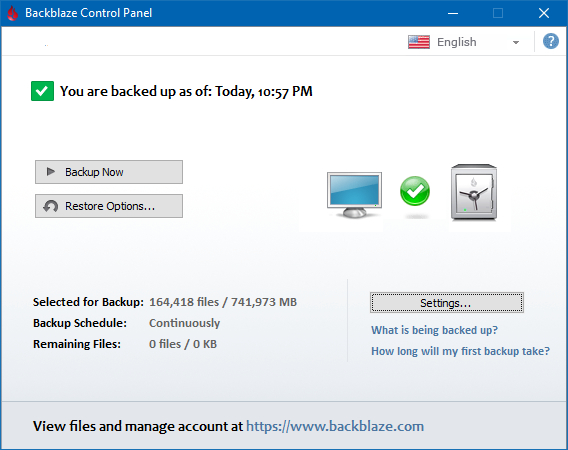
    To see what I mean, here is my current file backup status.

    Backblaze Control Panel
    The current status of my file backup with Backblaze.

    As you can see from the screenshot above, I currently have the following backed up:

    Files Total Size
    164,418 741,973 MB or 741.97 GB

    Since this post will look at restoring files through the Web and download application from Backblaze, I won’t be able to restore all of my files. Instead I will focus on a small subset for this test.

    Preparing the file restore from the Backblaze Web interface

    Let’s begin with the restore of some files.

    Using the Web interface is simple enough. I basically log into my Backblaze account and select the “View/Restore Files” option from the menu on the left. By default, the Web option is selected as the restore method, so I then use the folder tree at the bottom of the Web page to select the folders and files I want to restore.

    Once I have selected my files I click the “Continue with Restore” button and that’s it. Backblaze will now prepare the zip files with the files I selected and then notify me, by email, when it is ready for download.

    Note:

    Backblaze will inform you if your download will be too large. The Web option is used mainly for restoring a small number of files. For any restore that is over 20 GB in size, they recommend the USB flash drive or USB hard drive options instead.

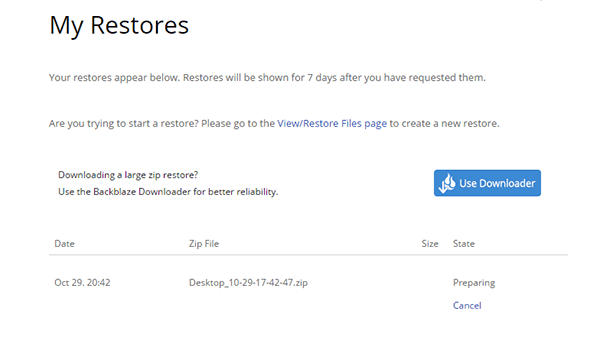
    When I click the “My Restores” option from the menu on the left I can see my restore is currently being prepared.

    Backblaze Restore - Preparing
    My Backblaze restore is being prepared.

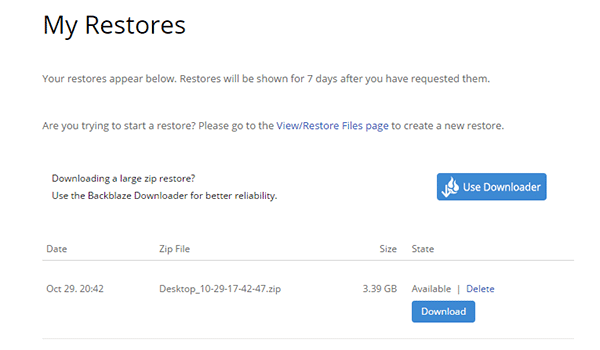
    After about ten minutes of waiting I receive an email from Backblaze indicating that my zip file is ready to be downloaded. I returned to my account and to the same “My Restores” page and noticed that my zip file was now available for restore.

    At this point I also can see that the size of the zip file is 3.39 GB so I have a rough idea of how long it may take to download and how much drive space I will need.

    Backblaze Restore - Available
    My Backblaze restore is available for download.

    Now that my restore was ready it was time to download and see if the files are what they should be – meaning they are an exact duplicate of the original files.

    Restoring the files

    When downloading from the Web interface, Backblaze provides two ways of downloading the zip file: using the download button on the Web page, or using their Backblaze Downloader utility.

    The Downloader utility is a portable application that you extract anywhere on your desktop. From there you just run the executable, enter your Backblaze login information and it will go and download the last zip file that was prepared for your account.

    I wasn’t sure which option would be faster. I have a 100 mb/s (12.5 MB/s) Internet connection, although I do manage to get 120 mb/s (15 MB/s) when downloading games from Steam, so I wasn’t sure what to expect when downloading through Backblaze.

    In any case, I tested both options to see if there was any download performance difference.

    Download from the Web

    Using the “Download” button on the Web form from my Web browser (Google Chrome), I began to download the zip file.

    The download speed jumped between 2.5 MB/s to 8.5 MB/s with the average around 4 MB/s. This is a lot slower than I was expecting, but I was more concerned with the fact that my files were an exact duplicate of the originals, so speed wasn’t a major concern for me.

    It took just over 15 minutes to download the 3.39 GB zip file from Backblaze using Google Chrome. This worked out to an average of 31.38 mb/s (3.9 MB/s) on my 100 mb/s connection. It wasn’t bad, but not great either.

    I wondered if the Downloader utility would be faster, so I downloaded the zip file again using that utility.

    Download using Backblaze’s Downloader utility

    I downloaded the zip file containing the Downloader utility, unzipped the file and then ran the executable. I entered my Backblaze credentials and left all the other options at their default values. I clicked the “Sign in to Start” button and let the utility do its job.

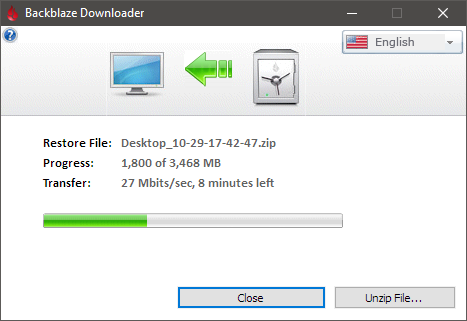
    The utility displays a progress bar during the downloading activity as well as the amount transferred and the transfer speed.

    Backblaze Downloader
    The Backblaze Downloader downloading my zip file restore.

    The Backblaze Downloader took 19 minutes to download the same zip file. This worked out to an average of 25.72 mb/s (3.2 MB/s) download speed. This was slower than using the Web browser to download the zip file.

    Bear in mind, however, that in order to get a completely accurate picture of the download speeds, I would have needed to run both download tests multiple times. Since I am less concerned with download speeds as I am with actually getting my files, I didn’t perform any additional tests.

    Verifying my restored files

    Once I unzipped the zip file containing the files I selected to be restored, I could actually see the number that I had selected. I basically selected an older directory (10 years old) to be restored but I was unsure of how many files were in that directory.

    The files in the directory were JPEG files, so the zip file size was very close to the uncompressed size because JPEG files are already compressed to begin with. There were also some RAW image files from my old Canon G2 camera I was using back in 2006.

    In total 1,417 files were in the folder, and the files were 3,636,151,770 bytes (3.6 GB) in size. This represents a very small sample size compared to how many files I actually have backed up. The table below shows the number of files and sizes that I restored and the percentage of the total backed up.

    Files Size (bytes)
    1,417 (0.86% of 164,418) 3,636,151,770 (0.49% of 741,973,000,000)

    While it is a small sample size, it does allow me to test out restoring a smaller number of files, and also files that have been backed up to Backblaze for many years – since I first started using their backup service.

    The most important aspect of restoring files is to determine if the files restored have no issues and that they match the originals byte-for-byte.

    To verify the files I performed two tests:

    1. I randomly opened image files to ensure that they could be opened without any issue. Opening all 1,417 files in many directories would take a while, so I would use the second test to verify all files.
    2. Create a SHA256 hash of each restored and original file and compare the hashes to see if they are identical. If one byte in a restored file was changed, then that file would have a completely different SHA256 hash than the matching file.

    I randomly selected files to open – both JPEG and RAW – and had no issues opening any of the files. I even displayed the thumbnails of directories in Windows Explorer and all thumbnails were displayed without any problems. So far so good.

    I then ran a small application I created that would generate the SHA256 hash for both the restored and original files. After all the hashes were calculated and compared, the application would display a message box that indicated if any files were identical, different, or missing. Since I selected a single directory to be restored, I can easily ensure that all files were restored and none were missing.

    After several minutes of creating the hashes and performing the comparison I was relieved to see that my application indicated all 1,417 files were matched successfully and that no file was missing from the original files.

    This indicated that the restoration of 10 year old files from Backblaze was 100% successful.

    Conclusion

    I have been using Backblaze for many years to automatically backup my files in the cloud. During that time I haven’t tested their restore option, and I didn’t want to wait until I lost my files in order to use their restore option.

    I managed to successfully restore 1,417 of my files that were a total of 3.6 GB in size without any problems. The download speeds, however, were a little disappointing, but as I mentioned earlier, my main concern was ensuring the files I restored were exact duplicates of the originals without any missing files.

    This goal was achieved.

    Next, I will restore all of my files using the USB hard drive method and then compare 100% of my files to the original to see if a complete backup of my files can also be successful.

    Being able to restore all of my files successfully is now my goal.

  • What You Need to Do to Secure Your Internet Connection

    What You Need to Do to Secure Your Internet Connection

    The Internet is a haven for both viruses and malware that infect millions of computers each year. These types of software are coded to do a specific task, such as steal personal information, restrict access to a computer to extort money, or just make a computer inoperable. There are many bad things that can happen because of malware, and most, if not all malware, originates from the Internet.

    While it may seem like an impossible task to prevent malware from being installed on your computer, in reality, it can easily be controlled by practicing “safe computing.” My current desktop is over 4 years old, has the same first install of Windows 7, and has had no virus or malware installed because I practice “safe computing.” Safe computing isn’t complex to understand, and usually just requires setting up both your computer and network to help protect all devices that are connected to your network – most settings you will only need to change once.

    (more…)

  • How Important is Google’s PageRank?

    How Important is Google’s PageRank?

    One common question that I have read in forums and on websites is “how important is Google’s PageRank?”. More specifically how important is the little number associated with each page of a site in terms of traffic and ranking well in Google’s search engine.

    For those that have been developing sites for many years, they may see PageRank as an important factor in search engine optimization (SEO). Others shrug it off as a number that doesn’t carry as much meaning as it once did, and don’t bother with trying to increase their PR value. While I have kept an eye on my PR number, I dont’ stress over it one way or another, and it appears Google wants it that way.

    (more…)