Search results for: “label/Web%20Site%20-%20Design”

  • Hiding Static Pages from Main Page in Blogger

    Hiding Static Pages from Main Page in Blogger

    Since I wrote the post titled Create Static Pages in Blogger – Part 2 I have been asked on numerous occasions about hiding the static page from the homepage or main page. For blogs without many posts, the static pages may appear on the homepage when someone visits the blog.

    It isn’t hard to hide static pages on your blog’s homepage, but it does take a bit of coding, much like it was to create the static page. In this post, I’ll explain what you need to change to prevent the static pages from appearing on the homepage of your Blogger blog.

    (more…)

  • Convert a Microsoft Word Document to PDF for Free

    Convert a Microsoft Word Document to PDF for Free

    Most people who have used a computer in the past have probably seen and read a PDF document. Many software and hardware manuals now come in a PDF version, or you can download them from their vendors. For those that don’t know about a PDF document, they are documents that will be displayed the same on any computer.

    One popular question is how to create PDF documents from other applications. Microsoft Word is a popular word processing application, but it can’t natively save a PDF document. In this post I will walk you through the steps that will convert any Microsoft Word document to a PDF file for free.

    (more…)

  • WordPress: Cannot Modify Header Information

    WordPress: Cannot Modify Header Information

    I have created and edit the templates for my WordPress blog long enough to come across a few confusing errors. While I have had good success solving many of the errors fairly quickly, there is one that has continuously come up, and caused my blog from loading.

    Recently, however, I managed to find the cause of this common error, and since then have quickly corrected any problems that have caused the error. This post explains the error, and how I solved the problem.

    (more…)

  • Advantages and Disadvantages of JPEG Files

    Advantages and Disadvantages of JPEG Files

    I have received several e-mails in the past regarding JPEG and Raw files that are produced by digital cameras. There is a huge debate online about which image format you should use – some of the debates can get pretty heated. In reality, like all such debates, the answer is: it depends.

    While I have written many posts about both JPEG and Raw image formats, I decided to dedicate an entire post to each one, to sort of provide a more comprehensive description of each. After reading the two posts, hopefully you will determine which format best suits your needs.

    The most common file format in use.

    The JPEG file format has been around for many years, and is support by every image editor and web browser on the market. It is also supported by every digital camera, and any video camcorder that can also take pictures. Every digital photo print shop also supports the JPEG standard. If you want a universal image format, the JPEG format is the one to choose.

    Smaller file size.

    One aspect of the JPEG file format that has made it so popular is the fact that it doesn’t take up much storage space. This was important years ago when hard drives were much smaller, and the Internet connection speeds were much slower.

    Today, digital cameras that are set to save JPEGs can save them much faster than when using the Raw format since their smaller size means camera’s can write the JPEG to the memory card much quicker than Raw files.

    There are, however, a few downsides to compressing JPEGs, which I explain below.

    Compression discards some data.

    One of the downsides to the small files size is the type of compression that is used. The compression algorithm is “lossy”, which means data is discarded when the file is compressed. For the most part, however, you won’t notice any loss of data – unless you start to edit the file.

    JPEG files contain 8-bits (256 tones) of data for red, green, and blue. This provides 16.7 million colours. While this is more than enough for viewing the photo, it can be limiting once you start editing and adjust the colours. With enough changes, you will start to see banding in the histrogram of the image. Banding occurs when there are no pixels values in some of the tonal values, and looks comb-like in the histrogram.

    Digital camera’s sold today have the ability to capture 10-,12-,14-bits of data which provides more overhead for editing.

    Artifacts can appear with more compression.

    For the most part, you want to use as little compression as possible with your JPEG files. The more compression you use, the more artifacts may appear. These usually look like “smudges” in the image, and can really reduce the quality of the image. When saving JPEG images for printing, I usually set the compression level to the highest quality setting, which creates a great image without any artifacts.

    No editing required to print.

    If you aren’t into photo editing, and would just like to print your images, you can do so without converting to another file format. JPEG files can be printed directly from your camera without first editing the pictures.

    Processed within the camera.

    The one downside to the point above, is that all the settings from the digital camera have already been applied to the JPEG. This can be a downside if, for example, you had the wrong colour balance set, then your digital pictures would have a colour cast to them. As mentioned above, while you could edit the photos to remove the colour cast, you may also have issue with banding. With JPEGs you must ensure all the settings in your camera are accurate for what you want to produce. With black-and-white settings in the camera, you lose all colour information when using JPEG files.

    In my next post, I will look at the advantages and disadvantages of using Raw files.

    Which file format do you use, and why?

    What other points regarding JPEG files can be added to the above list?

  • Linksys E4200 Wireless Router Review

    Linksys E4200 Wireless Router Review

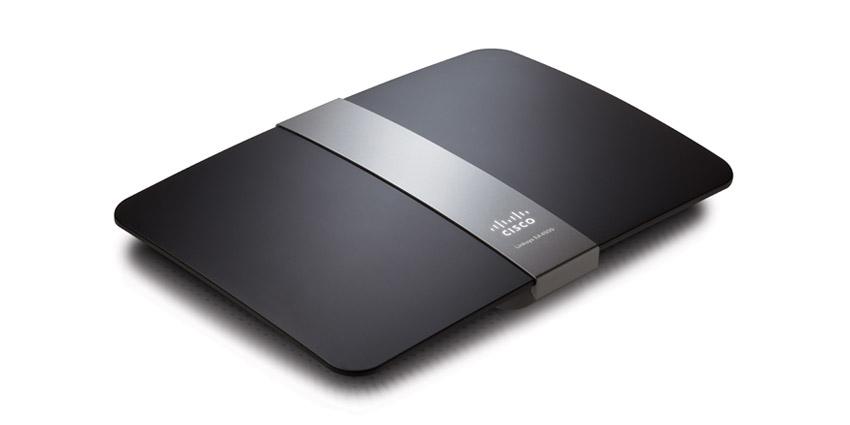
    After about 6 years, my Linksys WRT54G finally packed it in, so I went out and bought myself a Linksys E4200 dual band wireless-N router. I have several laptop computers and a media player that have wireless-N adapters, so the new router will be a welcome change.

    Besides the added benefit of being able to connect using the 802.11n standard, the Linksys E4200 wireless router has a few additional features that were available on my previous wireless router. After I got the router up and running, I began to explore some of the additional features to see how well they worked. Considering this is one of Cisco’s top performance home wireless routers, I expected big things from it.

    Setting Up the Linksys E4200 Wireless Router

    The package contents were basically the standard items: the Linksys E4200 wireless router, a power cable, a network cable, and a CD containing the Cisco Connect software. I haven’t used any software that came with any of my routers in the past, so I really couldn’t see myself using this one. Although I may explore the software in the near future, for reasons you will read later.

    The router itself is smaller than my previous WRT54G router. While the width and length is about the same, the Linksys E4200 is slimmer, and there are no antennae sticking out from the top. This means that when I reach behind my desktop, I don’t have to worry about knocking into them.

    The setup of the router was pretty straight forward, and I set it up manually as I usually do. I basically logged into the router’s dashboard through my Web browser and configured the security settings for the wireless network.

    The dashboard, while it has change slightly from the WRT54G, basically looks the same, which made it easy for me to find my way around. The biggest change that I say while I configured my wireless network was the fact that you can create two separate wireless networks – one for 5 GHz, and a second for 2.4 GHz. Since this router is dual-band, devices can connect to the router on either frequency at the same time.

    Since I only wanted to manage one network, I changed the settings for both the 5 GHz and 2.4 GHz bands to be identical. Doing this didn’t cause a problem, and I was able to connect both wireless-N and wireless-G devices to the different frequencies without any problems.

    The one thing that bothers me about the Linksys routers is the inability to change the dashboard user ID. You can change the password easily, but the actual user ID you use to log into the dashboard can’t be changed from being blank. I have seen other routers that provide this ability, and I hope that Cisco will change this for future routers.

    Router Performance

    So far, I have been pleased with the speed of the router. I have a hard-wired desktop connected directly into the Linksys E4200 router, and it seems faster when downloading from the Internet. Although I haven’t done an actual speed test, the computer seems more responsive overall.

    A wireless-N laptop connects to the router at faster than the 54 Mps rating of a wireless-G connection. Although, the one aspect that I am disappointed with is the range the router has. From the opposite side of the house, the laptop connects with 3 out of 5 bars within Windows 7. The WRT54G router connected with the same number of bars, so there really isn’t an improvement in the connection range with the Linksys E4200. I am a little disappointed in this as I thought I would have a better connection to the router, and because of this I my connection speed is 74 Mbps. This is still better, however, than what I would have received from the WRT54G at 5 bars.

    Linksys E4200 External Hard Drive Connection

    The Linksys E4200 wireless router includes a USB port on the back next to the ethernet ports. This allows you to connect an external hard drive to the router and then share the data on the hard drive to the computers that are connected to the router.

    While this is a huge selling point for me, it was a nice feature that I was looking forward to trying. As I don’t have a NAS (network attached storage) device, having the Linksys E4200 router and my external hard drive act as one was a nice bonus.

    After setting up my router, I connected an external hard drive into the router and the router immediately identified the drive. I was able to setup user IDs and shares for the hard drive so I could connect to the hard drive from other computers. When I tried to map to a share on the hard drive, my desktop couldn’t connect to the share. I also tried to connect to the share from a laptop, and it, too, couldn’t connect. I decided to wait a few days and try again.

    The next time I tried, the Linksys E4200 wireless router couldn’t even detect the external hard drive, so I couldn’t even manage the shares. I unplugged the hard drive and plugged it back into the router, but the router still couldn’t find the hard drive.

    I saw read about a few people online that have also had this issue, so it appears to be a common problem. With the latest firmware update, you can also connect a printer to the router using the same USB port. I haven’t tried this, and from what I have read, you need to use the Cisco Connect software to get the printer sharing to work.

    Linksys E4200 – Pros

    • Dual band (2.4 and 5 Ghz) that allows you to connect to either band to avoid interference.
    • Ability to setup a separate network for each band.
    • Easy to configure – dashboard very similar to previous Linksys routers.
    • Connected to my ISP without any problems.
    • Connected wireless-G and wireless-N devices without any problems.
    • Lower profile – no antennae sticking out from the top.

    Linksys E4200 – Cons

    • No ability to change the router’s user ID.
    • The range isn’t much better than my 6 year old router.
    • Couldn’t get an external hard drive to connect to the router.

    With the exception of the external hard drive issue, I find the Linksys E4200 wireless router to be a good router. I was disappointed in the range of the router, but I do like the dual-band feature, and I had no issues with connecting any device to the router. If you can get the Linksys E4200 wireless router for a good price, I suggest you pick one up.

  • Can You Succeed With Google’s Blogger Platform?

    Can You Succeed With Google’s Blogger Platform?

    It has been just over 3 years since I started Technically Easy. I have learned a lot within those three years, have made some mistakes (still do), met many great people, but more importantly, I continue to learn to this day. When I began blogging I started out on Google’s Blogger platform – mainly because it was a great way of learning how to blog as it was free and quick to setup.

    Since that time, however, I have switch to a self-hosted WordPress blog. While there were many reasons why I switched, I still enjoy playing around with Blogger, and the templates. One of the questions that I see raised quite often on various blogs and forums is whether you can succed with Blogger?

    (more…)

  • Where to Go Before Starting Your e-Business

    Where to Go Before Starting Your e-Business

    It’s incredibly easy to start an Internet business, but don’t let the simplicity of the process fool you into thinking it’s a complete cakewalk. Just like any other venture, going about creating an online enterprise that’s successful takes some time. In particular, it takes some research. No matter what the particulars are regarding your specific business idea, it’s critical you peruse the following Internet destinations before trying to earn yourself some Internet income.

    (more…)

  • 10 Important Things I Learned About Blogging

    10 Important Things I Learned About Blogging

    It has been over three years since I stepped into the blogging arena. I wasn’t sure what to expect when I first started, and while I have made many mistakes, I have learned from all of those mistakes. It was June 2007 when I decided to try my hand a blogging, and I am glad that I have kept at it for over three years.

    I have been thinking about what I have done with regards to my blog in those three years, some goals that I have achieved, but mainly what I have learned. I decided to share several things that I have learned to help others new to blogging learn quicker than I did.

    (more…)