Security has become a huge concern for many users, especially if you are online on a frequent basis. It is important to ensure that your computer is as secure as possible to prevent unauthorized users from poking around in your computer.
Search results for: “label/Web Site – Review”
-
How to Secure the Linksys EA2700 (N600) Wireless Router
When you buy a wireless router – any wireless router – you must make sure you properly secure the router and your wireless network. If you don’t secure both the wireless router and the network, you allow unauthorized users into either your router, your network, and possible any device attached to your wireless network.
While securing the Linksys EA2700 (N600) wireless router may sound complex, there are only a few setting changes that you need to change to secure both your router and network. Below are the steps that you need to take to secure your wireless network.
Logging into the Router
- Open a Web browser and type “http://192.168.1.1” (without quotes) in the address bar. Press ENTER.
- When a login windows appears, enter “admin” (without quotes) in both the username and password boxes.
- If a warning windows appears, check the “Do not show me this again” checkbox and click the “OK” button.
Note:
If the IP address of the router has changed, or 192.168.1.1 doesn’t work you can look up the IP address of your router by using the steps outlined in How to Get the IP Address or Your Router.
Note:
If the username and password have been changed before, and you can’t remember the login credentials, you can reset the router back to factory defaults and then continue with securing the router. To reset the router you can follow the steps outlined here: How to Reset the Linksys EA2700 (N600) Wireless Router.
Securing the Administrator User
Before securing your wireless network, you will first need to secure the administrator account to your router’s setup. That is the account you logged into in the previous section.
All router default username’s and passwords can easily be found online, so it is important to change the login credentials to protect your router and wireless network.
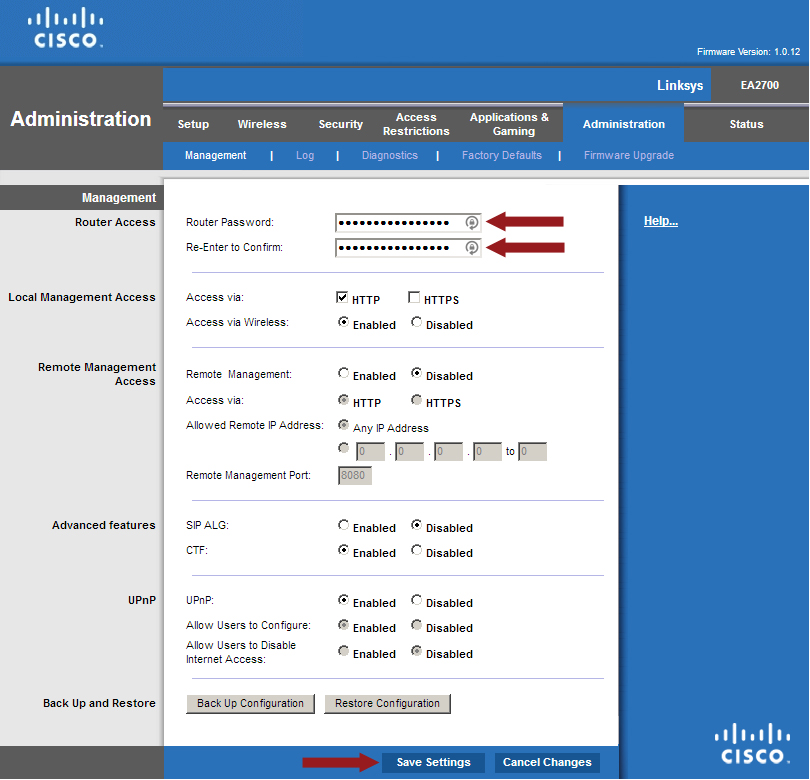
- Log into your router, and then click the “Administration” option from the top menu.
- In the “Router Access” section, enter a long and strong password in the “Router Password” box.
- Enter the same password in the “Re-enter to Confirm” box.
- At the bottom, click the “Save Settings” button.
- When prompted, enter “admin” as the username, and then your new password to re-access the setup to your router.
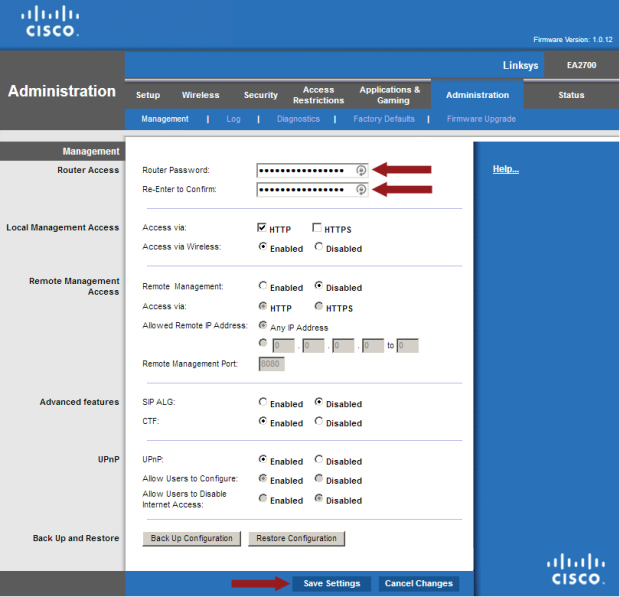
Changing the Linksys EA2700 (N600) router’s administrator password. Securing Your Wireless Network
Now that your router’s setup is secured with a new administrative password, you can go ahead and secure the network.
- If you haven’t done so, log into your wireless router.
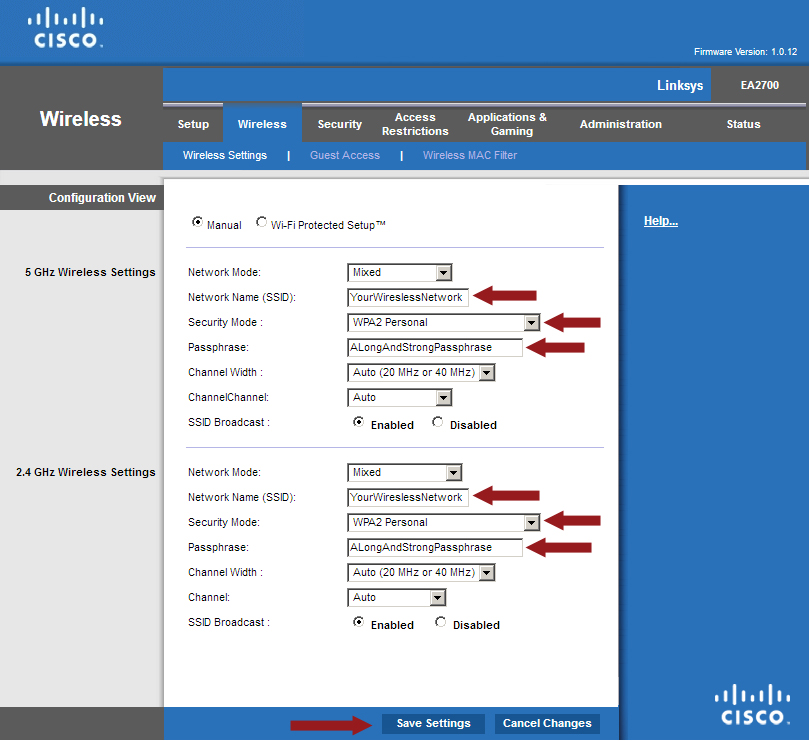
- Click the “Wireless” menu option at the top.
- Click the “Disable” option beside “WPS” and then click the “Manual” option just above it.
- The Linksys EA2700 has two frequencies – 5 GHz and 2.4 GHz. You can set up a single wireless network on each, but it would be best to have both frequencies used by one wireless network. Beside “Network Name (SSID), give your wireless network a name. Ensure you enter the same name in both the 5 GHz and 2.4 GHz sections.
- For “Security Mode”, select the “WPA2 Personal” option. Do the same for both frequency sections.
- Beside both “Passphrase” options, enter a long and strong passphrase. This is what you will enter when you connect a device to your wireless network.
- Click the “Save Settings” button.
Note:
While Wi-Fi Protected Setup (WPS) may sound like an easy way to secure your router, it is a major security vulnerability (please read Why Your Wireless Network May Not Be As Secure As You Think. While there are more steps to manually securing your router, and then connecting devices to your wireless network, you will have a more secure network.
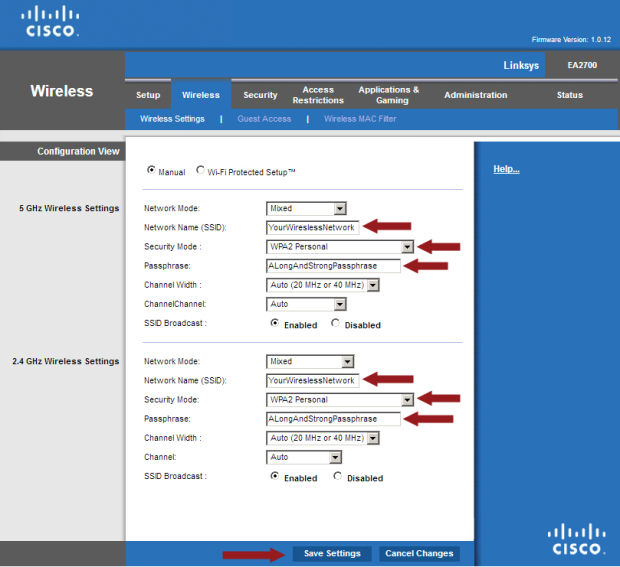
Wireless settings to secure the Linksys EA2700 (N600) wireless router. At this point your wireless network is secured. To connect a device to your network, you simply select your network from the list and then enter the passphrase you created.
If you forget your passphrase, you can simply connect a computer into the router with an ethernet cable and then re-enter the setup by entering “192.168.1.1” into a Web browser.
Additional Security Settings
While the preceding sections are enough to have a secured wireless network, there are a few other settings you may want to look at to fully secure both your network and your router.
- Log into the setup of your wireless router using a Web browser.
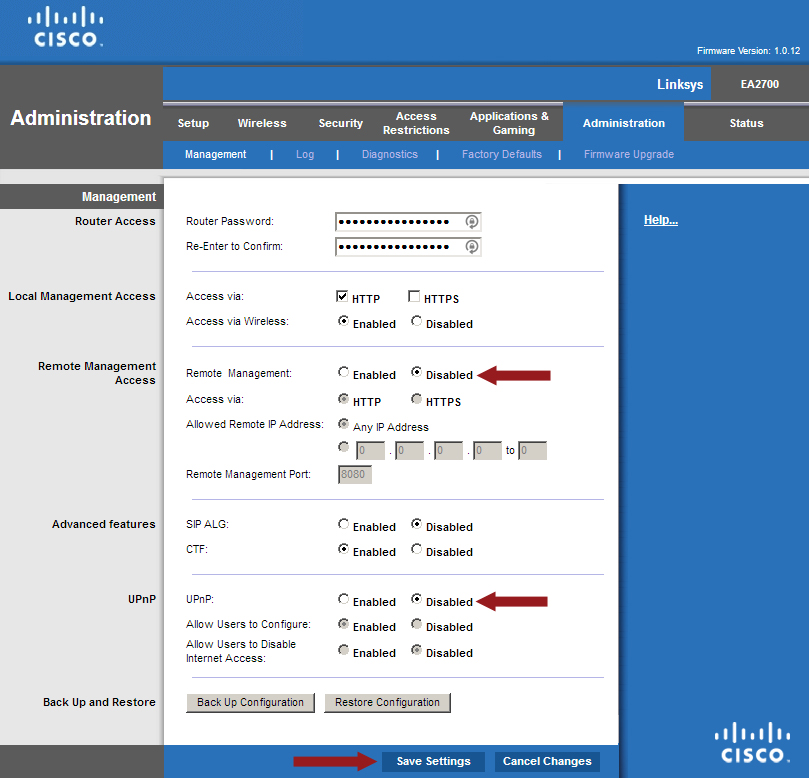
- Click the “Administration” menu option at the top – the “Management” section should be displayed.
- In the “Remote Management Access” section, make sure the “Remote Management” option is “Disabled”.
- In the “UPnP” section, click the “Disabled” option next to the “UPnP” option
- Click the “Save Settings” button.
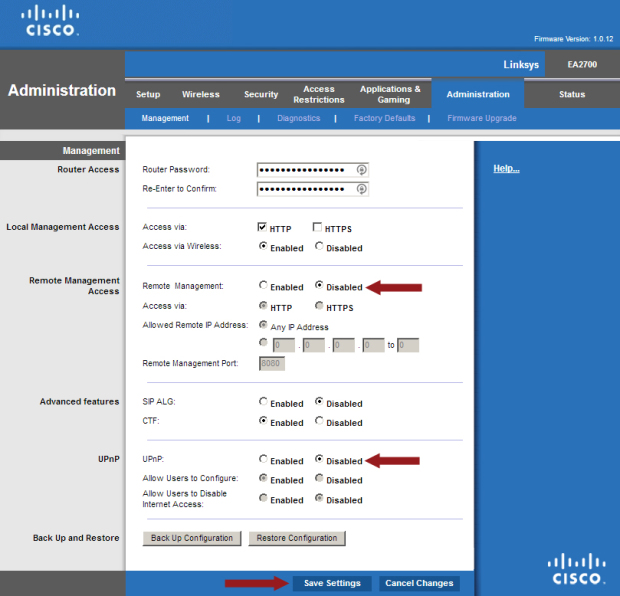
Changing additional security settings on the Linksys EA2700 (N600) wireless router. At this point your wireless router is secured and you can feel confident that only authorized devices can connect to your network.
-
The Most Effective Ways to Increase the Security of Your Home Network
If you are like me, then you are always looking for ways to increase the security of your home network. Threats to your network, devices and to your files can come from anywhere online. So it is important to take the necessary steps to ensure your home network is secured.
This post will outline some of the settings that I use to protect my network, devices, and files from both malicious software and users.

Router Security Tips
The first line of defense of my network starts at the access point from the Internet into my network – the router. The router I am using is a Linksys E4200. It is an older router and only supports Wireless-N.
I have flashed DD-WRT onto the router, so I have many more options than with the stock firmware. The DD-WRT firmware allows me to apply more security onto the router and adjust many more settings than the stock firmware allows.
Here are the settings I have configured in my router:
- Administrator ID and password changed
- I have changed both the administrator and password for the router.
- Enabled WPA2 with passphrase
- Probably the most important security of wireless. I have configured my wireless network to use WPA2 with a strong passphrase. I always have to look it up when I want to connect a device.
- Using OpenDNS
- To help manage what sites my network can access, I use OpenDNS as my DNS servers in my router. This allows me to block certain domains that are not appropriate for my kids, which also includes malicious sites.
- Configured a guest network
- I have setup a guest network for guests to use. The guest network uses WPA2 with a much easier passphrase to remember so I can easily remember it. It is also prevented with firewall rules from communicating with the main network. This network also uses OpenDNS and the firewall rules enforce he use of OpenDNS.
- Disable WPS
- WPS is a security issue and I don’t use it, so I disable it.
- Disabled remote access
- I can’t access my router from the Internet. I can only access my router from a computer hard-wired into the router.

Computer Security Tips
Even though I have secured my router, I also need to make sure each computer that is connected to my network is also secured.
For guest computers, I can’t verify what is installed or not installed. This is the reason I have those computers connect to the guest network.
Here is a rundown of what security settings and software I have configured on my home computers.
- Never run as an administrator
- For seven years I haven’t found real need to run as an administrator. In fact, I can give you many reasons not to run as an administrator. I don’t run as an administrator on any of my computers.
- Google’s Chrome as my Web browser
- I use Chrome for its sandboxing and extensions features. One of the benefits of Chrome is tat each tab is a separate process so one tab doesn’t crash another tab. Firefox is my secondary choice for a Web browser.
- Use uBlock Origin in Web browsers
- When it comes to websites, I don’t trust many sites online, especially the JavaScript. uBlock Origin is always running in Chrome so I can choose what sites run JavaScript.
- I don’t use Flash
- Flash is disabled in my main browser. I find I don’t need to use Flash as much but if I do, I have another browser with Flash enabled that I will use to display Flash content when needed.
- Use a software firewall
- A hardware firewall can block access into my network, a software firewall can block application from connecting to the Internet. If I do get infected with malware, I don’t want it to connect outside my network, so my software firewall blocks the attempt. The built-in Windows firewall works for me.
- Anti-malware software installed
- I have Malwarebytes Anti-Malware Premium installed on my main desktop, with scheduled scans each week. On other computers I have the free version and run scans periodically.
- Anti-virus software installed
- I am not a big believe in anti-virus applications these days as they are basically reactive software. To avoid too many applications from being loaded, I just stay with the anti-virus built into Windows. Anti-virus scans are scheduled on a weekly basis.
- Windows and installed software is kept updated
- I always try to install the latest updates for both the operating system and installed software. Microsoft releases patches on the second Tuesday of every month. Adobe follows the same schedule, but other applications will provide a notification.
- Always keep in mind that all software has security flaws
- When it comes to software, I try to remain vigilant. I believe that all operating systems and applications have security flaws.

Data File Security Tips
I also look at security down to my data file-level. This means how can I best protect my files, both from an operating system and restorative perspective.
Here are some tips that I currently have implemented, and you may do the same as well.
- Multiple backups
- I always keep multiple backups. Two copies of my files are stored locally, and two copies are stored offsite.
- Automated backups
- I have automated my file backup process. When a file is placed in a folder, it is automatically mirrored onto a second, local hard drive and also uploaded to my online backup cloud.
- I don’t have write-access to my data files outside my server
- I go to great lengths to protect my data files. Any new files or changes are written to a staging folder, and a service on the server copies the changes to the master folder. The folders that contain the master copies of my data are always mapped with a read-only account.
That is my list of security settings and tips that I have applied within my home. Security involves multiple layers to properly protect your home network and all devices that connect to that network. While you may not implement as many features, it is important to recognize that you must apply some security on your network to protect our computer and data files.
-

OneLogin
There’s a serious problem that’s growing with the shifting trends of business today, and it’s an elephant in every room that every bottom-rung entrepreneur and CEO alike wants to ignore.
The problem is that businesses are becoming increasingly reliant upon third-party services to carry out their work and secure quality assurance metrics.
These metrics must be met for a host of revenue- and legal-driven reasons that can lead to insurance cuts, lost business and other serious problems down the road, so of course it’s important for every manufacturer to enlist vendors for every task that the manufacturer itself isn’t equipped to handle on its own.
This is why people hear about the network of seemingly invisible companies that are woven into a single operation.
In fact, the increasing complexity and pace of society today has burgeoned to such a degree that nearly half of the manufacturers out there have left their databases severely exposed to the laptops, tablets or smartphones that their third-party representatives are using to capture and report information with.
The ubiquity of smartphones has made it ever more possible for black-hat code manipulators to shoehorn themselves through the many uneven edges in the out-facing facade of a manufacturer’s metaphorical cyber-garrison.
Sobering dtatistics
There are several ways that an unwanted presence can find its way into a manufacturer’s database. Consider the fact that most field vendors create the following environment for the back-end IT managers to contend with:
- Different operating systems.
- Different versions of the same operating systems.
- Different applications installed on each of those operating systems that potentially have their own backdoors, permissions and loopholes.
- Different browsers to interact with the web.
- Different connection types, protocols and providers.
- Different hardware with potentially unique exploits in each combination.
This conglomeration creates a nearly infinite number of variables that a hacker can leverage to gain entry to personal information; it’s just a matter of finding the most convenient one and kicking down whichever doors aren’t secured properly with multi-factor authentication.
Some exploits are discovered early by the wrong people and are never revealed until an opportune moment arises. This leads the discussion to some scary numbers:
- Ten percent of the manufacturers on the market are exchanging data with 200 or more vendors.
- Another 33 percent use between 25 and 200 vendors.
- Of all the manufacturers that are impacted by security breaches, 90 percent are left with at least $190,000 in damages.
- The other 10 percent of that figure experience losses at a minimum of $750,000 per breach.
The problem this creates
No, this isn’t an attempt at calling out how people handle their businesses; in fact, that has very little to do with this.
The reality is, a new age of computing technology, networking and security concerns means new MFA measures must be adapted to circumvent the ever-growing threat of privacy breaches that could expose not only client data but also result in massive damages to company operations on top.
Many of these attacks occur from individuals who operate on the dark web to exchange the fruits of identity theft for sums of bitcoin to those who can impersonate clients, and the last charge that any entrepreneur wants to be saddled with in a courtroom is facilitating the ruination of people who trusted their services.
How to handle it
Companies are handling this in a number of roundabout ways with, well, more third-party companies: deep web scanners, security checkpoints, misplaced multi-factor authentication protocols, over-tightened restrictions and a number of other underwhelming measures that don’t actually prevent malicious code from making it in the front gate and to the hard drives themselves.
No, this is where the manufacturer needs to trust in OneLogin, a service that provides a complete barrier to set the business servers apart from the vendors who report their work and log into the system.
OneLogin works by channeling all incoming connections through their own services before allowing them to pass to the manufacturer’s servers, acting as a mediator.
This funnels every connection from every app, operating system and hardware configuration into a single connection that’s secured by MFA protects vendors, businesses and clients alike.
As the world moves forward, services provided by companies like OneLogin are becoming more important, especially for larger businesses.
-

How Does A Free Mobile Phone Tracking Application Work For Children?
These days we all want to track how our children use their phones. What they open and who do they contact to. Without mobile phone tracking apps, it is not possible to check all their activities on mobile.
There are many famous apps for tracking the mobile activities that you can use to spy on your children. Snoopza is one of those. This is easy to use software that lets you monitor cell phone activity free. With this app, you can record phone calls, messages, chats and all other data that you want to monitor for the security of your children. This is a free to use app, you can download and try snoopza here.
How does a mobile tracking app work
All spying apps have some different technology but all work for the same purpose. Find below how such apps work:
Download and install the app
First of all, you need to download the app that you are going to use. For that, you can go to the website of any spying app and can download from there as most of the apps are easily available on their official websites. Just sign up and download the app. Next, you need to install that app on the device that you want to track.
Make sure that the mobile that you are going to track has an operating version that is compatible with the app; otherwise, the app will not work properly. To use these types of apps on iPhone, you need to jailbreak the phone as these apps cannot be installed on the iPhones without this.
On the android phones, there is no such problem. So, when you downloaded the app, install it on the target mobile.
Web-based control panel let you know the sctivities
All cell phone monitoring apps provide a web-based control panel that lets you check all the activities of the targeted mobile from anywhere. You can check the call logs, text messages, mobile location, videos, photos, contacts, and many more things.
Also from this control panel, you can delete any software from the target phone, lock and unlock the phone and also start recordings without letting the phone user know.
Internet access is required
To use spying apps, an internet connection is must. The reason is without any 3G, 4G or Wi-Fi network, apps cannot send the information to the web-based control panel.
You will not be able to track anything if the targeted mobile doesn’t have access to the internet. So make sure the mobile you are tracking have internet access.
Require some jail breaking and tooting
As we mentioned above, the spying app needs to root or jailbreak mobiles sometimes to work properly. Some apps can be easily used without doing all these things but some require jail breaking in case of iPhones and rooting in case of Android Phones.
Doing this will let you use some advanced features of the app.
Target phones must be compatible with the app
Before downloading any spying app, make sure that the targeted phone is compatible with the spying app, otherwise, it will not work or you can miss some important information. Some apps only work with iOS phones and some only work with the Android phones.
You need to download the app that suits the targeted mobile.
Conclusion
So, this is bit of information how a mobile phones tracking app works or what are the things that a spying app required to work properly. Remember that all the spying apps have some different features but main objective of all apps is same.
So, try the one of your choice and track the mobile of your children if you have any doubt on their internet usage.
-
Everything you need to know about VPNs
Privacy has been among the major concerns for most internet users in the last couple of years. We have had so many data breach scandals in recent years, which have left many internet users worried about how their data is handled by the various apps and websites they access on the internet.
Among the best solutions for safely using the internet is installing a VPN app on all your devices. But what is a VPN and how exactly does it ensure your privacy while using the internet? Let’s find out.
What is a VPN?
A Virtual Private Network (VPN) is a service that protects your internet connection by encrypting your browsing information hence hiding it from all third parties, including your ISP and government. Even the websites and online services you use won’t see some of your personal information, including your location, the browser you are using, and the IP address of the device you are using.
However, you need to choose a reliable VPN app if you are to enjoy all the benefits that come with using a VPN service.
How does a VPN work?
While browsing the web or using a mobile app, you are constantly sending data from your device and getting feedback (data) from the website or web application you are interacting with. Without a VPN, this raw data can be intercepted and accessed in between the journey by your ISP and several other third parties. If you are using a public WiFi network, people using the same network can easily know your device’s IP address or even access your device.
When you use a VPN, all your browsing data is encrypted before it leaves your device. This data is then sent over to the VPN’s server. The request to the website or web app you are interacting with will now come from the VPN server and not your device. That is why the websites and apps you use will never know your real location if you always use a VPN.
Since all your browsing data is encrypted, they also won’t get any of your other browsing details such as your IP address, the browser you are using to access the internet, the operating system of your device, etc. This makes it almost impossible to profile you unless you agree to give them your personal information voluntarily.
To ensure fast and reliable connection speeds, VPN services build several servers in different locations. Users are then distributed among these servers to ensure no single server slows down due to congestion. For example, a VPN service like Surfshark has over 3200 servers in 65 countries. So, always make sure to check the number of servers a VPN has and where they are located before choosing the VPN app to install.
Users also have the option of choosing a server which they would want their data to be sent through. For the fastest connection speeds, it is best to choose a server in a region closer to you. However, if your main reason for using a VPN is to access location-locked content and apps, choose a server in one of the unrestricted countries.
-
Entrecard – An Easy Way to Get More Blog Traffic
There is some buzz surrounding the newest way of generating traffic to your blog, and it costs nothing. It is a unique concept and is very easy to implement on your blog and use it on other blogs. Entrecard was founded by Graham Langdom, the creator of the Million Dollar Wiki, and is completely free to those who want to use it.
I will provide an overview of what Entrecard is exactly and how you can use it to generate traffic.
How it Works
The who premise of Entrecard is based around a business card for you blog and credits. Every blog on Entrecard is allowed to upload on 125×125 pixel image to act as their business card. This business card is then placed on another blog as advertisement for your blog.
This means that what image you upload has a great effect as to how many visitors your will get. If you create an interesting business card, then you will probably get many visitors.
Now before you can submit your business card to any blog, you will first need to earn credits. Credits are the currency used on Entrecard. It is not hard to generate credits, but it does take some minor effort.
Credits are earned by other blog authors buying advertising space on your blog, the same way you do for theirs. Each blog costs so many credits per day to advertise on, so you may not be able to advertising on some of the more expensive blogs until you have earned enough credits. If you blog costs 8 credits/day, and you approve of a blog to advertise on your blog, then you have just earned 8 credits.
The cost of advertising on your blog is determined by a formula–meaning you can’t set the price yourself. The price is determined by twice the number of cards on that widget each day. If you get 20 cards dropped on your widget each day, then the price of advertising on your blog is 40 credits/day.
When you visit a blog that has installed the Entrecard widget, you can drop your business card on the widget and earn 1 credit. Your business card will then appear in the blog authors’ inbox within Entrecard. This is also another way of building traffic to your blog, as the author can now click on your business card to visit your blog.
For me, it has been interesting to discover, and visit, blogs that I may not have known existed. There are many great blogs out there, and this site allows you to visit many of them.
Summary
Like so many other blog authors, I have joined up with Entrecard and have immediately notice that traffic to my blog has increased. I’ll continue to earn credits by dropping my card on the widget, and then pay for advertising on other blogs. Since Entrecard is free to use, everyone with a blog should take advantage of this site to help increase traffic to their blog.
-
RSSHugger – A New Method of Generating Blog Traffic
When I started this blog several months ago, one of the big questions was how to generate traffic. There is a lot of advice on the Internet about how to accomplish this goal, and for the most part it takes time.
I have recently noticed, however, the many new sites that are appearing specifically targeting blogs. These new sites are designed to help generate traffic to our blog, and in this post I will discuss one of these new sites called RSSHugger.
What is RSSHugger?

RSSHugger allows a blogger to publish their blog’s feed and increase traffic to their blog. It was started by Collin LaHay, an experienced entrepreneur, search engine optimizer and Internet marketer (according to the about page on RSSHugger). The original goal of RSSHugger was to get 50,000 blogs to sign up with a $10 fee, however, the goal has now been increased to 250,000 blogs within the first year.
Collin has changed the sign up procedure in that a blogger no longer needs to pay a fee to publish their RSS feed on the site. If you write a post about RSSHugger in your blog, you can publish the feed to your blog for free.
Visitors to RSSHugger can search for blogs that interests them and then easily subscribe to that blog’s RSS feed. It seems sort of like a blog directory that you can search and find blogs you may not easily find through a search engine.
I will be trying out RSSHugger to see if it indeed does increase the traffic to my blog. I will post results of this new site in the near future in case anyone is interested.