Search results for: “label/Web Site – Review”

  • Making Money Online

    Making money on the Internet is a hot topic, and something many of us would like to do. It’s a nice thought to stay at home and make money 24 hours a day, 7 days a week without actually working those hours. One of the most common means of making money is through advertising on your Web site, where a visitor will click on an advertising banner, and you get a percentage of the cost of that click.

    Last year I was looking into ways to make money off the Internet. I didn’t have a Web site at the time, so the advertising idea was not applicable. Another solution would be the more time consuming method: open an ecommerce site. I have done Web programming before, but have never created an ecommerce site. After looking into what is required, such as a Web host, merchant account, inventory management, shipping, to name few, I decided to look for an easier way.

    This easier way presented itself in the form of Shopster. I decided to take the chance and signed up with them to see what they had to offer.

    Here is what they have to offer:

    1. World-class storefront solution.
    2. Choice from over 700,000 wholesale products to add to your store.
    3. Easy management of their store. (You’ll be able to make changes and customize literally anything).
    4. Use of any domain name for your store.
    5. Full Hosting of your store.
    6. Coupon creation functionality.
    7. Automatic cross-sells.
    8. Automatic bestsellers.
    9. Optimization of their store for the search engines.
    10. Logo creation software.
    11. Unlimited categories, custom pages, and feature pages.
    12. Complete order history of their customers. Plus your customer’s contact details for cross-selling/up-selling.
    13. Free Updates.
    14. Complete search statistics of their store. (You’ll be able to see what your customers are searching for).
    15. Choice of up to 1000 products. (You can add more at any time for only $9.95 a month per 1000 additional products).
    16. Customer Reviews on your products.
    17. Full customer service on all of your customer’s orders.
    18. Product delivery on all your orders.
    19. Dispute resolution included.
    20. Payment System included.
    21. Monthly payouts on your sales.
    22. Secure checkout/SSL included.
    23. Branded emails to send to your consumers included.
    24. Fraud detection on all orders included.
    25. Access to Shopster’s excellent community forums.
    26. Free marketing guide and assistance.
    27. $50 in free keyword marketing with Yahoo! Search.
    28. Store hosted on best servers available in the world – fast, secure, 99.8% server uptime.

    I can honestly say that everything listed, is what they offer. You basically create a Web page template for your store (they also provide several templates if you HTML isn’t too good), select your products, organize them into various categories, and then sell the products. All order processing, shipping and handling is managed by Shopster. Once you make a sale, you will get a check in the mail the following month for the profit that you made. The best thing of all is you control your profit margins, meaning you set your own prices for what you sell.

    Another bonus to Shopster is that you can also sell most of the items on E-Bay – they allow you to do that. In the end, Shopster is a partnership – when you make money they make money.

    If you have any questions about designing, marketing you store, or selling items, they also have forums where the Shopster folks are more than happy to provide advice and answer any questions you may have. There are also fellow Shopster members who are also more than willing to help.

    To join, simply click on the banner below, and open up your ecommerce store today.

  • My Thoughts on Chitika Advertising Network

    My Thoughts on Chitika Advertising Network

    Over the past two months I have been testing out Chitika advertisements on Technically Easy. Unless you arrived from search engines you may have never seen these ads displayed on my blog. Similar to Google’s AdSense, Chitika pays you each time a visitor clicks an ad that they display.

    While I had some high hopes for Chitika, I can’t say that I am impressed with the results of displaying their ads. In this post I will discuss my findings and thoughts about this ad network.

    (more…)

  • How to Create a Blog Using Windows

    How to Create a Blog Using Windows

    Nothing personifies the internet like a blog. A blog of course being an online journal, organized by date and containing frequently updated information pertaining to the the blogs content. Because of their ability to broadcast information, blogs are quickly becoming a way of communication. A way to share your information with the masses. Thus the need to know how to create a blog has become pertinent.

    With so many blogging options out there how do you know which option is the right one for you and your windows computer?

    (more…)

  • Top 10 Reasons You Should Start Your Own Blog

    Top 10 Reasons You Should Start Your Own Blog

    One of the most popular things to do on the Internet these days is to host a blog. Usually, when a person starts their first blog, they will end up with two, three or more. Having a blog is easy and there is a new host of software every day to make it easier. So why does a person want or need a blog? Here are the top 10 reasons.

    (more…)

  • Setting Up a Home Network

    With the increase in high-speed or broadband usage, it is more common to see more homes connecting multiple computers to the Internet. Setting up a home network to allow multiple computers to connect to the Internet is easy to do.

    Use the following steps to get your network running.

    1. Necessary Equipment

      Before creating a network, ensure that you have the necessary equipment. You will need the following:

      1. A broadband internet connection. This includes cable and DSL, but not dial-up.
      2. A router, preferably one that includes a firewall.
      3. A desktop or laptop with a network card. If you currently use broadband, then the card the modem is plugged into is your network card.

      Once all the equipment is unpacked and ready to go, it is time to connect it all up.

    2. Connecting the Router

      At this point you may want to print the instructions first before continuing. The next few steps will require your Internet connection to be disconnected temporarily while all the equipment is connected together.

      To connect the router, use the following steps:

      1. Disconnect your computer from the modem by removing the network cable from the modem. This will now prevent you from connecting to the Internet since you are no longer connected to the modem.
      2. At the back of the router, there are several ports. They look like large telephone jacks. Connect the network cable from your computer into one of these ports.

        Note: Some routers have a port that can be used to connect a computer or your modem into. These ports are usually labeled Internet or Uplink. Don’t plug your computer into this port.

      3. Connect the power cable into the router and ensure that it is on. There should be lights on that indicate which port your computer is connected to. If you are unsure of where to look, please read the documentation that came with the router.
      4. If the computer is off, turn it on and log in. Once the computer has finished loading, click Start->Run and then type cmd.exe in the Run window.
      5. A DOS command prompt should be displayed on the screen. At the prompt type ipconfig. If your computer is connected to the router correctly, you should see some important information:
        • IP Address This is the address assigned to your computer from the router. Usually it would be in the form 192.168.1.nnn, where nnn is a number between 1 and 255.
        • Subnet Mask This is also assigned by the router, and usually is 255.255.255.0.
        • Default Gateway This is the internal IP address of your router. This information is important because using a browser a connecting to that IP address will open up the router setup.

        Save the default gateway address, since we will be using that next.

      6. Open a Web browser (Internet Explorer, Firefox, Netscape) and type in the following address: http://Default Gateway IP Address where Default Gateway IP Address is the address from the previous step.
      7. When prompted for a user ID and password, use the one supplied by the router. You can find this information in the documentation that came with your router. Router makers have different user IDs and passwords.
      8. The first step to securing the router is to change the administrative password, and if possible, the administrative ID. One of the options in the setup will allow you to change the password. Make it easy to remember, but not easy to guess.
      9. Don’t close your Web browser just yet before we connect the modem. If you do, simply reopen the Web browser and navigate back to your router setup.
    3. Reconnecting to the Internet

      Once the router has been connected to your computer, it is now time to restore your Internet connection.

      1. Connect a network cable into the modem, in the same port as last time.
      2. With that same cable, connect it into the port labeled Uplink or Internet on your router. A good indication that a connection has been made is a new light may be lit on your router.
      3. Open up a new Web browser and try to connect to the Internet. If you get a Web page then your Internet connection is up and running. If you don’t see a Web page, then continue to the next step.
      4. Return to the router setup Web browser. There should be a page that indicates your IP address assigned by your Internet Service Provider (ISP). Once again, please check the documentation for the location of this page. This will usually contain a refresh button. Click that button to update the router information with that provided by your ISP. If an IP address is populated in that page, then you have now re-established your connection to the Internet.
      5. Open up a new Web browser and try to connect to the Internet. If you get a Web page then your Internet connection is up and running. If you don’t see a Web page, then continue to the next step.
    4. Troubleshooting

      If you are having trouble accessing the Internet after connecting the modem, use the following steps to solve the problem:

      1. Disconnect the power from your modem and router.
      2. Wait a few seconds, then connect the power to the modem.
      3. Once the modem has finished loading, connect the power to the router.
      4. Wait for the router to finish starting, then attempt to connect to the Internet.
      5. If you still can’t connect, click Start->Run and then type cmd.exe.
      6. At the DOS prompt, type ipconfig /release to release all your network connections.
      7. Once you get the prompt again, type ipconfig /renew to refresh all the network connections.

    Notes

    If you would like to disconnect the router and connect directly to the modem, which I don’t recommend, use the following steps:

    1. Power of the router.
    2. Remove the cable from the computer that is connected to the router.
    3. Remove the cable from the router that is connected to the modem.
    4. Connect the cable from the modem to the network card in the computer.

  • Securing the Linksys WRT54G Wireless-G Router

    Securing the Linksys WRT54G Wireless-G Router

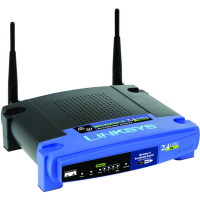
    I discussed establishing good wireless network security in a post titled Securing a Wireless Network, but now I will discuss securing the Linksys WRT54G wireless-G router. I currently have a Linksys WRT54G Wireless-G router. When I work from home I use this router to connect to work through VPN, and have done it without any problems. It has made a great cable router for my broadband connection.

    The big issue with wireless networks is security. As anyone with a wireless network card within a few hundred feet of your router can connect to your router. To prevent this from happening, it is important to secure your router.

    Securing the Linksys WRT54G Wireless-G Router

    Note:

    If you need to reset your router back to the factory defaults, then please read How to Reset the Linksys WRT54G Wireless-G Router.

    To secure your Linksys WRT54G wireless router, follow these steps:

    1. Open your Internet browser and enter the following in the address bar: http://192.168.1.1.
    2. Note:

      If you have changed the IP address of your wireless router, enter that into the address bar. By default, the address is 192.168.1.1.

    3. Enter the user ID and password for your router. If you haven’t changed it, the default password is “admin”. We will change it later if you haven’t already changed it.
    4. You should now see the “Basic Setup” Web page display in your browser. Scroll down the page until you see “Maximum Number of DHCP Users”.
    5. This option will assign a specific number of IP address to computers. If more than this number of computers tries to connect to your router, they will not be able to.

    6. Count the number of computers that will connect to the router, and type it into the “Maximum Number of DHCP Users textbox”.
    7. Scroll down to the bottom of the Web page and click “Save Settings”. Once the settings have been saved, click “Continue” to return to the Web page.
    8. At the top of the Web page, click the “Administration” option in the menu bar.
    9. On the “Management” Web page, you should see two password text boxes. This is where you should change your administrative password. Type in a new secure password into both boxes. If you need help creating a secure password, please read Creating Secure Passwords.
    10. Once you have changed your password, click “Save Settings” at the bottom of the Web page.
    11. You may be prompted to login again, if you are then enter you new password in the password field.
    12. Navigate back to the “Management” Web page by clicking the “Administrative” option in the menu.
    13. We will now encrypt your connection to your router setup from your computer. To do this click the “HTTPS” checkbox next to the “Access Server” option.
    14. Once again, click the “Save Settings” button at the bottom of the Web page.
    15. You won’t get the settings saved page again because the URL in the address bar is not longer correct. Since you have changed your connection to HTTPS, it you need to specify that in the address when you connect to the router setup.

    16. In your browser, change the address to: https://192.168.1.1.
    17. If you get a security error, ignore the error and continue to the Web page.

    18. Login with your password and then click the “Wireless” menu option.
    19. Beside the “Wireless Network Name (SSID)” option, type in a name for you network connection.
    20. Click the “Save Settings” button and the “Continue” button to return to the “Basic Wireless Settings” page.
    21. Click the “Wireless Security” sub-menu option at the top of the page. This is where we will provide the most important security setting.
    22. Next to “Security Mode”, select “WPA – Personal” from the drop-down list. If you have trouble connecting to your wireless connection, you can try selecting “WEP”, but your connection will be much less secure. For more information about WEP and WPA please read Wireless Security: WEP and WPA.
    23. Next to “WPA Algorithms”, select “AES”. Once again if you have trouble connecting to your wireless router, select “TKIP”.
    24. Now you must get very creative. Specify a long “WPA Shared Key” with a mix of upper and lower case letters, numbers and punctuation. Once again, please read Creating Secure Passwords for tips on how to do this. In this case the longer the better.
    25. Make sure you write down this key somewhere, either on a piece of paper or in a text document on your computer. You will need this information when you connect to your wireless network.

    26. Click the “Save Settings” button at the bottom of the Web page, and then the “Continue” button.

    Now you are all done securing your wireless router and network. All you need to do is connect to your network, and enter your “WPA Shared Key” exactly as you specified it. I won’t go into detail on how to connect to your wireless network, as I will save that for another post.

    Wireless Router Security Connection Questions

    Question: How come we didn’t disable the SSID broadcast? Won’t that help with securing my wireless connection?

    Answer: It has been mentioned many times that disabling your SSID broadcast will help secure your network. The reality is that those who attempt to get into your wireless network will be able to easily pick up or SSID whether it is broadcasted or not.

    You may also have problems connecting to your wireless router if you disable the broadcasting of your SSID. I keep it enabled.

    Question: Why don’t you filter who connects to your wireless router using the MAC address by turning on MAC address filtering?

    Answer: This is another tip you may see on the Internet about securing your wireless network. There are a few problems with turning on the MAC address filtering.

    The first problem is that a hacker can easily spoof a MAC address, and therefore bypass the MAC filtering. The second is that you need to manage the MAC addresses of all network cards attempting to connect to your router. Since it really doesn’t provide a lot of security, it is just easier to keep it turned off.

    Question: Why do you specify to use WPA – Personal first, and not WEP?

    Answer: The reason is that WPA is much more secure than WEP, and therefore you should use that security mode over WEP. An experienced hacker can easily crack WEP encryption so it doesn’t provide as strong security as WPA. If you can’t use WPA, use WEP because it is still better than nothing.

    After following the steps, you should now be confident knowing that you have established a good wireless network security which provides a secure Internet connection through your Linksys WRT54G Wireless-G router.

  • Preventing Duplicate Content in Search Engines With WordPress

    I was recently looking at Google’s Webmaster Tools, and more specifically the robots.txt section. As I reviewed the robots.txt for my blog, I thought about whether I can make it better. For those who aren’t familiar with the file, it provides information to web robots about what files/directories they shouldn’t access. Search engines use web robots to add pages to their search results.

    As I was reviewing the robots.txt file, I was thinking about a more efficient method of preventing duplicate content from appearing in the search results without having to modify the robots.txt file. After performing a search I found a good way of handling it within WordPress.

    (more…)

  • Most Essential Web Design Elements For Business Websites

    Most Essential Web Design Elements For Business Websites

    The accessibility of websites is increasing rapidly with the mobile phones, smart phones, tablet pc, laptops, joining the ranks for internet use, as the overall trend shifts towards greater mobility and extensive bandwidth.

    Furthermore, there is an increased competition between different business websites for online domination.

    Surviving such cutthroat market conditions is not an easy task for most small businesses in their early stages.

    Regardless of the size of the enterprise, they all are looking for an adequate online presence and identity that can do justice to their business and increase their overall sales output.

    In order to get full benefit from their websites, businesses should give emphasis on the following web design elements and request the hired web design company to do the same.

    (more…)