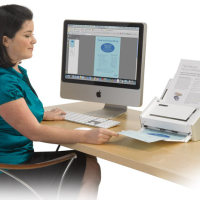
Scanners may not be as frequently used in offices as printers or desktop computers, but they are very useful for preserving and storing hard copy documents and their contents. When your office receives a document, such as a signed contract from a client, the fine print of an insurance plan, or a purchase receipt (both of which you do not have soft copies of), you may need to scan the documents and keep the digital copies as backup.
You might ask, why not just photocopy them? There are many things to consider here. First, if you need to keep a soft copy instead of another hard copy of the document, you’ll need to have it scanned. Second, if the integrity of the print or the signatures on the paper will be compromised on the copy (if the pen mark is too faint, the writing may not be visible anymore on a photocopy), it will be better to scan it to preserve the entirety of the document. Third, with a soft copy in hand you can always print out precisely similar hard copies of the documents any time you need them. That should cover the convenience of having an instant hard copy from a photocopier.
Take note that two of the reasons above speak of the importance of preserving the integrity of the original documents, that none of them be missing any visible component when reproduced or stored in archives.
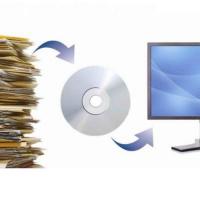
You can get overwhelmed by paper. In years gone by there may not have been an alternative. It was a matter of cramming filing cabinets and, ultimately, in finding more space. Some documents are still required in hard copy form but others can be kept in a different form, while still containing all the data in its original form.
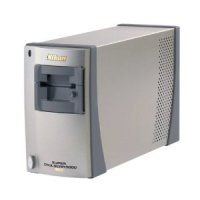
Through the history of photography, slides once played a dominant part in the sharing and storage of photos. In recent years their popularity has declined, but there has been a small and loyal following that has held onto their slides and enjoyed sharing them with family and friends. Sharing these slides is not always easy, and when others are wanting to view and share cherished family memories getting copies of slides is not a simple task for most people.
I have written several posts in the past about how I use VueScan to scan in old printed photographs, but never talked about how to profile a scanner in VueScan. While it took some getting used to, I have managed to create a VueScan scanning workflow that works for me. While everyone will have their own different workflow, the important thing to remember is that regardless of your workflow, you should take the time to profile a scanner in VueScan.
Why is it important to profile your scanner? Simple. All scanners don’t reproduce the same colours the same way. Even scanners that are the same model may have a minor variation of a specific colour. Profiling your scanner allows VueScan to produce scans that are as true to life as possible. While profiling your scanner may sound complicated, it isn’t difficult and I’ll step you through the process in this article.
Scan Properly: Profile a Scanner in VueScan
Before you profile your scanner you will first need to buy a IT8 calibration target. They aren’t expensive, and can be used to profile any scanner. I purchased by calibration target from Wolf Faust for $10 USD plus $10 USD shipping. The target was packaged in a sturdy cardboard envelope, and within a second sturdy envelope inside the cardboard one. The target itself was inside a plastic sleeve to protect it from dust.
Steps Needed to Profile a Scanner in VueScan
Once you have your IT8 target, you can use the following steps to profile a scanner in scanner:
Place the IT8 target onto your flatbed scanner, as you would a photo. Turn on your scanner and then load VueScan.
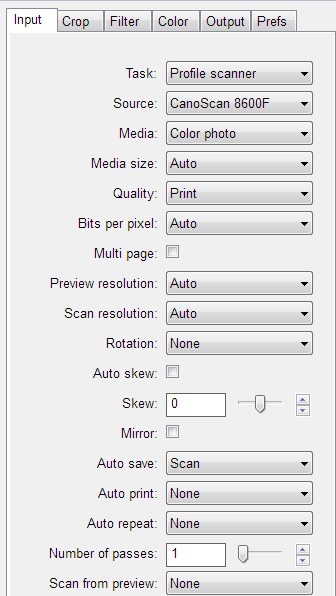
Click the “Input” tab, and then select “Profile Scanner” from the “Task” dropdown option.
VueScan – Task – Profile Scanner (Click to enlarge)
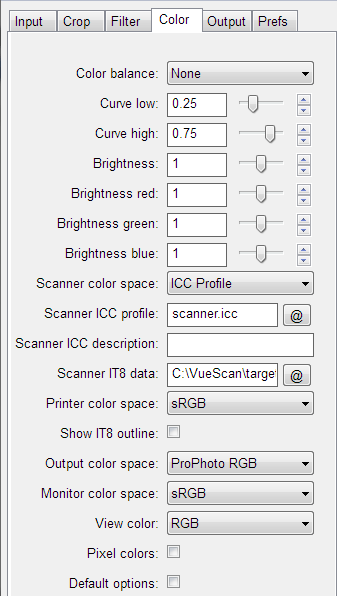
Next, click the “Color” tab, and then click the “@” button next to “Scanner IT8 data” and select the IT8 description file.
VueScan – IT8 Scanner Data (Click to enlarge)
Note:
The IT8 calibration target that I received from Wolf Faust didn’t come with a description file. The description files are available from the website where I ordered the target. If you don’t have a description file, check to see if you can download one from the website where you ordered your target.
Click the “Preview” button to preview the IT8 target in your scanner.
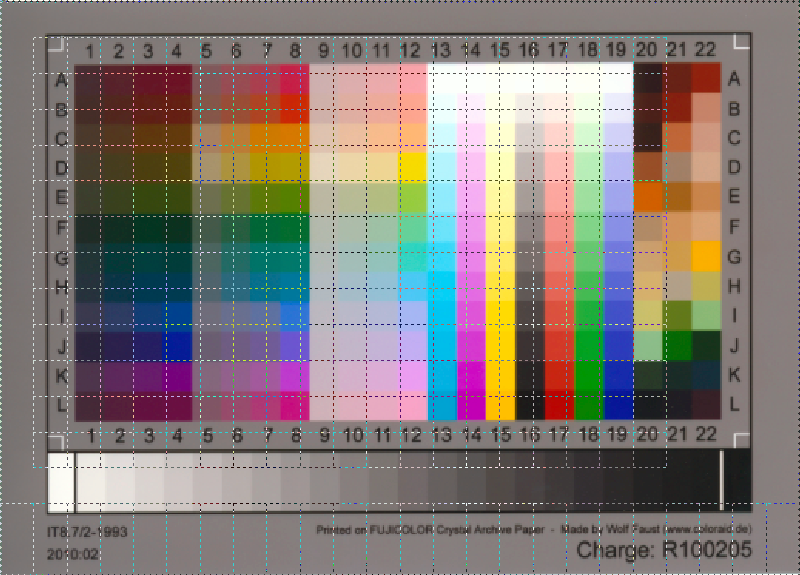
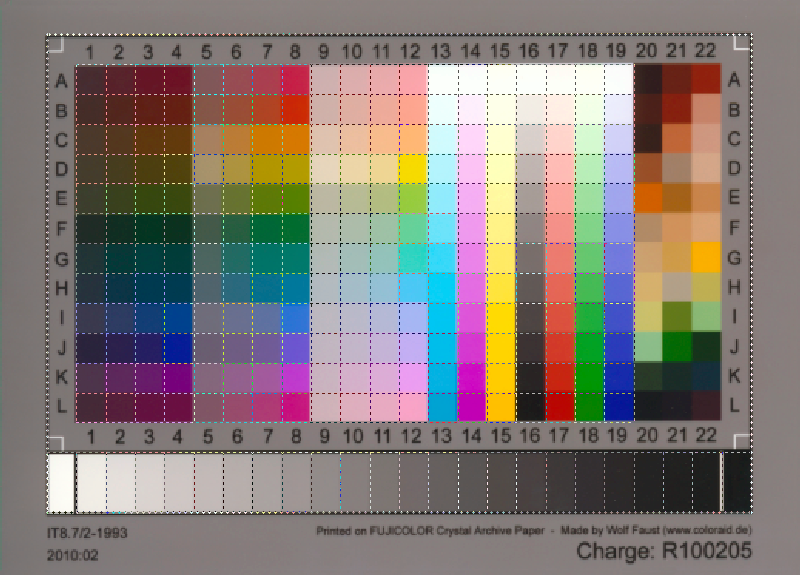
After the preview is displayed, a cropping mask will be displayed over the image. This mask will need to be adjusted to line up with your target. You can simply drag the border of the cropping mask so it matches your target. This step is important if you wish to profile a scanner in VueScan properly.
VueScan – Copping Mask Not Aligned (Click to enlarge) VueScan – Copping Mask Aligned (Click to enlarge)
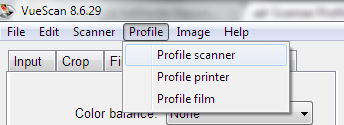
Once the cropping mask is aligned with your target, click “Profile->Profile Scanner” from the top menu.
VueScan – Profile Scanner (Click to enlarge)
A file called “scanner.icc” is created in the same folder as “vuescan.ini”.
When you want to scan a photo, you can specify the scanner ICC profile you created using the above steps. You specify the profile in the “Scanner ICC profile” option under the “Color” tab.
By using a profile, you can now scan photos with the correct colours with minimal adjustments needed. Getting the correct colours is one of the main reasons to understand how to profile a scanner in VueScan.
It has been a while since I have talked about scanning photos to create a digital archive of those photos. As I mentioned in previous posts, I recently purchased a new desktop computer, and have been busy setting it up. I have also installed both the scanner and VueScan on my new desktop, and have enjoyed the increase in performance when archiving my photos.
One thing I have begun to finalize is my workflow for scanning and archiving the photos. After doing some reading online on using VueScan, I have come up with my own workflow. While you can follow my workflow, and change it as you see fit, it is important to remember that a workflow must work for you. The one I outline below works for me.
I have been archiving some of the old photos, negatives, and slides that are lying around my house. As with most people, many are located in unlabelled boxes that are not organized in any way. Besides being unorganized, the other issue is that there are no safe copies of the originals, so if I was to lose my house for some reason, such as a fire, then all these memories would be lost.
I decided to scan in as many of these originals as I can, and then back them up as I have done with my digital photos. Unlike digital photos, however, scanning, the photos, slides, and negatives takes more time and effort than simply taking a picture. For the scanning process, I use a tool called VueScan.
I do quite a bit of scanning whether it be slides, negatives, or printed photographs. For slides and negatives I can easily scan multiple items at one time. Scanner applications are able to save each image to a separate file with slides and negatives.
Scanning multiple photographs is a different story. Many times people would scan multiple photos in at one time and then manually separate them. My scanner software can do that, but with automated settings only. Photoshop includes an automated action that can do this for you after the scan, and straighten your photos automatically.
When I edit images in Photoshop that are either created in Photoshop, or from a scanner, I usually deal with 48bit images. I like the extra overhead for editing that 48bit images provide. The one problem that I encountered recently was saving the file to a JPEG to be displayed on a Web site. The problem was the colours of the image were off and the image looked dull and had a lack of contrast.
After reviewing my workflow when saving a 48bit to a JPEG to display on the Web I quickly realized my mistake. I explain my mistake in this post and how I corrected it.