A popular post on Technically Easy is where I recommend disabling audio enhancements on Windows Vista to help reduce the CPU usage of the audiodg.exe process. Depending on the enhancements that were enabled, this can have a large effect or no effect on the CPU usage.
While the above post covered how to disabled the audio enhancements on Windows Vista, the same steps apply to Windows 7 as well, unless you have hidden the speaker icon from the system tray. If that is the case, you can use the steps outlined in this post to disable the audio enhancements from Windows 7.
Disable Audio Enhancements

To disable audio enhancements on Windows 7, you can use the following steps:
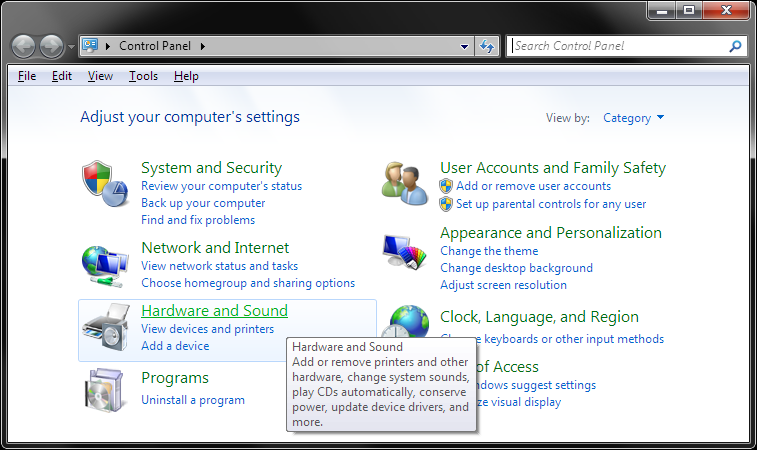
- Click the Windows icon in the lower-left corner and then click “Control Panel”. The “Control Panel” window will open on the screen.
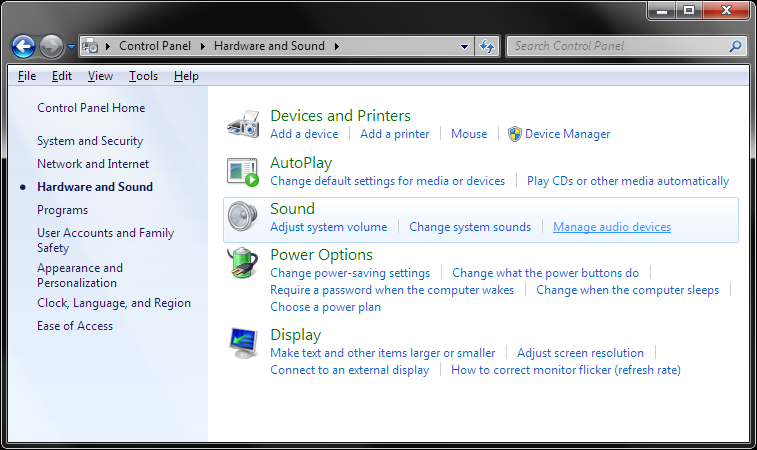
- From the “Control Panel” window, click the “Hardware and Sound” link.
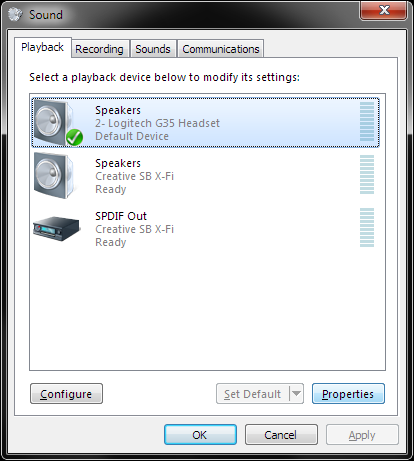
- From the “Hardware and Sound” options, click the “Manage audio devices” link under the “Sound” section. The “Sounds” window will display on the screen.
- Select the device you want to change the audio enhancements for, and then click the “Properties” button in the lower-right corner. The properties window will display on the screen.
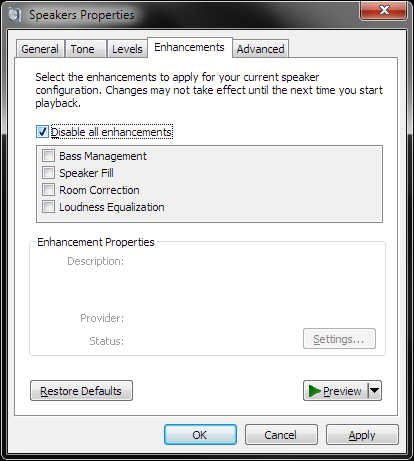
- Click the “Enhancements” tab at the top, and then disable any audio enhancement you don’t want to enable by unchecking the enhancement and clicking “Apply”. You can disable all audio enhancements by checking the “Disable all enhancements” checkbox and then clicking apply.
- Click “OK” to close the properties window.
- If you want to disable enhancements for other audio devices, repeat steps 4-6 for other devices.
Some people may notice a decrease in sound quality, while some may not notice a difference at all. Keep in mind that the enhancements enabled under the “Enhancments” tab are artificial software enhancements. If you prefer to use enhancements, you should choose to use any that are included with your sound card software instead as they are usually more advanced and provide more settings to adjust the sound quality. You can always enable any enhancements that you disable if you don’t like the sound quality.


on September 10, 2010 at 11:42 am
I noticed this problem when listening to Pandora, it fixed it.
on September 10, 2010 at 11:47 am
It may or may not cause problems. That’s why I prefer to use the enhancements from my sound card application.
on September 16, 2010 at 4:05 pm
Hi. Thanks for both of your posts about this. I’m on Win7 and I have no Enhancements tab, as shown here:
http://bit.ly/dzOWbu
It’s my active device, followed the instructions of both guides, but some people have it like this. None of the tabs or options link to the enhancements.
I’d like to be able to use the one for loudness and turn the rest off, so do you know how I could access that? It’s not in the driver’s config either, so do you think I need to try another sound driver or something? Thanks for your time.
on September 16, 2010 at 7:14 pm
I found this on Microsoft’s Windows site:
“If you don’t see an Enhancements tab in the Speakers Properties dialog box, those features are not available for your speakers and this procedure is not applicable to your computer.”
So it looks like the audio enhancements are available for your speakers.
on September 26, 2010 at 3:53 pm
Hi Paul, I just got a new HP laptop and no enhancements were enabled. Thanks for showing me the ropes anyway.
Ileane recently posted…How to Get More Feed Subscribers- 10 Tips
Twitter: Ileane
on September 27, 2010 at 8:30 am
They must have been disabled. Some speakers may not support enhancements as well.
on November 19, 2010 at 11:01 am
I have to disable the enhancements every time I start my computer. How do I make this permanent so that I do not have to do it every time?
on November 22, 2010 at 8:11 am
I haven’t had that problem. Usually when I disable enhancements, they stay disabled. Do you have any applications that startup and adjust your sound settings?
on February 12, 2011 at 1:04 am
Windows 7 shows “Disable all sound effects” on the Enhancement tab. I have disabled all items and I still get a CPU warning at 85% due to a audiodg.exe file. Any other suggestions?
on February 17, 2011 at 5:03 pm
Hi ,
I have lenovo 3000 Y4100 9RQ Laptop with Windows 7 OS. Before with the same OS i was using my Speaker with good quality sound but after formatting the laptop i have install all the drivers required for it but in Sound Property -> Enhancement Tab in Control Panel it was showing status Disable. Please let me know how to enable the status so that i can play sound from my laptop speakers. Volume symbol and everything showing up to date in my laptop but only sound is not coming out of it. Please send me possible solutions if any body have.
Thanks.
on February 18, 2011 at 8:23 am
Try the following:
1. Click the Start Button, type “MMSYS.CPL” (without quotation marks) in the Start Search box and press Enter.
2. Click the Playback tab, and then click the Speaker which that should play the sounds. Next, click the Properties button.
3. Switch to the Advanced tab, and uncheck the “Allow applications to take exclusive control of this device” option.
4. Click Apply and click OK.
on March 11, 2011 at 2:10 pm
Thanks for this – had a problem with exactly the symptoms you describe which started suddenly (shortly after upgrading to Norton 360 V5 – not sure whether this was a factor)
Disabled the enhancements as described (in my case, the tab was labeled SoundBlaster) and so far it seems to have resolved.
What I have noticed is that audiodg’s CPU usage dropped to 0% immediately i selected this option – it had been peaking up to 30% previously.
Fingers crossed.
on April 18, 2011 at 1:10 am
How can I enable them again?
on April 18, 2011 at 8:16 am
You can just uncheck the “Disable all enhancements” checkbox and select the enhancement you wish to use.
on September 16, 2011 at 2:26 pm
so everyone keeps saying the same thing and this does not do anything for my audiodg.exe process as it still runs and uses high resources, please can someone figure this out, also in my speaker selection i do not have an option to install other devices and my default is headphone when clearly using speakers?