Via E-mail:

Making technology easier to understand.

Convert a Microsoft Word Document to PDF for Free

Most people who have used a computer in the past have probably seen and read a PDF document. Many software and hardware manuals now come in a PDF version, or you can download them from their vendors. For those that don’t know about a PDF document, they are documents that will be displayed the same on any computer.

One popular question is how to create PDF documents from other applications. Microsoft Word is a popular word processing application, but it can’t natively save a PDF document. In this post I will walk you through the steps that will convert any Microsoft Word document to a PDF file for free.

Simple as Printing a Document
Word Icon

If you have ever printed a document from Word, and I’m sure many of you have, then you can create a PDF document. In fact, you use the “Print” option within Word to convert your document to a PDF file.

To convert to a PDF document, use the following steps:

  1. First you will need the tool that will convert the document. Download PrimoPDF (it’s free) and install it on your computer.
  2. Next create a Microsoft Word document, or open an existing document that you would like to convert to PDF. The figure below shows an example I will use in this post.
  3. 1. Create a Microsoft Word document.

    The original Microsoft Word document
    (Click to enlarge.)

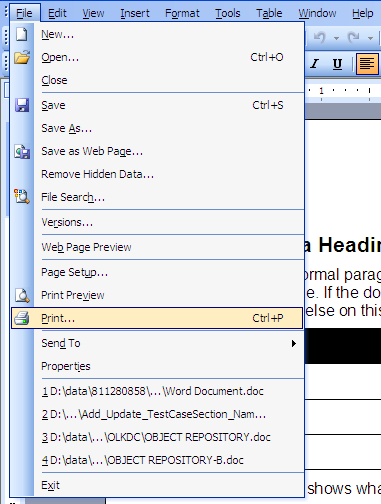
  4. Once you are ready to convert, select “File->Print” from the Word menu, shown below.
  5. Note:

    If you are using Office 2007 or newer, then the print option will be in a different location since Microsoft changed the look of Office in the newer version.

    2. Print the Microsoft Word document.

    Microsoft Word print option
    (Click to enlarge.)

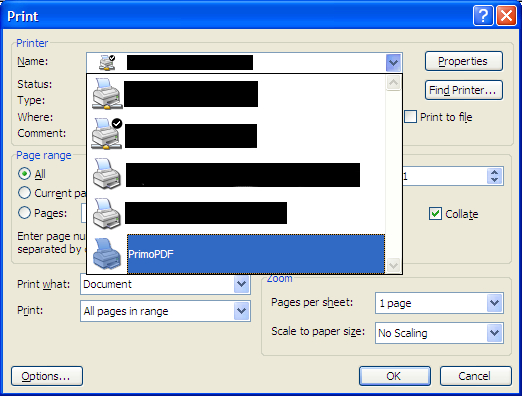
  6. In the print dialog, select “PrimoPDF” from the printer dropdown list. The figure below shows PrimoPDF in the printer list.
  7. 3. Select the PrimoPDF option from the printers list.

    The PrimoPDF printer option
    (Click to enlarge.)

  8. Click the “OK” button to print the document. The document will be sent to the PrimoPDF document writer instead of an actual printer, so the document won’t actually print.
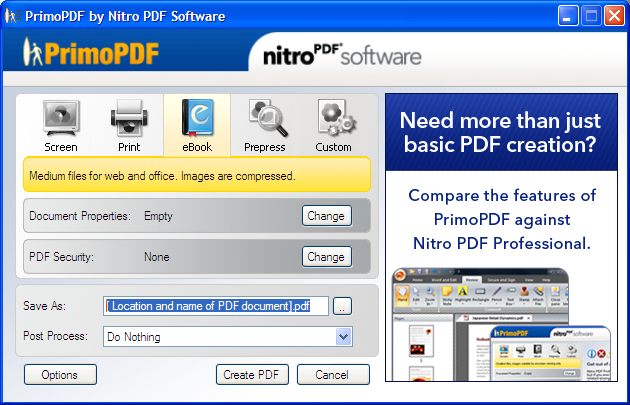
  9. The PrimoPDF settings dialog will be displayed. Select one of the options that suits what you plan to do with the document. The ebook setting is shown below.
  10. 4. Specify the PDF settings. The eBook option is shown.

    The PrimoPDF eBook settings
    (Click to enlarge.)

  11. Beside “Save As”, fill in the location where you would like the PDF document created. You can also click the button with the three dots and navigate to a location.
  12. Once you are ready, click the “Create PDF” button to convert your Word document to a PDF file.
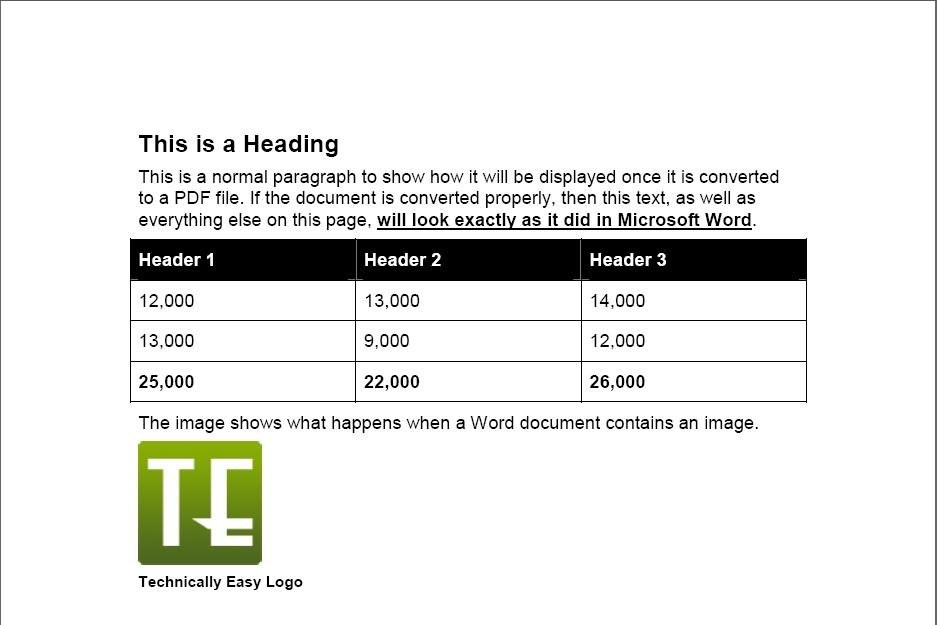
  13. After the document has been created, you can open it up in Adobe Acrobat Reader to see if it was converted properly. The figure below shows the PDF result from the original Word document that I used above.
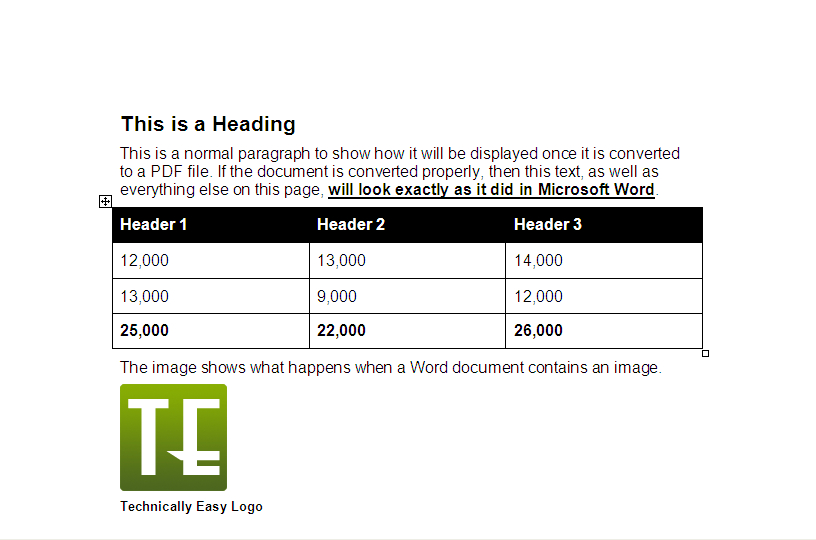
  14. 5. View the resulting PDF document.

    The resulting PDF document
    (Click to enlarge.)

This process can work for many applications and various file formats. The PrimoPDF web site states that their application can convert over 300 file types into PDF.

If you wish to create PDF files for such things as an ebook, then you can do so easily with PrimoPDF.

Post to Delicious Post to Digg Post to Facebook Post to Reddit Post to StumbleUpon

9 people had something to say about “Convert a Microsoft Word Document to PDF for Free”:

Comments

  1. Michael Aulia -

    I thought Word 2007 (and 2010) has a “Save as PDF” feature? Or at least a separate plug-in to save to PDF?

  2. Idrees -

    I haven’t tried PrimoPDF, but its competitor, Bullzip PDF Printer is a great free option for making PDFs. It’s rather similar to PrimoPDF. Of course, all these free options lack some major features if you want to make an e-book: there is no ‘secure’ option, like in Adobe Acrobat or Nitro PDF. You have to pay for the latter two programmes, though, and well — they’re extremely expensive!

    Microsoft Office Word 2007 does have a ‘Save As PDF’ free add-on, which you can download from Microsoft’s site. Although it has the same limitations I mentioned above, it is an efficient tool in quickly publishing PDFs.

    I like the PDF format for reading e-books. It’s nice and clean. And easy to make, too.

    • Paul -

      I have Word 2007 installed, but haven’t had a chance to look at the PDF add-on. The one thing I do like about using PrimoPDF is that it works with older versions of Word as well. The example from this post was done with Word 2003.

      PrimoPDF does have some secure options, such as requiring a password to open the document. You can also set permissions on what a user can do, such as fill out forms.

  3. Melvin James -

    Yes, Microsoft Word 2007 and 2010 support ‘save as PDF’. So create PDF files is not a problem!
    But it’s still difficult to convert the PDF back to Word. Although there are many PDF to Word converters in the market, not many of them can do a good job. Now I’m using AnyBizSoft to convert PDF to Word for me, that’s accurate, even protected PDF can be converted. Pretty cool.

  4. willy -

    very usefull post
    thanks so much

  5. Idrees -

    For PDF to Word converters, I’d suggest using Nitro PDF’s free converter for PDF to word, PDF to Excel. It’s available from their website in their free family (which also includes PrimoPDF).

  6. Ginae B. McDonald -

    Sweeeet! I’ve been looking for this!

    Thanks :)

  7. HallAurora -

    It is very usefull !
    Anyone used spire.Doc ? I feel it other easy way to converter for PDF to word,maybe a better c# word component .
    http://www.e-iceblue.com/Introduce/excel-for-net-introduce.html

Do you have something to say? Let everyone know!


CommentLuv Enabled