Online businesses are no longer just a trend; they are now the norm that everybody is conforming to. The onset of the worldwide web and its succeeding impact on modern living has made it the ultimate destination for businessmen and entrepreneurs. Why risk capitalizing a large amount of money on a business venture that has no guarantee of survival? Furthermore, why follow traditional means when you have the opportunity to do things differently today? The web requires less money and offers more profit than what any ordinary businessman can imagine. Nevertheless, venturing online does have its own set of drawbacks that you’ll have to cope with.
Among them is establishing good partnership with sources and clients. Since majority of your operations are transacted through the internet, you are faced with the challenge of conducting legit affiliations that are necessary in your business’ development. If you think setting appointments will be easy, you obviously haven’t considered the fact that online businesses cater to an international audience.
Many of us aren’t the greatest Web site designers, or just don’t have time to design one, and because of this we rely on templates that others have created. The only problem with this is we may not understand how the entire Web site is designed with regards to files used and the layout of the site.
One issue that I have recently read about is getting the values for the site colours to use with Google Adsense. The template user wanted to know how to get the colours from the template to blend in the Adsense ads with the site. The problem a user may have is reading the cascading stylesheets that come with a template to find the correct colours. In this post I will show how to retreive a colour from a Web site without look at the cascading stylesheets.
Using an Image Editor
This method may seem long when you read it, but it basically involves taking a screenshot of the Web site, pasting it into an image editor and then retrieving the colour.
In this example I will use Windows Paint and Windows calculator to get the colour. You can use any image editor that allows you to retrieve colours, such as Photoshop or Paint Shop Pro.
To get the colours use the following steps:
Open up your Web browser and navigate to the Web site.
Press ALT+Print Screen to make a copy of the screen. The screen copy will be in memory, so you won’t see anything change.
Click Start->Run and then enter mspaint.exe in the Run dialog. This will open up Windows Paint.
In Paint, press CTRL+V to paste the screen copy from memory into the document. You should now see the screen in Windows Paint.
From the toolbar on the left, click the eyedropper icon, also called Pick Color and then click the colour you want to find the value for.
Once you have clicked the colour, click Colors and then Edit Colors from the menu at the top. You should now see the Edit Colors dialog box on the screen.
Click the Define Custom Colors button to expand that dialog box.
The colour you clicked with the eyedropper will be the selected colour in the dialog. Write down the three numbers beside Red, Green, and Blue labels. For the Web, we will be converting those three numbers to hexadecimal.
Click Start->Run and then type calc.exe in the Run dialog box.
With Windows calculator open, click View and then Scientific to get more advanced calculator functions.
Near the upper-left corner of the calculator you will see four option buttons: Hex, Dec, Oct, Bin. These are the differernt number systems. We will focus on Hex (hexadecimal) and Dec (decimal) for now. Ensure that Dec is selected.
Typein the Red value that you retrieved from Windows Paint in the calculator, and then click the Hex option. The value should now be converted to hexadecimal, which you should now record somewhere. If the number is not two characters in length, then append a leading zero to the value.
Click the Dec option and then enter the Green value, and then select the Hex option. Write down that value beside the red value.
Repeat the previous step for the Blue value and write that value down next to the green value.
For example, if you had a value of Red=155, Green=98, and Blue = 201, then your new number should be 9B62C9.
The number you should end up with will be 6 characters in length. This is the hexadecimal number that represents the colour you selected on your Web site. You can now use this number in Google Adsense, or any other place and the colour will match your Web site.
Summary
This post explained how to retrieve a colour value from a Web site without reading the cascading stylesheets. Windows Paint was used to retrieve the Red, Green, and Blue values of the colour, and Windows Calculator was then used to convert the three numbers to hexadecimal. Using this method, you can easily find out colour values of an colour on any Web site.
Web images are akin to a double-edged sword with conflicting sides. One helps you fight but the other fights against you. Whereas they are important in increasing rankings on search engines and viewership by users they can be what makes users readily click on the back button without second thought.
As an entrepreneur, you realize the importance of aesthetics. You realize that the better your office, your store or your establishment looks, it will reflect on how good the products and/or services of the business is. While most entrepreneurs emphasize the importance of how good their business establishments look, most are less likely to give importance to how their websites look.
In fact, most businesses overlook how significant of an impact web design can make when it comes to their overall marketing performance. Yes, your company’s marketing campaign has had its fair share of success, but chances are, it is not enough. The business still has to get over some kind of hump, a hump that a business can get through if it puts emphasis in its web design.
In a previous post title Designing Web Pages: Tables or CSS, I briefly talked about using CSS to layout the content of a Web page. I didn’t go into detail about how CSS files are used in conjunction with Web pages or even how they are created.
In this post I will provide a simple introduction to cascading stylesheets and how you can link them to an HTML file.
Choosing a web hosting service provider is no easy task. Even professionals sometimes have a difficult time making a decision. Qualities to consider when choosing a web host include affordability, reliability, tech support, and personal taste. You have to be careful with looking at Top Ten lists because sometimes the results are skewed by fake reviews for advertising and affiliate purposes.
Different types of hosting are available too, many of which are labeled as business, professional, email, budget, shared, green, cheap, or unlimited hosting. More important than those simplistic, yet often confusing, labels are the actual types of hosting.
The four main types are Shared Hosting for personal blogs and websites, Virtual Private Server (VPS) Hosting for business and e-commerce websites, Reseller Hosting for those that buy server space and sell to their own customers, and Dedicated Server Hosting for large portals and enterprise websites. With Shared Hosting, there are two main types: Linux (or Unix) based and Windows based.
The reasons for needing a web host will dictate the type that you’ll need. If you’re just starting out and want a small website, go with Shared Hosting. If you’re the CEO of a large corporation, go with a Dedicated Server.
Affordability
Price is certainly an important aspect to consider when choosing a web host, but it shouldn’t be the deciding factor. Any hosting service that charges less than $10 a month is considered by most to be affordable. Many services offer monthly fees ranging from $2 to $6, especially when offered in conjunction with a special offer. They often offer sales and special discounts. Many also offer introductory rates. Don’t go with the cheapest offer though. Remember that you get what you pay for. The three ranges are $5 and under, $5-10, and $10 and over.
Reliability
A web hosting provider is only as good as the services they offer. If the sites you create are constantly crashing or you don’t have access to make updates, the that provider is considered to have a considerable amount of down time. The best providers have ratings of 99% reliability or better.
Tech Support
If the customer service department of your current provider doesn’t speak English, it might be time to find another provider. A good customer service department will be available via telephone or e-mail 24/7. They should be able to answer any question and solve any problem. Unfortunately, it is difficult to judge this aspect of a company before signing on with them. Make sure a phone number or contact info is listed.
Personal Taste
This is where even more research comes into play. Search the web for as many Top Ten reviews as you can find. Look for overlapping company names then choose your own top ten and go to their websites. See how you like it. Is the site easy to move around in? Do they have a lot of advertising? Does that bother you? Can you find any contact info? Are the prices within your range? Is the layout nice? Do they provide examples or customer testimonials? Narrow it down to your top three choices, then go with your gut instinct.
This TOP 15 list is a compilation from several other sites’ top 10 lists:
In Motion Hosting (Dedicated, VPS, Linux)
Web Hosting Hub (Linux)
Web Hosting Pad (Linux)
iPage (Linux)
Blue Host (Reseller)
Just Host (Reseller)
Host Gator (Dedicated, Reseller)
Go Daddy (Linux)
247 Host (Dedicated, Reseller)
Fat Cow (Linux)
Green Geeks (Linux)
Win Host (Windows)
My Hosting (Windows)
Arvixe (Windows, Reseller)
Host Ahead (Windows)
If you need more help, do a web search for “web host ratings” and choose a site to visit. Good luck and happy hosting!
Anyone who owns a business should have a website. It seems like a no-brainer at this point but you would be surprised how many small to medium-sized businesses don’t have websites (Yelp listings doesn’t count) in this day and age. So what’s the holdup you ask? Many traditional companies find the whole process of building and maintaining a website intimidating.
Because the internet is a relatively new thing (compared to older industries) and there are so many would-be experts it’s easy to see why someone who’s never dipped their toes in the digital water are a bit timid. There’s so many variables that go into developing a new website.
The one thing that I have always wondered about, and for some reason I haven’t tested out the feature, is how the process of restoring my files would work. Restoring my files successfully whill help me feel confident that the files I restore from Backblaze will be the same as the files I backed up.
After all, a backup process is only as good as its restore process.
I have decided to begin testing out restoring my data files from Backblaze to ensure that I will be ready in case I need to restore any of my files. Waiting until something does happen to my files is not the best idea.
Restore Methods
Backblaze provides three options when it comes to restoring files. I decided to restore my files using two of the options. The two options I will test will be:
1. Web restore with zip download.
This method basically allows me to select files using their Web interface and then Backblaze will zip the files and let me download the zip file from my account in a Web browser or from their download utility. This post will examine the results of this method. This method is suited for smaller restores and not for my entire library of files.
2. USB hard drive.
To restore all my files, I will use this method. For $189 Backblaze will copy my files to a hard drive and then mail the hard drive to me. From there I can restore my files from the hard drive. I can get my money back if I return the hard drive to them. This method allows a maximum of 4 TB of files to be restored. I will explore this method in a future post.
The third option is using a USB flash drive which has a file restore maximum of 128 GB. Since the first two options are enough for me to restore either a subset or all of my data, I won’t be looking at the USB flash drive option.
My current backup status
All of my important files – meaning files I never want to lose – are backed up with Backblaze. I chose Backblaze mainly because of the promise of backing up unlimited data for $5/month. The amount of data I backup increases every year, so if it wasn’t for the flat $5/month rate, online cloud-based backup would be too expensive for me.
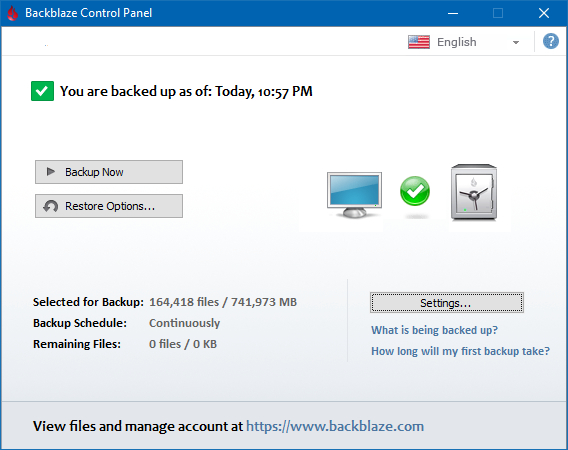
To see what I mean, here is my current file backup status.
The current status of my file backup with Backblaze.
As you can see from the screenshot above, I currently have the following backed up:
Files
Total Size
164,418
741,973 MB or 741.97 GB
Since this post will look at restoring files through the Web and download application from Backblaze, I won’t be able to restore all of my files. Instead I will focus on a small subset for this test.
Preparing the file restore from the Backblaze Web interface
Let’s begin with the restore of some files.
Using the Web interface is simple enough. I basically log into my Backblaze account and select the “View/Restore Files” option from the menu on the left. By default, the Web option is selected as the restore method, so I then use the folder tree at the bottom of the Web page to select the folders and files I want to restore.
Once I have selected my files I click the “Continue with Restore” button and that’s it. Backblaze will now prepare the zip files with the files I selected and then notify me, by email, when it is ready for download.
Note:
Backblaze will inform you if your download will be too large. The Web option is used mainly for restoring a small number of files. For any restore that is over 20 GB in size, they recommend the USB flash drive or USB hard drive options instead.
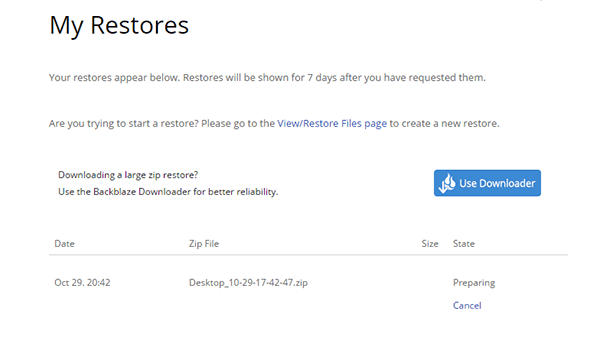
When I click the “My Restores” option from the menu on the left I can see my restore is currently being prepared.
My Backblaze restore is being prepared.
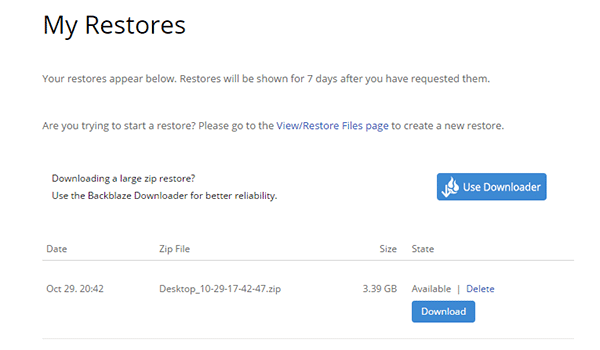
After about ten minutes of waiting I receive an email from Backblaze indicating that my zip file is ready to be downloaded. I returned to my account and to the same “My Restores” page and noticed that my zip file was now available for restore.
At this point I also can see that the size of the zip file is 3.39 GB so I have a rough idea of how long it may take to download and how much drive space I will need.
My Backblaze restore is available for download.
Now that my restore was ready it was time to download and see if the files are what they should be – meaning they are an exact duplicate of the original files.
Restoring the files
When downloading from the Web interface, Backblaze provides two ways of downloading the zip file: using the download button on the Web page, or using their Backblaze Downloader utility.
The Downloader utility is a portable application that you extract anywhere on your desktop. From there you just run the executable, enter your Backblaze login information and it will go and download the last zip file that was prepared for your account.
I wasn’t sure which option would be faster. I have a 100 mb/s (12.5 MB/s) Internet connection, although I do manage to get 120 mb/s (15 MB/s) when downloading games from Steam, so I wasn’t sure what to expect when downloading through Backblaze.
In any case, I tested both options to see if there was any download performance difference.
Download from the Web
Using the “Download” button on the Web form from my Web browser (Google Chrome), I began to download the zip file.
The download speed jumped between 2.5 MB/s to 8.5 MB/s with the average around 4 MB/s. This is a lot slower than I was expecting, but I was more concerned with the fact that my files were an exact duplicate of the originals, so speed wasn’t a major concern for me.
It took just over 15 minutes to download the 3.39 GB zip file from Backblaze using Google Chrome. This worked out to an average of 31.38 mb/s (3.9 MB/s) on my 100 mb/s connection. It wasn’t bad, but not great either.
I wondered if the Downloader utility would be faster, so I downloaded the zip file again using that utility.
Download using Backblaze’s Downloader utility
I downloaded the zip file containing the Downloader utility, unzipped the file and then ran the executable. I entered my Backblaze credentials and left all the other options at their default values. I clicked the “Sign in to Start” button and let the utility do its job.
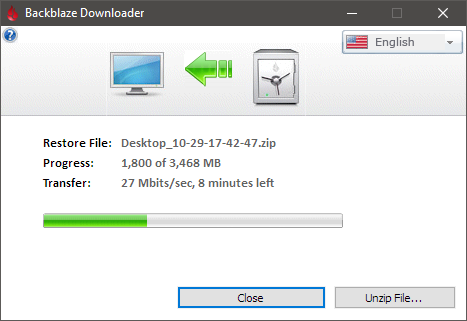
The utility displays a progress bar during the downloading activity as well as the amount transferred and the transfer speed.
The Backblaze Downloader downloading my zip file restore.
The Backblaze Downloader took 19 minutes to download the same zip file. This worked out to an average of 25.72 mb/s (3.2 MB/s) download speed. This was slower than using the Web browser to download the zip file.
Bear in mind, however, that in order to get a completely accurate picture of the download speeds, I would have needed to run both download tests multiple times. Since I am less concerned with download speeds as I am with actually getting my files, I didn’t perform any additional tests.
Verifying my restored files
Once I unzipped the zip file containing the files I selected to be restored, I could actually see the number that I had selected. I basically selected an older directory (10 years old) to be restored but I was unsure of how many files were in that directory.
The files in the directory were JPEG files, so the zip file size was very close to the uncompressed size because JPEG files are already compressed to begin with. There were also some RAW image files from my old Canon G2 camera I was using back in 2006.
In total 1,417 files were in the folder, and the files were 3,636,151,770 bytes (3.6 GB) in size. This represents a very small sample size compared to how many files I actually have backed up. The table below shows the number of files and sizes that I restored and the percentage of the total backed up.
Files
Size (bytes)
1,417 (0.86% of 164,418)
3,636,151,770 (0.49% of 741,973,000,000)
While it is a small sample size, it does allow me to test out restoring a smaller number of files, and also files that have been backed up to Backblaze for many years – since I first started using their backup service.
The most important aspect of restoring files is to determine if the files restored have no issues and that they match the originals byte-for-byte.
To verify the files I performed two tests:
I randomly opened image files to ensure that they could be opened without any issue. Opening all 1,417 files in many directories would take a while, so I would use the second test to verify all files.
Create a SHA256 hash of each restored and original file and compare the hashes to see if they are identical. If one byte in a restored file was changed, then that file would have a completely different SHA256 hash than the matching file.
I randomly selected files to open – both JPEG and RAW – and had no issues opening any of the files. I even displayed the thumbnails of directories in Windows Explorer and all thumbnails were displayed without any problems. So far so good.
I then ran a small application I created that would generate the SHA256 hash for both the restored and original files. After all the hashes were calculated and compared, the application would display a message box that indicated if any files were identical, different, or missing. Since I selected a single directory to be restored, I can easily ensure that all files were restored and none were missing.
After several minutes of creating the hashes and performing the comparison I was relieved to see that my application indicated all 1,417 files were matched successfully and that no file was missing from the original files.
This indicated that the restoration of 10 year old files from Backblaze was 100% successful.
Conclusion
I have been using Backblaze for many years to automatically backup my files in the cloud. During that time I haven’t tested their restore option, and I didn’t want to wait until I lost my files in order to use their restore option.
I managed to successfully restore 1,417 of my files that were a total of 3.6 GB in size without any problems. The download speeds, however, were a little disappointing, but as I mentioned earlier, my main concern was ensuring the files I restored were exact duplicates of the originals without any missing files.
This goal was achieved.
Next, I will restore all of my files using the USB hard drive method and then compare 100% of my files to the original to see if a complete backup of my files can also be successful.
Being able to restore all of my files successfully is now my goal.