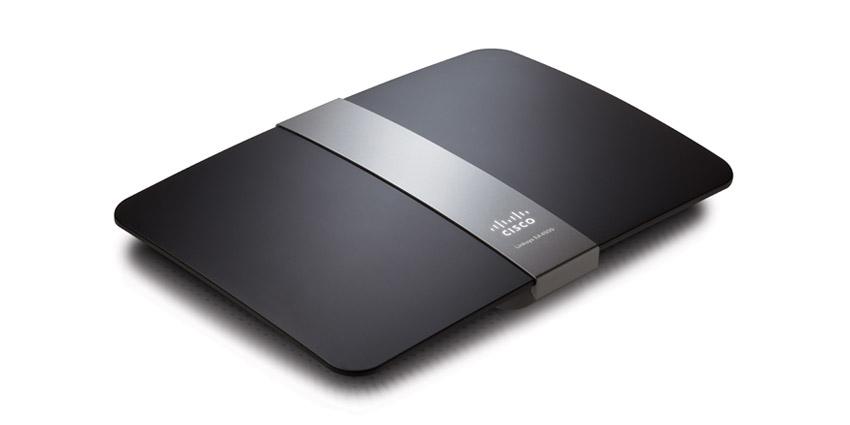
How to Secure the Linksys E4200 Wireless Router

  • Buffer
  • Pin It
  • Sharebar
  • Buffer
  • Pin It

As with any wireless router, it is important that you ensure you secure the Linksys E4200 wireless router to prevent unauthorized users from accessing your network. Ensuring that your wireless router is secure is the first step to keeping your data and private information safe.

Included with this router is a CD-ROM that contains the Cisco Connect software that allows you to setup your router. This post, however, will provide the manual steps you can take to manually secure the Linksys E4200 wireless router.


linksys e4200 256x256 How to Secure the Linksys E4200 Wireless Router

Steps to Secure the Linksys E4200 Wireless Router

The steps outlined below will help you to secure the Linksys E4200 wireless router. Ensure you follow the steps exactly, and if you think you have missed a step, or are having problems, you can always reset the router back to factory defaults and start again.

Note:

When accessing the router’s administrative web pages, I recommend that you use Internet Explorer if it is installed. It seems many of the administrative pages in routers tend to be more compatible with Internet Explorer.

  1. Open up your web browser and then go to 192.168.1.1.
  2. When the router prompts you for a user name and password, leave the user name blank and type “admin” as the password.

Change the Router Password

  1. Click the “Administration” tab the top, and then click “Management”.
  2. In the “Router Access” section, enter a new password for your login, and then enter the same password a second time to confirm it.
  3. Click the “Save Settings” button and then re-login with the new password. The user name will still be blank.
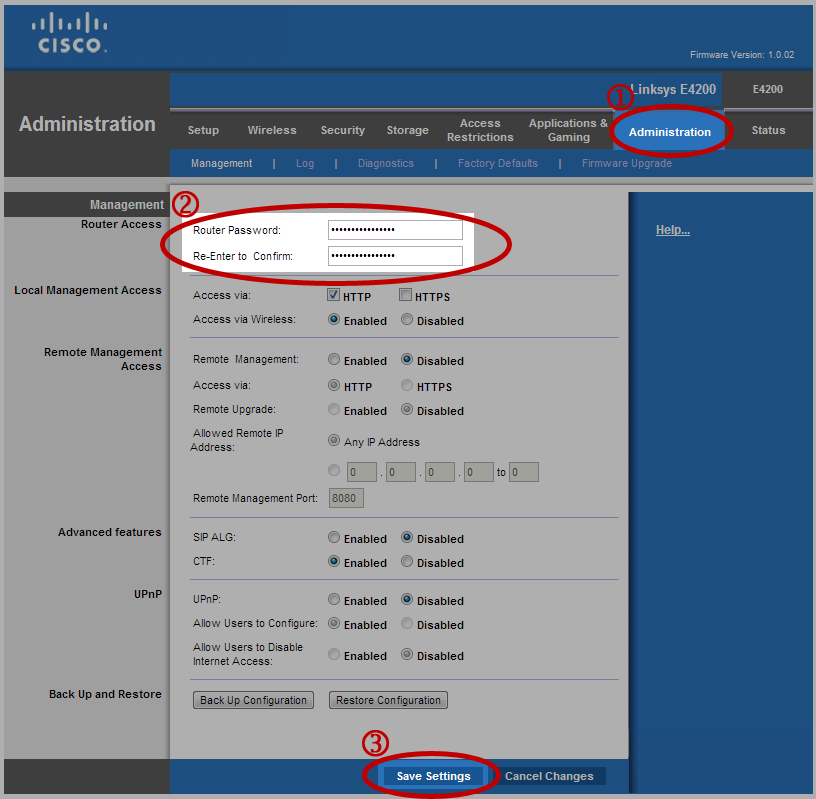
linksys e4200 administrator password 256x250 How to Secure the Linksys E4200 Wireless Router

Linksys E4200 Wireless Router - Changing the Administrator Password
(Click to enlarge)

Set Network Name

  1. Click the “Wireless” tab, which should display the “Basic Wireless Settings” page.
  2. Select “Manual” for “Configuration View”.
  3. In the “Network Name (SSID)” field, in the 5.5 GHz Wireless settings section, enter a name for your network.
  4. In the “Network Name (SSID)” field, in the 2.4 GHz Wireless settings section, enter a name for your network.
  5. Note:

    You can use the same network name for both the 5.5 GHz and 2.4 Ghz settings. Doing so will allow devices to use either frequency band when connecting.

  6. Click the “Save Settings” button.
linksys e4200 network name 256x189 How to Secure the Linksys E4200 Wireless Router

Linksys E4200 Wireless Router - Setting the Network Name
(Click to enlarge)

Secure the Linksys E4200 Wireless Router

  1. Click the “Wireless” tab.
  2. Next, click the “Wireless Security” option.
  3. In the 5.5 GHz section, for the “Security Mode” drop-down list, select “WPA2 Personal” or “WPA2/WPA Mixed Mode” for the best security, and enter a long passphrase that will be used to connect to your wireless network.
  4. Repeat the same steps for the 2.4 GHz section. If you used the same network name for both the 5.5 GHz and 2.4 GHz, then use the same passphrase, otherwise you can specify a different passphrase.
  5. Note:

    When creating a passphrase the length of the passphrase is important. The longer the passphrase, the better.

  6. Click the “Save Settings” button.
linksys e4200 wireless security 256x142 How to Secure the Linksys E4200 Wireless Router

Linksys E4200 Wireless Router - Setting the Wireless Security
(Click to enlarge)

After following the above steps, you should now have a secured router. If you have problems in the future, you can reset the router and follow the steps again to secure the Linksys E4200 wireless router.


List Price:Price Not Listed
New From:Check Amazon For Pricing In Stock

buyamzon button How to Secure the Linksys E4200 Wireless Router

Tags: ,

You may also like:

How to Secure the Linksys E4200 Wireless Router

How to Reset the Linksys E4200 Wireless Router

How to Secure the Linksys E4200 Wireless Router

Linksys E4200 Wireless Router Review

Linksys WRT54GL Wireless-G Router

How to Reset the Linksys WRT54GL Wireless-G Router

Linksys WRT54G Wireless-G Router

How to Reset the Linksys WRT54G Wireless-G Router

7 people had something to say about “How to Secure the Linksys E4200 Wireless Router”:

Comments


  1. A good number of them have pass codes on them..but that do depends on the brand though.
    I like this one a lot.

    “Black Seo Guy “Signing Off”
    TrafficColeman recently posted…Selling Ad Space Is Another Great Way To Make Money OnlineMy Profile


  2. I found that extra security can be added by mac address filtration. Using this mac filters, one can permit access to only authorized wireless devices by adding their MAC addresses to the Linksys filter MAC Address list.
    Amanda Gordon recently posted…Central Vacuum CleanersMy Profile


    • I used to do MAC filtering, but then I started to connect several devices to the wireless network, and I became tired of entering MAC addresses, so I stopped using the filtering.


  3. It’s one of a good router actually from Linksys. And now after you gave the tutorial on how to secure it, I guess it’s getting better. Thanks for sharing this.
    Andrew Walker recently posted…Guthy-Renker Coupon CodeMy Profile


    • The one thing I like about this router is that it is a dual-band router. This allows wireless G and Wireless N devices to connect at the same time.


  4. Exactly what I was looking for. Great tutorial!
    I didn’t think it was important to secure my new router but I was recently hit by a 300$ surcharge by my Internet company. Apparently someone abused my connection and I only pay for 10GB of bandwidth per month! Damn..
    Anita recently posted…Kitchen Layout Ideas – Great TipsMy Profile


    • Sorry to hear about the surcharge. I’m glad you were able to secure your router, but unfortunately you found out the hard way why it is a good reason to secure a wireless router. Now that your router is secured, you shouldn’t have any more problems with unauthorized usage of your Internet connection.

Do you have something to say? Let everyone know!

Commenting policy: All comments are moderated for spam. You must use your real name and not your website name or keywords. If a comment is deemed to be spam, then it will be deleted or edited. Links to your website within the comment body is not permitted, but you are free to use CommentLuv to add a link to your latest post. If you wish to add a link to your website, you can always contact me about submitting a guest post.


CommentLuv badge
This blog uses premium CommentLuv which allows you to put your keywords with your name if you have had 5 approved comments. Use your real name and then @ your keywords (maximum of 3)

Previous Post:

Next Post: