How to Properly Resize a CSS Sprite Image in Photoshop

  • Buffer
  • Pin It
  • Sharebar
  • Buffer
  • Pin It

Once you have created a CSS sprite image for your website, it is important to learn how to properly resize a CSS sprite image in Photoshop if you wish to add additional images. The reason for this is that when you resize the canvas of an image in Photoshop, the additional pixels added to the image will be applied to all sides of the image equally. This will have the undesired effect of centering the previous image in the current image, and throwing off your CSS sprite positioning.

To avoid such an issue, it is important to ensure that you only resize either the bottom or the left side of the CSS sprite image. In this post I’ll show you how to properly resize a CSS sprite image in Photoshop.

Resize a CSS Sprite Image in Photoshop

CSS Down How to Properly Resize a CSS Sprite Image in Photoshop

I previously talked about how to create a CSS sprite image, so in this post I will add to that by resizing and including additional images to the previous one. When resizing, however, it is important to take care so the original images in the sprite don’t become centered in the newly resized image. Since all images in the sprite are relative to the top-left corner of the entire image, having the original images centered will throw off all the CSS sprite positioning values.

In image editing software, you can specify where the additional pixels are added to an image when it is resized. Let’s look at the steps involved with regard to Photoshop.

The Steps Needed to Resize a CSS Sprite Image in Photoshop

  1. Open the sprite image in Photoshop. In my example I will use the same image from my previous CSS sprite post.
  2. social icons How to Properly Resize a CSS Sprite Image in Photoshop

    CSS Sprite - Social Media Icons

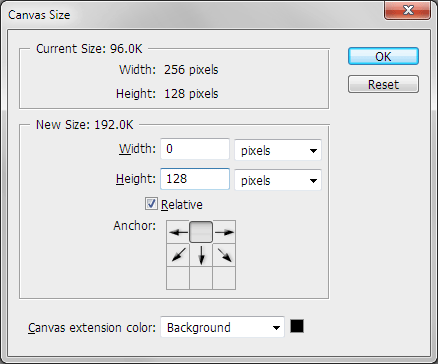
  3. Click “Image->Canvas Size” from the top menu.
  4. Next, enter one of the following:
    1. Enter the height and width of the new size of the canvas.
    2. Select “Relative”, and then enter the amount to add to the current image.
  5. Now before accepting the changes, click the up, or left, or upper-left arrow next to the “Anchor” option.
  6. resize canvas photoshop How to Properly Resize a CSS Sprite Image in Photoshop

    Doubling the Canvas Height Below the Existing Image

  7. Click the “OK” button to resize the image.

  8. social icons resize canvas photoshop How to Properly Resize a CSS Sprite Image in Photoshop

    Result of Doubling Canvas Height Below Existing Icons

By following the steps above, your CSS sprite should now be resized, but the original images are still in the same position relative to the top-left corner. The canvas has expanded either below, to the right, or bottom-right of the original image, allowing you to add additional images to the sprite. When working with sprite images and Photoshop, it is important to understand how to properly resize a CSS sprite image in Photoshop.

You may also like:

CSS

How to Properly Resize a CSS Sprite Image in GIMP

CSS

Speed Up Your Web Site By Using CSS Sprites

JPEG Format

Photoshop JPEG Settings

No thumbnail image

Photoshop GIF Settings

6 people had something to say about “How to Properly Resize a CSS Sprite Image in Photoshop”:

Comments


  1. Thanks for letting me know about this on Website Babble. I’ve always remembered seeing the arrows but never thought to try them :D


    • It took me some time to figure out the arrows myself. For some reason I have always resized an image canvas, but never really noticed the arrows as well.


  2. Nice tutorial! I have some difficulties in using Photoshop. Thanks for sharing this.
    Andrew Walker recently posted…ModernNursery Gift CodeMy Profile


  3. Thanks for this. I had never tried to use those arrows before!!
    Dougie recently posted…Our New WebsiteMy Profile


    • No problem. I never had used the arrows before I started working with CSS sprites.

Trackbacks/PingBacks

  1. [...] This post was mentioned on Twitter by Jacob Andersen. Jacob Andersen said: RT @z0mex: Comments on “How to Properly Resize a CSS Sprite Image in Photoshop”, Page 1 http://t.co/VMASfc5 via @TechnicallyEasy [...]

Do you have something to say? Let everyone know!

Commenting policy: All comments are moderated for spam. You must use your real name and not your website name or keywords. If a comment is deemed to be spam, then it will be deleted or edited. Links to your website within the comment body is not permitted, but you are free to use CommentLuv to add a link to your latest post. If you wish to add a link to your website, you can always contact me about submitting a guest post.


CommentLuv badge
This blog uses premium CommentLuv which allows you to put your keywords with your name if you have had 5 approved comments. Use your real name and then @ your keywords (maximum of 3)

Previous Post:

Next Post: