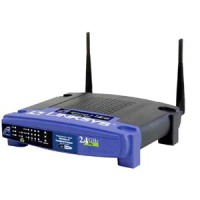
Recently, my Linksys WRT54G wireless router could not connect to the Internet. The odd thing about this was that just the day before I didn’t have any problems. I have two computers and a Wii connected to the router. Once computer is a desktop that is hard-wired into the WRT54G with a network cable. I was able to connect to the Internet with the desktop without any problems.
The second computer is a laptop, and like the Wii, it is connected to the router through the wireless connection. Neither system was able to connect, which indicated there was a problem with the wireless signal. After some testing I managed to find a solution.
Couldn’t Connect Wirelessly
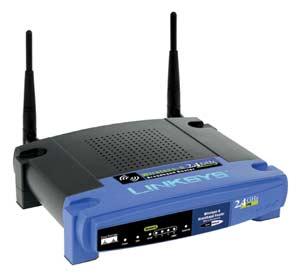
As mentioned above, the hard-wired desktop was able to connect to the Internet through my Linksys WRT54G wireless router, but the other two systems couldn’t connect. Since the wireless connection didn’t work, I used my desktop to examine the wireless settings in the router.
I checked to make sure my router wasn’t hacked, and I breathed a sigh of relief when I noticed everything was still set properly and the router was secured. Next I checked all the settings, and everything was as it should be.
Then I thought about the fact that there are many wireless networks in my neighbourhood. In fact, at this moment I count at least five wireless networks, and I have great signal strength to some of them.
Thinking about this, I decided to change the wireless channel from 6 to 11. After changing the changing, the laptop and Wii were instantly able to connect to the Internet. It looks like my wireless network had a contention with the previous channel, which isn’t surprising considering that channel 6 is a default, so chances are many of the other wireless networks were using that channel.
Changing the Wireless Channel on the WRT54G
If you are having problems connecting to the Internet with your WRT54G Wireless-G router, then you can try changing the channel to see if that fixes your problem. To change the channel, use the following steps:
- Log into your router’s administrative pages.
- At the top, click the “Wireless” menu item.
- In the “Basic Wireless Settings” page, select a different channel beside “Wireless Channel”.
- Click the “Save Settings” button at the bottom to save your changes.
Other wireless routers would have similar settings. Hopefully, this was the problems and you will get your Internet connection back.


on November 8, 2010 at 9:41 am
Regarding “Linksys WRT54G Wireless-G Router Not Connecting to Internet”, our internet connection is wireless. The signal is 2.4ghz (I think),so the router and internet collide. I want to change the router channel 1 but cannot go on internet when it is connected. In a stand alone mode it works fine for tying computers together. Any sugestions would be appreciated.
on November 8, 2010 at 12:58 pm
I am a little confused. How is your router and Internet connected? Is the router used for the Internet?
on November 9, 2010 at 8:18 am
Thanks for responding so quickly. Our internet connection uses the network
card connected to a little plastic box on the wall.
This box has an rj45 line from the computer, a 12 volt receptacle, and a 50
foot line to a 1 foot square box mounted high on the west end of our house.
Our provider said it contained a 23 db amplifier and antenna. It is aimed to
a 100 foot tower located 2 miles away ssw. We live in the country, so there
is no high speed cable available. I think it is a 2.4ghz system.
I cannot get the router to connect to the internet to try changing the
router to a different channel. It works fine as a wireless connector of
computers, but I have to unplug the belkin usb adapter on the machine tied
to the net when I want to go on line. Do you see a solution? I think the
router and the wireless internet are colliding. Thank You.
on November 9, 2010 at 3:45 pm
Have you tried chaning the channel in the router by hardwiring the computer to the router?
on November 9, 2010 at 4:15 pm
No.Can you tell me about the procedure? I am 84 and have lost a little, but perhaps with a hint or a link as to what I should try, I could handle it. The item is “change a router’s channel by hardwiring to a computer”. Thanks.
on November 9, 2010 at 4:20 pm
Your router should have come with a network cable, which looks like a larger version of the RJ-45 cable. Plug that cable into the network card of your computer and then plug the other end into your router. At this point you won’t have an Internet connection, but you will still be able to access the router. Once your router and computer are connected, follow the steps outline in Linksys WRT54G Wireless-G Router Not Connecting to Internet to change the channel for your router. Once the channel has been changed, remove the cable and try your wireless network connection again.
on November 9, 2010 at 5:09 pm
THANK YOU VERY MUCH! I WILL TRY IT AND GIVE FEEDBACK.
on November 9, 2010 at 9:20 pm
STEP ONE IN THE INSTRUCTIONS IS: 1.Log into your router’s administrative pages.
I CANNOT LOCATE THIS ON THE COMPUTER AND CANNOT ACCESS THE WEB PAGE (http://192.168.1.1)WITHOUT THE ROUTER. IS THERE ANY OTHER WAY TO GET TO THE “ROUTER ADMINISTRATIVE PAGES”?
on November 10, 2010 at 8:32 am
If you hard wire the computer to the router, you should be able to access the administrative pages without any issues.
on November 10, 2010 at 9:47 am
I Must be doing something wrong. Does the wire from the computer nic plug into the internet receptacle on the router, or as a computer (1,2,3,4,)for the non internet hookup? This machine belonged to our son who died of cancer 2 years ago, and I no longer have his expertise. Should I reset the router? Thanks.
on November 10, 2010 at 10:17 am
My apologies, I should have been more clear. The computer plugs into one of the numbered ports (1, 2, 3, 4). You would connect the router to the Internet into the Uplink port once you have your router up and running.
If you feel like doing some reading, here are some additional posts:
Connecting Multiple Computers to Broadband
Setting Up a Home Network
on November 10, 2010 at 10:32 am
EUREKA!! It worked and I got it to change to channel 11. Thank you for your extreme patience. You have made a very old man very happy.
on November 10, 2010 at 10:43 am
I’m glad I could help.
on December 18, 2010 at 4:27 pm
Hi Paul I’ve secured my WRT54G Linksys Router but I am having problems connecting to the internet. I’ve tried AES and TKIP but it trying but not conecting. Please help!! I am currently open to all:(
on December 20, 2010 at 11:04 am
Are you getting an error when connecting?
on December 21, 2010 at 9:56 am
I love your descriptions – very helpful. I have two questions:
If I reset my router to factory settings, will it wipe out the firmware upgrade I installed recently?
Twice now, my router has lost all the secuirty settings and broadcast name – everythign is wiped out. It appears to have been reset – but I didn’t reset it. I have (had) WPA and a MAC address filter set up so I don’t think it wasn’t hacked.
on December 28, 2010 at 10:00 pm
Kathy,
doing a factory reset should only reset all settings(IP’s, usernames/passwords, port forwarding, MAC filter lists, etc) on the router not any firmware updates.
Forgive me if this sounds to simple, but when you set your wireless security settings, are you clicking on the SAVE SETTINGS button at the bottom of the page before you move configuring your router (as a tangent, go for WPA2 instead of WPA. Simply put WPA is old “tech” and not too terribly hard to hack)?
on January 2, 2011 at 5:00 pm
sorry about a dump question. I see there are 5 ports behind my linksys WRT54G.
four ports are numbered 1 2 3 4 and an isloated port named : INTERNET.
I am using cable connection from my country. Am i right to say the cable coming out from my modem goes into the “INTERNET port” and my desktop computer cable plugs into either port 1 2 3 4 ?
Or my modem cable goes into port 1 and my desktop computer cable goes into port 2 ?
on January 3, 2011 at 11:36 pm
Tom,
your first assumption is correct; The cable coming from your modem goes into the INTERNET port, all other wired devices will go into the ports 1 through 4.
on January 4, 2011 at 6:36 pm
cant connect to 192.168.2.1. what should i do computer wont let me
on January 5, 2011 at 10:09 am
J,
If your referring to not being able to interface with your router (and I’m assuming that we’re talking about the WRT54G), I believe that default IP is 192.168.1.1 (change your third octet from a ’2′ to a ’1′).
If you find that you still can not interface, you could try changing the last octet from a ’1′ to ’0′.
The only other thing I can think to do might be a bit aggressive, but you might have to reset your router.
on January 30, 2011 at 12:05 pm
Last night wireless devices stopped detecting wireless network. Hard wired devices work fine. How can I turn on wireless capability of router? Hard wired port lights blink, WLAN light does not blink. Using Linksys WRT54G Wireless-G Router. Thanx!
on January 31, 2011 at 8:14 am
You can try changing the wireless channel for your router. Access the router through a hardwired computer, and then change the channel in the wireless settings.
on January 31, 2011 at 8:25 am
It now looks like Norton is the culprit here! The same day my wireless stopped our Norton pkg, that came on a new ps, expired. I uninstalled Norton but, have been told it probably changed registry settings. The removal tool on norton.com did not fix it.
Do you think changing channels will do it? If so, how do I do that?
Any other solutions re: getting rid of Norton?
Thanks!
on February 1, 2011 at 2:21 pm
You can try changing the channels. When you log into your router, the channel option should be listed under the Wireless settings.
I’m not familiar with Norton as I have never used the suite, so I’m not sure what it would have done with your wireless network. I usually stay with free applications that don’t impact my network.
on February 4, 2011 at 7:56 pm
My Linksys WRT54G was working fine, then all of a sudden stopped connecting to the internet. If I connect my computer straight to the modem, I get internet connection just fine. Even if I connect to the WRT54G router with a CABLE instead of wireless, I don’t get internet connection. Do these routers go bad? I’ve only had it for 3 years or so. Any suggestions?
Joe
on February 7, 2011 at 8:14 am
Routers are like all electronics – they can stop working after some time. In your case the router may still be working, but the Channel may need to be changed. Access your router, via the wired connection, and then go to your Wireless settings. There should be an option to change the wireless channel. Try another setting and then try the wireless again.
on February 16, 2011 at 11:32 am
I have an linksys wrt54g. but thing is i dont have internet connection. i have an foolish ques that is it possible to net connection through an reliance pco antenna. it has an internet port. so can i recharge it and connect to linksys wrt54g. then connect it to computer?
please reply my question……(to help me, but not to make fun of me)
on February 16, 2011 at 11:35 am
I have an linksys wrt54g. but thing is i dont have internet connection. i have an foolish ques that is it possible to get connection through an reliance pco antenna. it has an internet port. so can i recharge it and connect to linksys wrt54g. then connect it to my computer?
please reply my question……(to help me, but not to make fun of me)
on February 20, 2011 at 3:15 pm
I have the Linksys WRT54GL and it has suddenly stoppped working. All the light are on, i connect wired (modem into router – router into computer) and it doesnt work, but if i connect my modem straight to my computer i get the internet just fine. Tried restarting muliple times but to no avail, any suggestions??
on July 11, 2011 at 5:09 am
Hi, I have a Linksys AG300 (somwhat old, I know) wireless router. Recently the wireless connectioned failed to work. Upon trying to resolve this issue, I used the ‘reset’ button located at the back of the device, after which the cable connection then failed. The Power, Ethernet & DSL lights are all on. However the ‘Internet’ light is not. I have read other posts where you can reset the wireless channel using the ‘Basic set up’ site, but I do not appear to have an option for ‘wireless’. I have also reset the device to ‘restore factory settings’, but this also doesn’t appeared to be of any help. Any suggestions for assistance would be greatly appreciated, as I am a complete novice.
Richard B recently posted…How Important is Google’s PageRank?
on November 23, 2011 at 2:01 am
Hey changed channel and worked like a charm. Thanks for the tip.
Now I wonder why?
on November 23, 2011 at 8:08 am
At times if the channel is used by many devices it could get crowded and conflict. Before my wireless N router, I had to change channels every once in a while.