The most popular posts on Technically Easy has to do with resetting a wireless router, and securing a wireless router. Securing a wireless router can be confusing and difficult, and can offer a few headaches. Many people have e-mailed me, or left comments, about problems that they have had when securing their router. While I try to answer all, there are a few that I have trouble finding a solution for.
In this post, I will offer an answer to one of the comments that someone had posted about a “level_15_access” message they were getting when logging into their router. I have finally found an answer to this problem, which is explained below.
The Level_15_Access Issue – Related to IP Address
When securing a router, you are required to get access to the router’s administrative pages through a web browser. You type in a user ID and password to gain access to these pages.
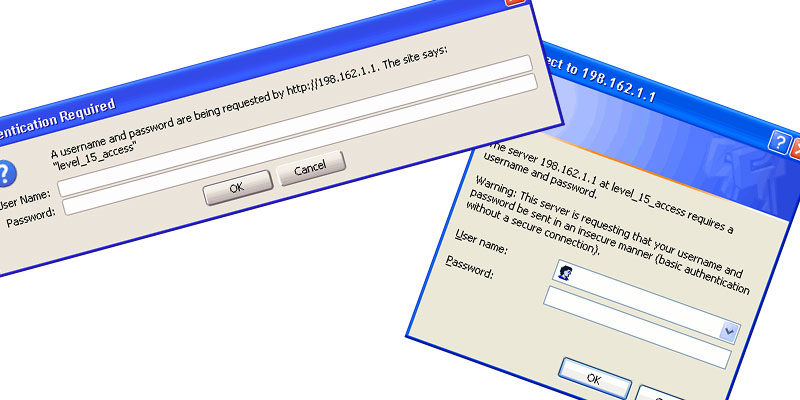
The steps that I offer when securing a router requires you to log in a few times. When logging in, you may receive a message similar to the following:
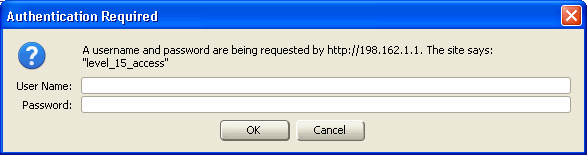
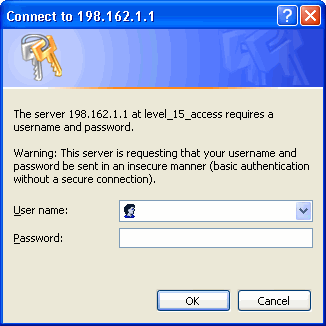
The above problem is not related to your router, but is a result of entering in the IP address incorrectly. You will notice that in the above screenshots, the IP address is 198.162.1.1. This is not the address of your router. This is the address of another server somewhere on the Internet, which explains why your ID and password don’t work.
The address that you should enter in your web browser is 192.168.1.1. Once you enter in your ID and password, you should have access to the administrative pages of your router.