Blogger to WordPress – Part 1

  • Buffer
  • Pin It
  • Sharebar
  • Buffer
  • Pin It

I recently mentioned that I had converted to WordPress from Blogger. I also mentioned that the conversion was easier than I thought it was going to be. While I found it easy, some may still not be comfortable converting to WordPress from Blogger.

To ease any fears of converting, I decided to write several posts about converting from Blogger to WordPress. I will break down the conversion into several parts and discuss what actions are required to complete each part. In the end, I hope to help others make the conversion quickly, and easily.

Getting Started
blogger and wordpress Blogger to WordPress   Part 1
Before moving from Blogger to WordPress there are a few things that you will need:

  1. A local copy of WordPress for developing and testing. Although not necessary, I highly recommend installing WordPress on your local computer.
  2. A domain name that users will type in the browser to view your blog.
  3. A host to house your blog.

I will not re-write what others have done, but will rather point you to the resources that I had used to convert my Blogger blog to WordPress.

Installing WordPress on Your Local Computer

WordPress can seem complex, especially compared to Blogger. There are many files that make up a WordPress blog, and understanding how it all works takes time. This is one of the reasons that I suggest you install WordPress on your local computer.

Installing locally allows you to play around with WordPress without affecting your real blog. A local copy will allow you to install plugins, write and publish posts, try out new themes, and learn how WordPress works.

To install WordPress locally I suggest you follow the steps outlined in Test Drive WordPress Themes In Windows.

Once WordPress is installed, login into your administrative pages by using the following steps:

  1. Open your browser and navigate to: http://localhost/wordpress/wp-admin.
  2. Type in your user name and password and click Log In.

Once you have logged in you will see the Dashboard that displays a summary of information about your blog. Feel free to look around the administrative panel. Remember you are working on you local machine, so if you muck something up, you can easily start again.

A good resource to refer to when you have questions is the WordPress Codex. All information regarding installing, and using WordPress can be found there.

Importing Your Blogger Posts

One question you may have about moving to WordPress from Blogger is how to import your Blogger posts and comments. WordPress allows you to easily import your Blogger data into WordPress without affecting your Blogger blog. WordPress simply makes a copy of your data from Blogger, it doesn’t change anything in Blogger.

To import your Blogger posts and comments:

  1. Log in to your administrative pages in WordPress (see above for instructions).
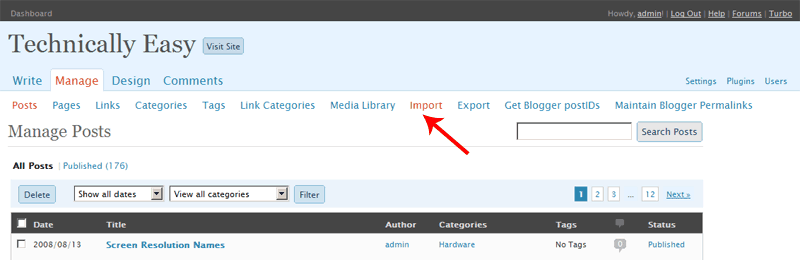
  2. At the top menu, click Manage.
  3.  

    wp manage link sm Blogger to WordPress   Part 1
    Click to enlarge (16KB)


  4. From the submenu, click Import.
  5.  

    wp import link sm Blogger to WordPress   Part 1
    Click to enlarge (16KB)


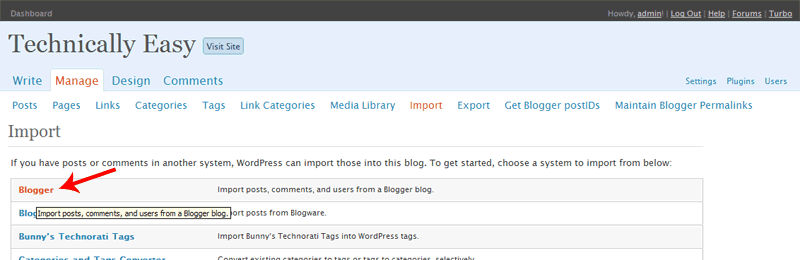
  6. In the list, click Blogger.
  7.  

    wp blogger link sm Blogger to WordPress   Part 1
    Click to enlarge (18KB)


  8. Follow the directions on the screen to import your posts.

As mentioned, WordPress won’t change anything in Blogger, it will only retrieve your posts and comments. It will display a status bar of how much it has done. If you write another post in Blogger, you can import the new post and any comments into WordPress at any time. Remember you are still working locally, so if you make a mistake you can simply delete the posts and re-import them again.

You should continue to explore WordPress to become comfortable with using it. My next post will discuss domain names and how I used them to manage both my Blogger and WordPress blogs at the same time.

 Blogger to WordPress   Part 1

About Paul Salmon

Paul Salmon is the founder of Technically Easy. He is a an experienced PC user, and enjoys solving computer-related problems that he encounters on a regular basis.

Facebook | Twitter | Google+

Tags: ,

You may also like:

Blogging Platforms

Blogger to WordPress – Part 4

Blogging Platforms

Blogger to WordPress – Part 3

Blogging Platforms

Blogger to WordPress – Part 2

Blogging Platforms

How I Converted from Blogger to WordPress

12 people had something to say about “Blogger to WordPress – Part 1”:

Comments


  1. Thanks, but what about images?


  2. For some stupid reason it never occurred to me to Beta test it locally. I’m still happy with blogger, but that may change in the future.


  3. Very good post. I had a blog in blogspot.com but was removed by google before i could try to “how to transfer the blog from blogger to wordpress”.

    I saved all my blogger posts by searcing in google using”cache:” saved it and reposted in my current site (wordpress).

    I didn’t know about wordpress can be installed in local hard drive. I will try it out and use it when i want to switch the theme…


  4. @David: I’m not sure about importing images, as I had hosted my images outside of Blogger. I’ll see what I can find out about moving images from Blogger to WordPress.


  5. I have 2 blogs with Blogger, 2 blogs with WordPress, and 1 blog with WordPress.com. I, too, will be moving my Blogger blogs to WordPress (at some time). I like the freedom and control I have with WP versus Blogger.

    Blogger, however, is great for the person who doesn’t really want to get their hands dirty. :)


  6. Thank you for this wonderful piece of advise!


  7. I moved my posts from blogger beta to wordpress without using any plugins. I wrote instructions into my blog: http://tjantunen.com/2007/03/21/import-blogger-posts-to-wordpress/
    It takes a few minutes and you do not need to use any plugins.


  8. @TJantunen: I needed to use a few plugins, mainly because the permalinks in Blogger are truncated if the titles are too long. In WordPress, they aren’t truncated.

    In order to keep the permalinks the same, I used a plugin to convert the WP permalinks to match the Blogger ones so my visitors from the search engines will get the correct page.


  9. Thanks for the great tips.


  10. Hmm. Good.


  11. The new Zune browser is surprisingly good, but not as good as the iPod’s. It works well, but isn’t as fast as Safari, and has a clunkier interface. If you occasionally plan on using the web browser that’s not an issue, but if you’re planning to browse the web alot from your PMP then the iPod’s larger screen and better browser may be important.

Trackbacks/PingBacks

  1. [...] Blogger to WordPress – Part 1 through Blogger to WordPress – Part 4 [...]

Do you have something to say? Let everyone know!

Commenting policy: All comments are moderated for spam. You must use your real name and not your website name or keywords. If a comment is deemed to be spam, then it will be deleted or edited. Links to your website within the comment body is not permitted, but you are free to use CommentLuv to add a link to your latest post. If you wish to add a link to your website, you can always contact me about submitting a guest post.


CommentLuv badge
This blog uses premium CommentLuv which allows you to put your keywords with your name if you have had 5 approved comments. Use your real name and then @ your keywords (maximum of 3)

Previous Post:

Next Post: