Search results for: “label/Scanning”

  • Questions to Ask Before You Choose a Digital Signature Vendor

    Questions to Ask Before You Choose a Digital Signature Vendor

    Thanks to the digitization of workplaces, a great deal of paperwork is now replaced by electronic documents. When it comes to sensitive documents like contracts, non-disclosure agreements and others that need signatures though, executives still have to run from pillar to post, making sure all documents are duly signed by all members involved.

    You know that digital signature can solve this problem and you’ve heard that they are safe and authentic. However, you still have your doubts, and rightly so.

    You must absolutely ask all the necessary questions and be a hundred percent sure that the digital signature vendor you are planning to engage is absolutely the right choice.

    Digital signatures are undoubtedly a secure and legally protected service that can save you the trouble of printing, faxing, mailing and scanning papers just for procuring a signature.

    However, it is so only when you have a reliable and authorized service provider. Unfortunately, e-signature providers have cropped up in large numbers and not all of them have a high standard.

    Here are the factors you should consider before choosing your digital signature service provider:

    1. Is The E-Signature Legally Protected?

    While e-signatures are ESIGN and UETA compliant and very much legally accepted in all high-value transactions, they require process evidence and an embedded audit-trail if they ever need to be presented in court.

    The process evidence is a sequential record of all the steps a customer took during the e-signature process. Additionally, look for a detailed and consistent audit trail.

    Look for a vendor who diligently records every event and provides a legally acceptable proof.

    2. Are The E-Signature And The Documents Secured?

    Ask your vendor if they will protect your documents and e-signatures using appropriate digital signature technology. Ideally, they should create a digital fingerprint that can be used for verification purposes in the future.

    Some vendors don’t have enough authenticity to create a tamper-proof solution for all e-signatures. You need to avoid such providers and make sure you use someone credible.

    Since the e-signature vendor will have access to your most sensitive documents, and will be storing them in a cloud, you need to make sure that they will protect the integrity and confidentiality of your information.

    Make sure they have proper mechanisms and appropriate electronic infrastructure to support highly secured cloud storage for documents.

    3. Does It Work With Your Existing File Types?

    Going paperless needs just as much flexibility as you find in the world of hard-copy documents. Signatures are required on a wide variety of documents from invoices to forms, contracts and agreements.

    E-signatures on such documents should be just as easy. Ascertain that your e-signature provider allows you all the flexibility you need and works with all the different formats, and applications you use such as Outlook, Word, and Excel or file types like PDF, SharePoint and AutoCAD.

    Also make sure that the e-signature solution works well with your existing workflows, your CRM tools and database management systems.

    4. Is It Easy To Use?

    To facilitate maximum adoption at all levels and by all people you deal with, an e-signature should be extremely useful. People should be able to complete the process within a few clicks, without any additional training on how to use e-signatures.

    Signing on a paper is one of the most basic, ingrained habits of people; it is something they can do in their sleep. Breaking away from the familiarity of paper-and-pen signatures to adopt e-signatures isn’t an easy transition and a complicated process could make it harder.

    5. Is It Open To Customization?

    As a part of your branding, you wish to give your clients/customers a seamless experience. When the time comes for an e-signature, they shouldn’t have to go to a new page to sign.

    The e-signature interface should be enable to be customized so that it can reflect the same colors and interface as that of your brand to avoid confusion.

    6. Does The E-Signature Provide Multiple Modes Of Signature Capture?

    There are multiple ways to do an electronic signature. Clicking on ‘sign here’, entering a password, initialing, and a few other creative ways can be adopted to complete the process.

    Check with your vendor if they support multiple formats.

    7. Is The E-Signature Mobile Friendly?

    Mobile is an absolutely indispensable part of business today and hence, the e-signature solution must be compatible with mobile. Your clients should have absolutely no trouble signing a document on a smartphone or tablet.

    8. Does The E-Signature Solution Have A Proper Consent And Notice Provision?

    According to the ESIGN Act and other accepted rules for e-signatures, the user performing an electronic signature must be very clearly notified what the e-sign entails and must seek consent for the same.

    They should have the option to not indulge in the process should they choose to. If there is ever a problem with the client’s consent and your vendor has failed to follow the right process, the e-sign can be invalidated.

    Conclusion

    As you can see, the seemingly simple process of electronically signing a document is rife with little intricacies which, if not followed, can lead to serious organizational and legal problems.

    It is important to understand that when electronic signatures are being given as much legal significance as a real-life signature, an equal amount of care must be taken.

    An e-signature vendor, who isn’t a well seasoned and highly credible industry personnel, may not be the right person to handle such sensitive matters of your business.

    It is hence imperative that you exercise extreme caution when selecting an electronic signature service provider.

    Rose Martin is an editor at Rantle East Electronic Trading Co. Limited – Electronic components distributor & IC supplier in Hong Kong. She has a master degree in electrical engineering. She likes to share her views and perspectives on electronics manufacturing industries, production, technologies and entrepreneurship. You can reach out to her at martinrrrose[AT]gmail[dot]com.

  • How Can A Free Deleted File Recovery SoftwareRestore Your Access to A Restricted Partition?

    How Can A Free Deleted File Recovery SoftwareRestore Your Access to A Restricted Partition?

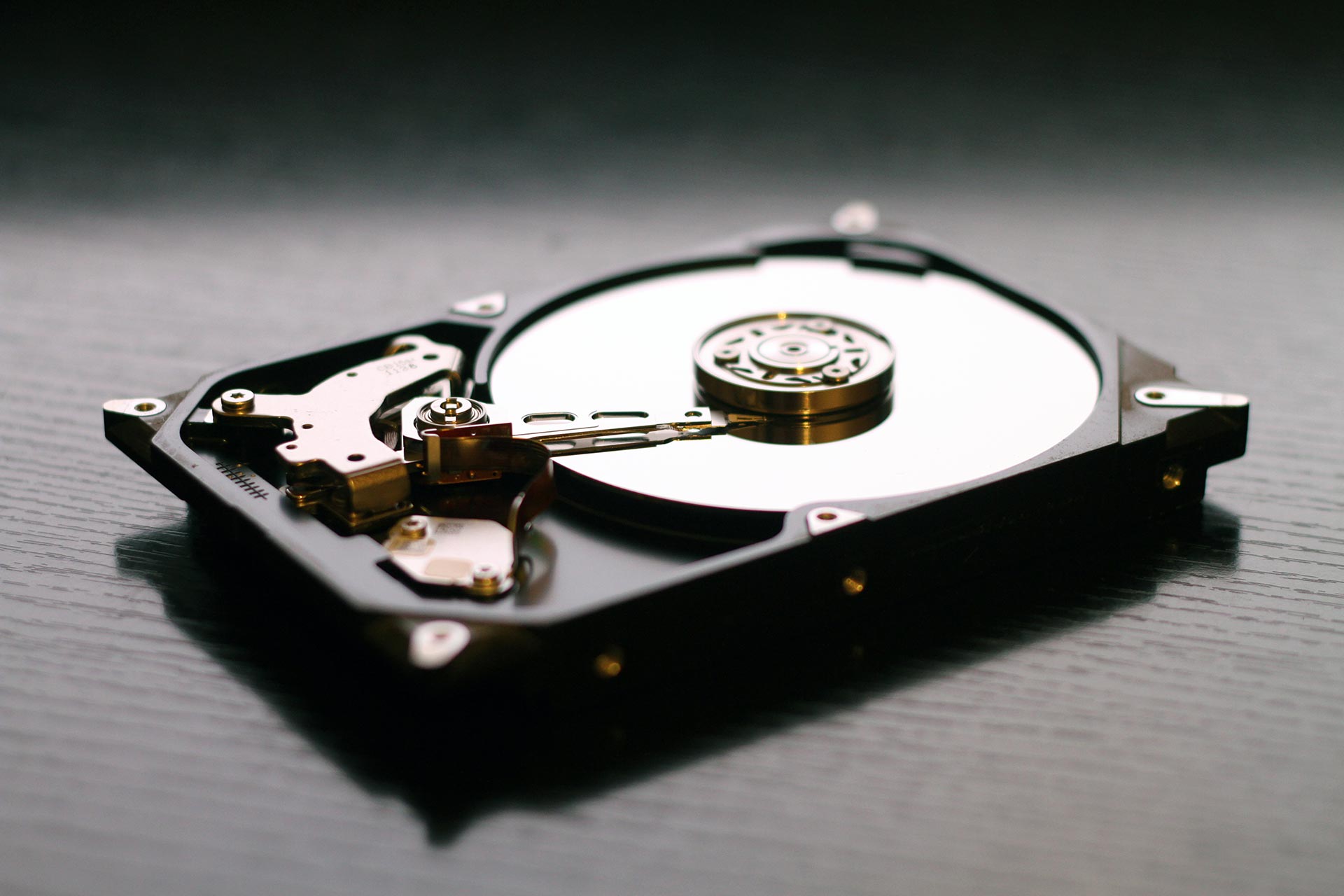
    If your hard has become faulty, and you are unable to access a certain partition, then you need to resolve this issue immediately. If you wait and continue to use your HD, the problem can become much worse, and the HD can stop working at all. Don’t worry; we are giving you the following guide to keep it from happening.

    Disable third-party services which can lock the partition

    It’s possible you aren’t getting direct access because a third-party application is keeping you from doing it. The third-party application can be a virus checker or a disk monitor tool. If you believe this is the reason, then you might want to try the following:

    1. Press the Windows Button and R to open Run Box.
    2. Type in Services.msc and hit enter. Wait for a Service window to open.
    3. In Services List, find the respective Third-Party Service, including the Virus Checker and Disk Monitor Tool.
    4. Rick Click on the Service and open its Properties.
    5. Change the Startup type to Disabled for any third-party app and hit enter.
    6. Close the services windows, restart your device and run CHKDSK once again to see if the problem is resolved or not.

    Uninstall the third-party application

    If the problem persists and you cannot get direct access to the files, then you have to uninstall third-party software which is locking your partition. Following, we are going to give you detailed steps to get started:

    1. Right Click on the Start button in the system tray, and open Control Panel.
    2. Find Programs and Press Uninstall a Program under Programs.
    3. Select the Third-Party Software that is causing this issue and uninstall it.
    4. Close the Window and restart your device. Now Run CHKDSK to see if the issue is resolved or not.
    5. If the solutions mentioned abovefail to resolve your issue, then you are better off recovering data from your drive and format it.
    6. This is sort of your last resort to fix the CHKDSK issue Its important for direct access to USB, external HD, SD card or some other storage device.
    7. Recover Data from Your Drive and Formal to Return to Normal State.
    8. If the CHKDSK issue persists and you can’t get direct access to an externaldrive, then formatting can help your case. Just follow these Steps, and you will be fine.

    Recover data with a recovery tool

    In case you need to recover data, you need a Free Deleted File Recovery Software to begin with. You can save the recovered data with just the trial version. So, install the software and use it to scan the target partition and see if you can find the lost data:

    1. Recovery software such as this comes with different modules including Removable Hard Drive, Hard Disk and CD Drive.
    2. If you need to recover something from the logically damaged partition, then format the partition.
    3. If you need to recover data from USB, SD Card or some other device, then you need to choose Removable Disk Drive Module.
    4. If you need to recover Data from a Lost or Deleted Partition, then use Hard Drive Module.
    5. If the recovery target is damaged, then use the DVD drive Mode.

    Before you do anything, you have to Install the software on your device and connect it to a USB. Once you do that, you need to follow these quick steps:

    1. Connect the storage device to the computer and launch software. Double click on the storage device and start scanning.
    2. Once the scan is complete, the Free Data Recovery Software for Windows 7 will show results. You need to choose the desired files from this list. The software will list only ten partitions mostly.
    3. If you can’t find the target files, then these buttons will help you find them. You have to click them and make advanced settings in the Pop-up interface.
    4. Once you select the files you want, you have to click the recover button to retrieve the files. Once you get the files, you must save them in a different storage disk instead of overwriting your old one.

    Format the partition

    As you have recovered the files you need, its time you format the partition. Formatting the partition can restore your access. It can also resolve a few other issues. Now you don’t have to worry about your previous data as you have saved it in the other storage device.

    From now on, you should only focus on formatting the device and resolve your access issue. When it comes to formatting a partition, you have to rely on a third-party application. The software we provided can help you manage your disk and take care of other important things.

    Summary

    If you were unable to access a partition of your drive or you were facing the CHKDSK error, then you can resolve this matter using the provided software. This provides you with an in-depth solution to this issue.

  • How to Secure Your Windows 7 System – Part 4

    How to Secure Your Windows 7 System – Part 4

    So far in my Windows security series, I have looked at securing your system using a hardware firewall to keep your Internet connection secure. I then talked about creating a Windows standard user account, and disabling certain services. In my last post I talked about more methods you can use to secure your Internet connection from within Windows using software and a DNS service.

    In this post I will close by talking about applications that can help keep your computer clean of malware – those nasty programs you hear about in the news that can do harm to your computer or data. Let’s take a look at what you can do to help keep your computer clean.

    (more…)

  • 8 Best WordPress Security Plugins for Your Blog

    8 Best WordPress Security Plugins for Your Blog

    Most of you are already familiar with WordPress and the way its countless plugins make life easier for you, right? But have you ever wondered about the exact number of WordPress plugins populating internet right now?

    This might surprise you, but WordPress hosts about 43,458 WordPress plugins as of now, easing out millions of people in everything from niche blogs to comprehensive eCommerce sites.

    In fact, according to this report by W3Techs, 59.2% of all websites with content management system known to us, use WordPress, which equates to about 26.3% of all websites.

    Despite the entire boom internet is enjoying as a phenomenon right now, online security remains its one of the weakest areas. But the good news is that WordPress is striving hard to cater to the security requirements of billions of its users.

    In this post, I have brought up 8 of the best security plugins you might like to consider safeguarding your WordPress blog. So, here you go:

    1. Wordfence Security

    Also referred to as the most downloaded security plugin on WordPress, Wordfence Security is really best at what it does, occupying the top spot in my list also because it’s totally free and open source.

    Currently, It enjoys over a million active downloads backed with a solid 4.9 out of 5 stars ranking.

    Some of its major features include:

    • It aptly blocks known attackers on real-time basis, automatically updating your WordPress blog/site for any attacker it blocks on some other site it is installed on.
    • It can also secure you by blocking entire malicious networks with the help of firewall, thanks to advanced IP and Domain WHOIS it features.
    • Also offers two-factor authentication, enabling you to sign-in through your cell-phone, which is also referred as ‘cell-phone sign-in’.

    2. iThemes Security (formerly Better WP Security)

    The iThemes Security plugin serves best in protecting your WordPress blog/site by hiding away its critical areas, securing vital files and guarding from forceful login attempts.

    Until now, it’s been downloaded more than 700,000 times, having 4.7 out of 5 stars in ranking.

    It offers some rally amazing security features in its pro version, some of which include:

    • Helps you in tracking activities of users like logging in, logging out and content editing.
    • You also get two-factor authentication feature with it.
    • Assists in saving time when setting up multiple WordPress sites by taking care of import and export actions.
    • Empowers you to manage functions like system scans and user-banning right from your WordPress dashboard.

    3. All In One WordPress Security

    If you want to enhance your WordPress security to the next level, All In One WordPress Security & Firewall plugin is your best bet.

    It not only runs security checks to identify any vulnerability in your site, but also implements and enforces latest security practices and techniques as recommended by WordPress.

    It enjoys over 300,000 active downloads with an astonishing 4.8 out of 5 stars ranking. Some of its major features are:

    • Its Login Lockdown features make sure your blog is protected against ‘Brute Force Login Attack’.
    • Enables you to create strong and secure passwords with its Password Strength Tool.
    • Enables you to view a list of users logged into your site at any particular time.
    • You can ban users by blocking whole IP address ranges.

    4. Sucuri Security

    Offered free to WordPress users, Sucuri Security is a popular WordPress plugin having over 200,000 active downloads with a 4.6 out of 5 stars rating. Its major features include:

    • Auditing all security activity.
    • Monitoring file integrity.
    • Remote malware scanning.
    • Security notifications.
    • Blacklist monitoring.
    • Website firewall (add on).

    5. BulletProof Security

    Want to make sure your WordPress site is protected efficiently? Choose BulletProof Security plugin like 100,000+ WordPress users worldwide, ranking it a handsome 4.7 out of 5 stars because of the value it delivers.

    It has a regular version and a pro version. Major features include:

    • Set it up conveniently with one-click setup wizard.
    • Monitor login security.
    • Enjoy ISL (Idle Session Logout) and ACE (Auth Cookie Expiration).
    • DB backup (full/partial).

    Major features for pro version (in addition to all the features of regular version):

    • ARQ-IDPS (Auto Restore Intrusion Detection & Prevention System).
    • IDPS (Real-time file monitor).
    • IDS (DB Monitor Intrusion Detection System).
    • Heads Up Dashboard Status Display.
    • Comprehensive status and info on all databases.
    • Read-only File Locking.

    6. AntiVirus for WordPress

    If you are concerned about protection of your WordPress blog or website, resort to AntiVirus for WordPress and secure it against security breaches and spam injections.

    More than 100,000 plus active installs stand to the authenticity and protection this plugin offers, backed up with a 4.2 out of 5 stars ranking.

    Major features include:

    • Get notified of virus alerts right in your admin bar.
    • Takes care of cleanup after plugin removal.
    • Multilingual support.
    • Get notified on your email of daily security scans.
    • Get database tables checks + theme templates checks.

    7. Acunetix WP Security

    More than 100,000 plus active downloads with 3.3 out of 5 stars ranking surely reflects how good Acunetix WP Security plugin is in managing security issues related to your WordPress blog/site.

    Oh, and you can get it for free. Have a look at some of its major features:

    • Supports multiple sites.
    • Aids in disaster recovery by backing up WordPress database efficiently and conveniently.
    • Get rid of error-information from your login-page.
    • Removes core update info on non-admin accounts.
    • Removes plugin-update info on non-admin accounts.
    • Reports security overview of WordPress blog after it is scanned.
    • Real-time traffic monitoring on your site with live traffic tool.

    8. WP Security Audit Log

    If you want to keep track and take charge of all under-the-hood changes in your WordPress blog, WP Security Audit Log is the answer to all your prayers, making sure your site remains secure and updated in every manner.

    That’s why it has over 30,000 active installs with 4.6 out of 5 stars rating. Get a security alert when any of the following (and more) happens on your site:

    • When a new user is registered or created by another user.
    • When a user logs in to your site for the first time.
    • When a file is deleted by a user or email/password is changed.
    • When a plugin is installed, uninstalled, activated, deactivated or upgraded by a user.
    • When a new page, post or category is created by a user.
    • When a new theme is installed or activated by a user.

    What’s your say on this?

    Well, this concludes my list of top security plugins to expedite your WordPress blog/site security, but I would love to hear your personal experiences, observations and opinions regarding this in the comment section below.

    Author Bio

    Khawar Zaman is a seasoned ecommerce consultant having years of experience in crafting ecommerce solutions. He is also cofounder of a promising startup named Technorian, specialized in WooCommerce and Magento support services. They also help other businesses by providing dedicated developers to them.

  • 6 Tips For Designing the Perfect Home Office Space

    6 Tips For Designing the Perfect Home Office Space

    Creating a home office is a great idea. There are a few reasons why you’d want to do this. The current pandemic means that many workers have been forced to work from home, whether they want to or not. For others, working from home was always an option. And some of you may just want a space at home to attend to paperwork and life administration tasks.

    Whatever your reasons for creating a home office, today we’re going to go through six tips for designing the perfect home office space.

    Get a good printer and scanner

    This is an essential part of any home office. HP home office printers offer superior printing and scanning to help you keep on top of all that red tape. A printer/scanner is useful for any forms that you may need to fill and return for your work or in your personal life. A bonus is that if you are buying a printer/scanner for work, it is completely tax-deductible too.

    Upgrade your computer

    You might be fortunate enough to have your workplace provide you with a computer, but if you aren’t or if you are setting up this space for your own time then you will need a good computer. If yours is old and slow, now is a perfect time to upgrade to a newer model that will get the job done.

    Create an ergonomic set-up

    When it comes to your desk, chair, monitor and keyboard you want to replicate the sort of ergonomic set up that you would use in the office. This means paying careful attention to the position of all of these things in relation to each other. This is important if you want to avoid feeling tight and tense after a day at your home office. Check out this super useful resource on how to create an ergonomic workspace.

    Decoration is important

    Who wants a bland, boring home office space? You’re probably more free in your choice of decorations than you are at your actual office. So get creative! Mount some choice artworks or photographs according to your personal preference. Decorate your desk with odds and ends. Put up some of your kids’ drawings and family photos. Invest in a few house plants as well – the benefits of these to air quality and general wellbeing are proven by science.

    Storage matters

    You’re going to need somewhere to store your paperwork, files and other assorted things that come with a home office. As part of setting up the perfect space, invest in some cabinets and storage cubes to help you sort everything. Office organisation is a worthy endeavour.

    Fresh air and light

    Nobody wants to work in a dark, musty and enclosed space. Make sure that your home office location has plenty of natural light and windows that can open to let in some fresh air from time to time. If you are hard-pressed to find a spot that has brilliant natural light then you should invest in a desk lamp to ensure that you have enough light to work with.

    A Studious summary

    A good printer and scanner are a must-have for any home office space, as is a newer computer. Ergonomics are ultra-important to avoid any injury or soreness at the end of the day. Make sure to decorate your space according to your tastes, and invest in some storage solutions for paperwork and files. Finally, try to pick a location that has plenty of fresh air and natural light available. In a pinch, a desk lamp will work well to provide added light should you require it.

  • How to Profile a Scanner in VueScan

    How to Profile a Scanner in VueScan

    I have written several posts in the past about how I use VueScan to scan in old printed photographs, but never talked about how to profile a scanner in VueScan. While it took some getting used to, I have managed to create a VueScan scanning workflow that works for me. While everyone will have their own different workflow, the important thing to remember is that regardless of your workflow, you should take the time to profile a scanner in VueScan.

    Why is it important to profile your scanner? Simple. All scanners don’t reproduce the same colours the same way. Even scanners that are the same model may have a minor variation of a specific colour. Profiling your scanner allows VueScan to produce scans that are as true to life as possible. While profiling your scanner may sound complicated, it isn’t difficult and I’ll step you through the process in this article.

    Scan Properly: Profile a Scanner in VueScan

    Before you profile your scanner you will first need to buy a IT8 calibration target. They aren’t expensive, and can be used to profile any scanner. I purchased by calibration target from Wolf Faust for $10 USD plus $10 USD shipping. The target was packaged in a sturdy cardboard envelope, and within a second sturdy envelope inside the cardboard one. The target itself was inside a plastic sleeve to protect it from dust.

    Steps Needed to Profile a Scanner in VueScan

    Once you have your IT8 target, you can use the following steps to profile a scanner in scanner:

    1. Place the IT8 target onto your flatbed scanner, as you would a photo. Turn on your scanner and then load VueScan.
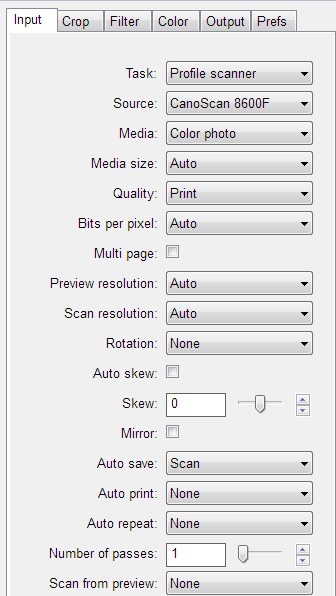
    2. Click the “Input” tab, and then select “Profile Scanner” from the “Task” dropdown option.
    3. VueScan - Task - Profile Scanner
      VueScan – Task – Profile Scanner
      (Click to enlarge)
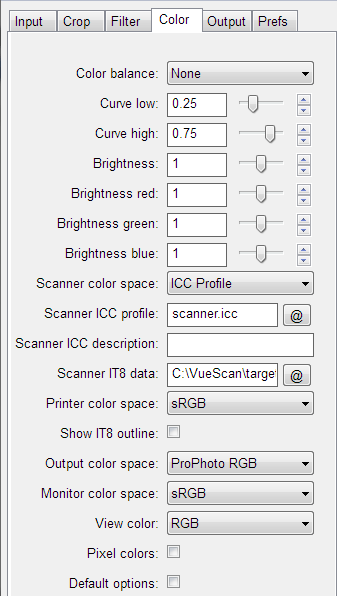
    4. Next, click the “Color” tab, and then click the “@” button next to “Scanner IT8 data” and select the IT8 description file.
    5. VueScan - IT8 Scanner Data
      VueScan – IT8 Scanner Data
      (Click to enlarge)

      Note:

      The IT8 calibration target that I received from Wolf Faust didn’t come with a description file. The description files are available from the website where I ordered the target. If you don’t have a description file, check to see if you can download one from the website where you ordered your target.

    6. Click the “Preview” button to preview the IT8 target in your scanner.
    7. After the preview is displayed, a cropping mask will be displayed over the image. This mask will need to be adjusted to line up with your target. You can simply drag the border of the cropping mask so it matches your target. This step is important if you wish to profile a scanner in VueScan properly.
    8. Vuescan - Copping Mask Not Aligned
      VueScan – Copping Mask Not Aligned
      (Click to enlarge)

      VueScan - Copping Mask Aligned
      VueScan – Copping Mask Aligned
      (Click to enlarge)

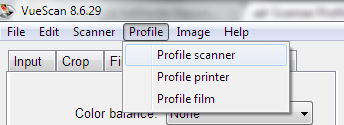
    9. Once the cropping mask is aligned with your target, click “Profile->Profile Scanner” from the top menu.
    10. VueScan - Profile Scanner
      VueScan – Profile Scanner
      (Click to enlarge)
    11. A file called “scanner.icc” is created in the same folder as “vuescan.ini”.

    When you want to scan a photo, you can specify the scanner ICC profile you created using the above steps. You specify the profile in the “Scanner ICC profile” option under the “Color” tab.

    By using a profile, you can now scan photos with the correct colours with minimal adjustments needed. Getting the correct colours is one of the main reasons to understand how to profile a scanner in VueScan.

  • Is There a Better Alternative to Spreadsheets for Inventory Management?

    Is There a Better Alternative to Spreadsheets for Inventory Management?

    Microsoft spreadsheets have been the go-to tool for businesses for decades, so much so that there are unofficial versions of them everywhere you look. Even Google has its own MS Office package. Mostly, it’s viewed as the gold standard for companies attempting to manage their inventories, mainly since it provides the option to track pretty much every aspect of your stock.

    Still, there’s no doubt that spreadsheets have issues that make them unsuitable for some users. Indeed, lots of entrepreneurs are beginning to question whether it’s the right option for their needs. If you fall into this category, you require a superior alternative. Is there one? Let’s find out!

    Katana – Take your spreadsheet to the next level

    The size of the market means that there is more than one substitute available, but one of the most popular software programs available right now is Katana. As well as offering a raw material inventory management Excel template that can be used to track your inventory, Katana also has the firepower to catapult your business to the next level.

    That’s because uploading the template to Katana’s inventory management system allows you to automate your business processes. This means you can stay on top of stock, see at a glance which orders are due when and ensure you never run short of raw materials or finished products, ever again.

    Why should you use Katana?

    Inventory tracking

    A feature that Excel lacks is the ability to track materials automatically. You must do it manually, which takes time and forces you to waste valuable resources. After all, you would much prefer to focus on more pressing issues other than inputting data into boxes.

    Katana is a programme that lets you stay on top of your inventory with features such as barcode scanning. As a result, end-to-end traceability is easy to keep tabs on because you can check the system for when it was scanned. This leads to automated workflows for inventory, whether it’s new on the system or you plan on moving it elsewhere. Order fulfillment is much simpler when you can rely on this tool.

    Planning control

    Exerting control over inventory is challenging, as there are several variables at play. It can be like spinning plates at times, the only difference being that you lose money when one falls. If they all stop spinning, you’re in big trouble. Thankfully, Katana comes with a master production planner function.

    With this, you can track products in real-time. More importantly, you can see what leftover materials you have and use them to fulfil orders without taking away from your essential stock. Plus, it’s easier to rank orders based on the inventory levels at your disposal.

    Consolidation scheduling

    Working with multiple components is one of the hardest jobs associated with tracking inventory, since multitasking has been shown to be unproductive. As a result, Excel Spreadsheets can make it more difficult for you since there isn’t an option to use a single interface.

    Katana comes with a straightforward dashboard that lets you oversee every aspect of your company’s stock levels. Therefore, it’s possible to consolidate the process to avoid the common pitfalls that occur when dealing with different criteria.

    Spreadsheets are an effective way for companies to track inventory. However, it’s a basic solution which doesn’t allow your business to grow. For more insight into your strategy and extra control over the process, Katana is a fantastic option that is well worth considering.

  • How to Repair Your Outlook Files

    How to Repair Your Outlook Files

    Outlook files, such as the PST and OST files, may develop a problem from time to time. While there could be any number of reasons the files could have problems, the main issue is that Outlook may refuse to work properly. In my case, I had a bad OST file, so I could do anything in Outlook except open the application. I couldn’t send or receive e-mails, which is the the main purpose of using Outlook.

    The good news is that Microsoft does include a tool to help repair damaged Outlook files, and is very easy to use. Here are the steps you can follow to repair your Outlook files.

    (more…)