
5 Tips to Protect Your WordPress Login

There is a lot of information about how you can keep your WordPress blog secure and safe from hackers. Such tips involve keeping your WordPress veresion and plugins updated, as well as backing up all your blog files and database.

From a slightly different perspective, you may also want to take steps to ensure you protect your WordPress login to ensure any unauthorized visitor can gain access to your entire blog. There are several things you can do to help keep the login secure, all that I have done on my blog as well.


Wordpress Logo

1. Change the Administrative User

This tip is usually one that appears on almost all articles and posts related to WordPress security, and is a a big one. When you setup your blog, never ever use “admin” as the user ID. In fact, you should use that ID in any form, such as “Admin” or “ADMIN.” This ID is probably the most tried ID by hackers to access a blog, so not using such an ID will stop many hackers.

2. Use a Strong Password

I have mentioned using strong passwords in the past, and it definitely applies to your WordPress blog. When creating a password, ensure that it is long and strong. Ensure you use alphanumeric (letters and numbers), as well as symbols in your password. I highly recommend you use a password management application, such as LastPass (the one I use), to generate long and unique passwords that you can then store in the management application.

3. Limit Login Attempts

By default, WordPress will allow someone attempt to login to your WordPress an unlimited number of times. There are plugins that can prevent someone from logging into your blog after a specified number of incorrect attempts. One such plugin called Limit Login Attempts will allow you to lockout someone for a specified number of minutes (default 20) after so many incorrect logins (default 4). After so many lockouts (default 4), the user can be locked out for a specified number of hours (default 24). The plugin can also provide a list of IP addresses of the user attempting the login as well as the user ID they used.

The image below shows the most recent log in attempts on Technically Easy. Notice how most of the attempts use some form of “admin” to try and gain access to my blog?

Recent Login Attempts

Recent Login Attempts
(Click to enlarge)

4. Implement Two-Factor Authentication

Two-factor authentication is becoming more popular each day, and there is good reason for it. Implementing two-factor authentication adds another level of security to a login. Basically, two-factor authentication adds another level of security because it requires a user to enter not only a user ID and password, but also another piece of information – information that can change every minute. For your WordPress blog you can implement two-factor authentication using a plugin called Google Authenticator.
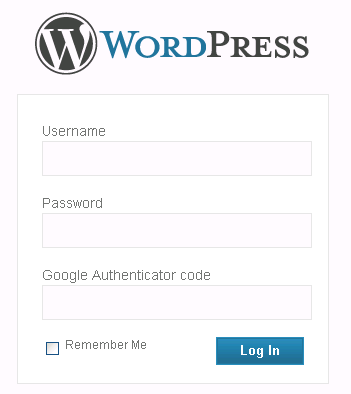
WordPress With Google Authenticator

This plugin will allow you to use the Google Authenticator mobile application (Android, iOS, and Blackberry), that generates a unique 6 digit number every minute. You will be required to enter this number each time you log into your blog, which adds another layer of security.

5. Limit User Roles

If you have multiple users registered on your blog, ensure you only provide the necessary access that they would need to perform their tasks. For example, for those that will only write posts, you would only need to assign those users to the “Contributor” role. This will limit what they can do in your blog in case an unauthorized user guesses the user ID and password of the user.

PG

About Paul Salmon

Paul Salmon is the founder of Technically Easy. He is a an experienced PC user, and enjoys solving computer-related problems that he encounters on a regular basis.

Facebook | Twitter | Google+

Tips , , ,

20 Comments

  1. Posted September 27, 2012 at 5:35 pm | Permalink

    Hi Paul, great tips. I wanted to share this but couldn’t find any social buttons. Did I miss seeing them or do you not have them on your blog? I’ll share it anyway, just thought I’d ask :)

  2. Posted September 25, 2012 at 8:27 am | Permalink

    Awesome post! Well, all the methods are really useful, especially limiting the login attempts with “Limit Login Attempts” plugin. Thanks for sharing :)

  3. Posted September 15, 2012 at 3:22 pm | Permalink

    Awseome plugin thanks a lot for sharing…its provides security to website as much as possible…

  4. Posted September 15, 2012 at 9:01 am | Permalink

    Hi Paul
    Thanks for the tips. I have just installed the “Limit Login Attempts” on my blog. Looking forward to see of someone is trying to hack my blog. I bet the best tip after all is to make regular backups. We never know what can happen to our blogs these days.

    • Posted September 17, 2012 at 8:04 am | Permalink

      Making regular backups is extremely important, especially if someone manage to get into your blog. It is interesting to see the login attempts that the Limit Login Attempts plugin reports.

  5. Posted September 14, 2012 at 8:20 am | Permalink

    I am agree that password should be implement for two stages and strong like combine using letters and digits and signs like $ and others.
    This strategy will make a strong option for your password.

    • Posted September 17, 2012 at 8:02 am | Permalink

      Having a strong password is the key to a more secure login. The addition of two-factor authentication makes the login much more secure.

  6. Posted September 13, 2012 at 10:37 pm | Permalink

    I’ve been doing almost all of the ones listed in this article expect for the Two-Factor Authentication. I never tried using this one. Reading from the article it seems to me like a “double lock” for my door. But for someone who manages a lot of blogs, is having this plugin not a hassle? If it changes each time I log in, wouldn’t it be so time consuming?

    • Posted September 17, 2012 at 8:01 am | Permalink

      I don’t manage many blogs, but it shouldn’t be too much of a hassle compared to how much more security two-factor authentication adds. The Google Authenticator runs on pretty much all smartphones, and all you would need to do would be to run the app and get the new code to enter into the login screen of your blog.

  7. Posted September 13, 2012 at 7:17 am | Permalink

    Two factor authentication is growing at a faster rate now a days but i hope that this can also be applied to other login accounts as well.

    • Posted September 13, 2012 at 8:04 am | Permalink

      I know PayPal, eBay, and Google have implemented two factor authentication. DropBox just did as well, so two-factor authentication is certainly growing. I wish all financial institutions did as well, but I don’t think many have, if any.

      The more online sites that implement such technology, the safer things would be.

  8. Posted September 13, 2012 at 1:09 am | Permalink

    Hi Pual
    I clearly say, The most important thing that I have found to protect WordPress Login is to keep it updated and to use login and password that is impossible to guess by any hack tool.

    • Posted September 13, 2012 at 8:02 am | Permalink

      Having a login and password that is impossible to guess is important, especially when I can see that most hackers try using admin as the login ID. I still recommend you setup a 2-factor authentication method to make logins so much more secure.

  9. Posted September 13, 2012 at 12:49 am | Permalink

    It’s disgusting when a few months ago I got my WP hacked and all of my posts was deleted. Fortunately, I can contact web-hosting team and ask for recovery. I be more careful since that time. I have utilized login attempts but I don’t know about Google 2 factor authentication. It’s looks simple but strong system :)

    Activate all of them together and your WordPress will be safer.

    • Jeet
      Posted September 13, 2012 at 1:24 am | Permalink

      @Akira: It’s always safe to take offline backups, I am glad and surprised that your hosting company had a backup, did you buy a backup plan? Which hosting company is this?

      Most of the times hackers would try and distribute a malware through the hacked site (in one case they actually edited posts to link to some sites for SEO benefits) :D

    • Posted September 13, 2012 at 8:00 am | Permalink

      I have switched to BackupBuddy and haven’t had a problem with backing up my blog. A scheduled daily backup runs automatically that also transfers the entire backup offsite, which is great.

      As for Google Authenticator, I highly recommend you install the app to your smartphone and then use the plugin to provide that 2nd factor authentication to your WordPress blog.

  10. Posted September 12, 2012 at 2:24 pm | Permalink

    I believe as of WordPress 2.5 (release notes) all passwords stored in the database are salted, so that should negate the use of rainbow tables.
    I also keep registrations disabled, and new users need to go through me to get added. As for the users that have been added to my blog are writers, so the subscriber status is useless as subscribers can only manage their profiles and not write content.

    • Jeet
      Posted September 12, 2012 at 2:36 pm | Permalink

      @Paul: Oh ow, no more setting up admin password for clients who forget to give wp admin access but FTP and db access are given ;-) I think I am using 3.xx for most clients and I can still setup admin passwords using DB, I think the salt is fixed by default (it should probably be part of installation).

      That’s true, if you allow guest posts and work with a team, you need contributor / writer access for sure.

  11. Jeet
    Posted September 12, 2012 at 1:33 pm | Permalink

    It’s actually funny to know that wordpress doesn’t use salted passwords and a hacker with read access to DB may be easily able to run a rainbow table attack.

    Limit login attempts is a great way but Google’s two factor authentication is probably the safest option for wordpress.

    I normally keep registrations disabled or new users get a subscriber status (not contributor).

Post a Comment

Your email is never published nor shared. Required fields are marked *

*
*

You may use these HTML tags and attributes <a href="" title="" rel=""> <abbr title=""> <acronym title=""> <b> <blockquote cite=""> <cite> <code> <del datetime=""> <em> <i> <q cite=""> <strike> <strong>

Subscribe without commenting

  • About Me

    I am Paul Salmon, an avid technology fanatic who is always learning new things. My goal is to inform and help others with technology.

    With this blog I try to cover various topics on this blog to cover a broad range of topics.

    Read more...

  • Email:

  • Advertise with IZEA Media
  • Sponsors

  • Recent Posts