
GIMP is a popular image editor, but to require some knowledge if you want to properly resize a CSS sprite image in GIMP. In my previous post I provided instructions on resizing a CSS sprite in Photoshop, but I realize that Photoshop is expensive to buy, and many people may not be using that photo editor. For those that are looking for a free alternative to Photoshop, I suggest you download GIMP which is also powerful photo editor. For more information about GIMP, you can read this GIMP review.
If you are used to Photoshop, GIMP can take some getting used to, but once you understand the basics, it is easy to use. In this tutorial I will show you how you can easily resize a CSS sprite in GIMP much like I did in Photoshop.
Resize a CSS Sprite Image in GIMP
It is very easy to resize an CSS sprite in GIMP, mostly because it won’t automatically center the image when the canvas is resized. In this example, I will once again use the following CSS sprite image.

Steps to Properly Resize a CSS Sprite Image in GIMP
To resize a CSS sprite, use the following steps:
- Click “Image->Canvas Size”.
- Click the link icon (looks like a chain) beside the width and height values.
- Enter in the new width and height value for the canvas size. The image preview will change to show the new canvas size.
- Click the “Resize” button at the bottom to resize the canvas.
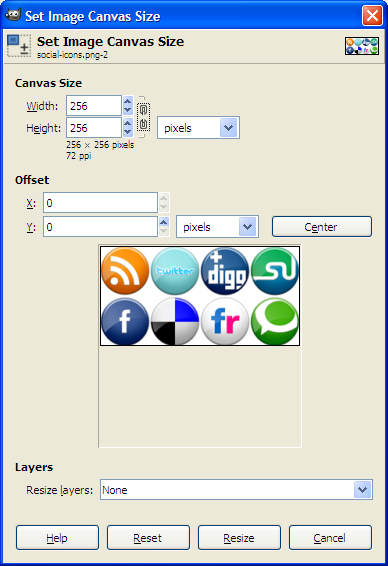

The CSS sprite image should now be larger without moving the existing images with respect to the top-left corner.
There are a few features that I like about GIMP over Photoshop with regards to resizing the canvas:
- It doesn’t automatically center the image. You can click the “Center” button to have it center the existing image.
- You specify the actual size of the canvas instead of how much larger you want it to be.
- The preview of the resized image and canvas within the window is helpful as you can see what the image and canvas will look like after the resize.
The above steps have shown you hot to properly resize a CSS sprite image in GIMP.