I recently wrote a post about why long passwords are more secure and received a comment about the “human factor”. The commenter made a very true statement with regards to longer passwords may force people to write them down, making them less secure.
I have a hard time remembering any of my long passwords – especially those that are over 30 characters. Many security experts that create long passwords may have a system that works for them, but I have yet to develop one for myself. This is why I use a simple, secure, but small application to keep my passwords safe.
A Secure Notebook
Writing down passwords may compromise security, especially if those passwords ended up in the wrong hands. At the same time, creating long passwords can make it hard to remember all the passwords for all of you logins. For me, I have decided to look for a tool that can store my passwords, while providing security to ensure only I can view my passwords.
The tool I found is called LockNote. It is a small (402 KB), notepad-like tool that also includes encryption for protecting the data you type into it. While others may use popular tools, such as Roboform, I prefer something that is simple, yet effective.
There are a few good points that I like about LockNote:
- Secure – requires password to access. When you run the program, you are required to enter a password, which you can change at any time. Without this password, you, or someone else, can’t access your data. It also uses AES 256 bit encryption technology to protect your data.
- Very small. At only 402 KB, this application is tiny and can easily be copied to any type of storage media – even floppy disks if you still use them.
- No installation required. This is a great point. LockNote is a single executable that you can easily copy anywhere and run without ever having to install anything.
- Costs nothing – completely free. Another bonus is that you don’t pay a cent to use it. It is also open source, so if you are technical, you can see what makes it tick.
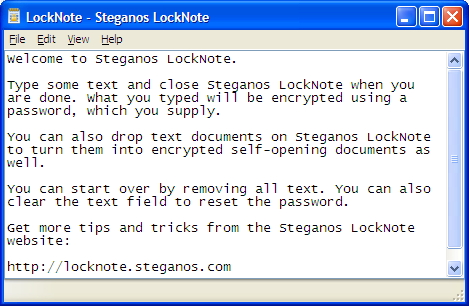
While it does do the job, there isn’t anything fancy about it. The screenshot above shows the entire user interface of LockNote. It is basically a single text file with no fancy bells and whistles. Then again, if all you are doing is storing passwords, do you need anything complex? You can always creating multiple LockNote files and use each one to store specific data.
LockNote’s creator, Steganos, also have a password manager tool, but I prefer LockNote because of its portability. I may checkout their password management tool, but so far, I am content with using LockNote.
If you have trouble remembering all your passwords, or create complex passwords that you also have trouble remembering, you may want to check out LockNote to store your passwords.