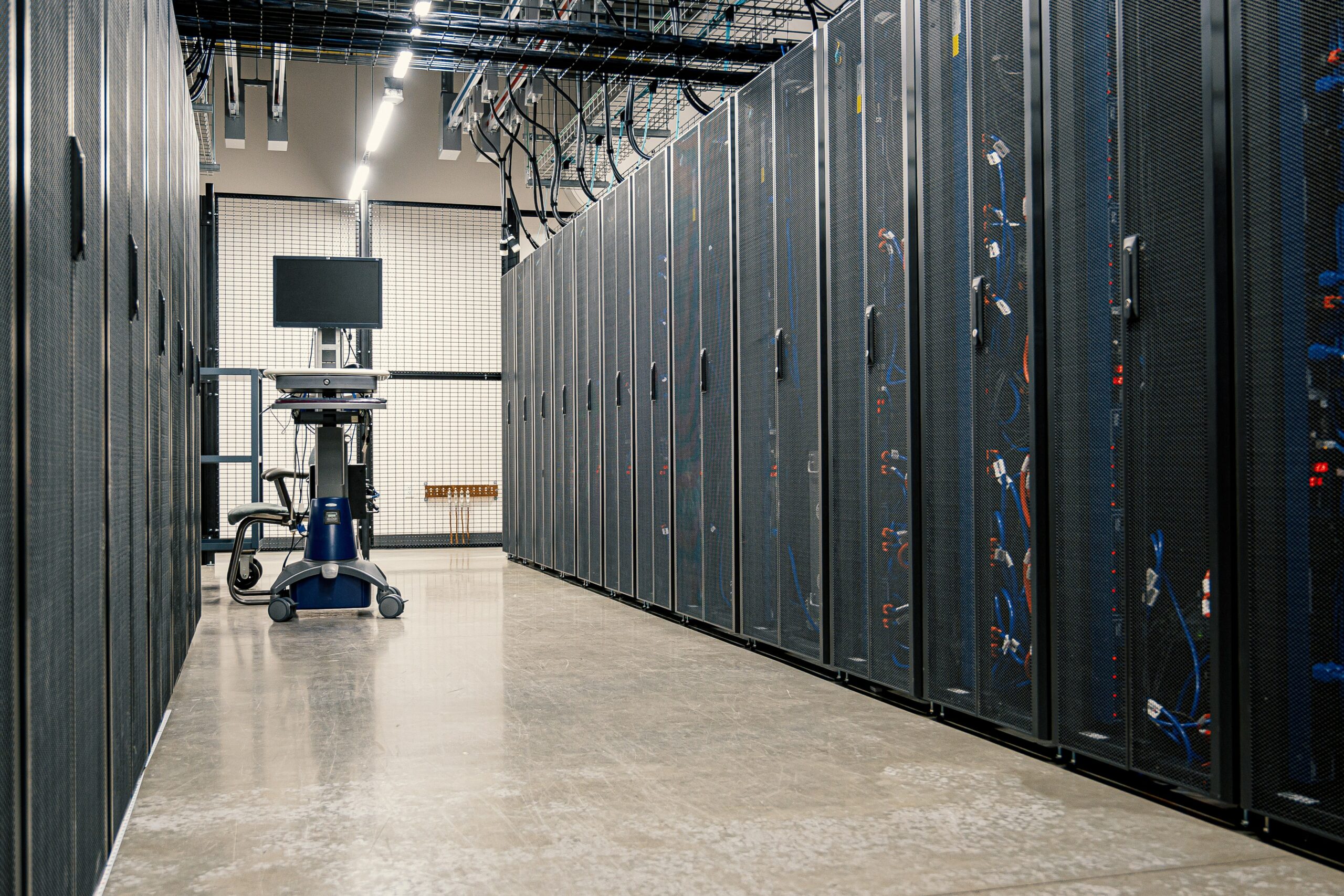
What is a NAS Device?

I talked about archiving photos in several posts in the past and have also mentioned my preferred methods for backing up my photos. Last week I talked about beginning my adventures of online backups.

Recently, however, I have been thinking about how I access my digital photos. I currently have a laptop and desktop, and would like to be able to view and edit the photos on either machine. This has got me thinking more about getting a NAS device. For those that don’t know what a NAS device is, I will explain what it is in this post.

Click to continue reading »

Review: Internet Business Guide for First Class Progress

I have reviewed a few money making blogs in the past, and I can honestly say that I am not a fan of that niche. It seems there are more blogs in that niche than in any other niche, and they all contain the same information.

Needless to say, as I read the title for this blog I immediately thought about the money making blogs. When I read the blog I realized there was much more to this blog than just making money, in fact this blog is missing some of the elements that are commonly found in the “make money online” blogs.

Internet Business Guide For First Class Progress

Web Site: Internet Business Guide For First Class Progress

Description: This Internet Business Guide For First Class Progress provides you with step-by-step tutorials, marketing strategies, and techniques to shorten your learning curve and boost your online success so you, too, make money online.

Design 4.5 stars

The blog has a simple design to it – the content on the left and the navigational links on the right. This keeps the blog clean and makes reading the posts and finding links easy. The background of the blog contains an image, however, the image is simple and doesn’t distract from the content in any way. The background is a nice light colour, and with the dark font provides a nice contrast for easy reading.

The header is nice and simple with the title of the blog, an easy to locate search bar, and two clearly labelled links. The subscription information is located in the top-left, which is one of the first things you will notice.

The content section contains nice large fonts for the title and includes a line separating the posts. The font face and size chosen makes reading the blog very easy for those that have trouble reading smaller text.

The right navigation sidebar that contains the links is well done and very nicely grouped. The links included in the sidebar are minimal but contain the important links such as categories and archives. The only advertising I noticed is under the “Products” section in the sidebar. The lack of advertising is what separates this blog from the ordinary “make money online” blogs, and that makes this blog better.

Secondary, not important, links are located out of the way in the footer. If you choose to use these links the author has provided them below the main content.

Overall I like the simplicity and spacious layout of Internet Business Guide for First Class Progress.

Focus 4.5 stars

The focus is mainly on helping you increase your online presence for those looking to make money online. As I said before this is much different that those “make money online” blogs. The posts in the blog definitely fit the niche very well, and clearly stay on focus.

A few posts here and there may stray from the focus, but those posts are rare and still provided great information for anyone looking to better their online success.

Content 5 stars

The content is one of the best parts about the blog. The content is really well written and the author makes it very easy to understand what he is trying to say.

Many of the posts also include an image that is appropriate for the topic of the post. Although many of the images appear on the home page, the author has taken the time to resize the images so they are small in both size and bytes. This will allow those with slower connections load the pages quickly.

On Sundays the author has included inspirational videos. These videos provide you with even more information about succeeding online. The author, however, hasn’t posted the latest video as of this post.

I enjoyed the content provided on this blog and read many of the posts offered.

Spelling and Grammar 5 stars

It is rare to find blogs that have almost perfect spelling and grammar, but this blog comes close, very close. It is apparent that the author takes the time to read and check for spelling and grammar errors in each post. This makes the blog much easier to read as you don’t need to reread a sentence twice.

Overall 4.5 stars

This is a great blog for those that are looking to help succeed online. The posts are well written and provide great information for success. The simplicity of the layout, and the colour chosen definitely are a nice change from those blogs that include many pictures and small fonts.

If you are just starting out online, or have been online for many years, you definitely want to check out Internet Business Guide for First Class Progress.

How to Map a Hard Drive to a Directory

In my last post I mentioned that I have been exploring the option of backing up my data online. In that post I mentioned two services, Carbonite and Mozy. Although both were similar, Mozy was the only service that could backup data located on an external hard drive.

During my test with Carbonite, I managed to find a method of backing up my data from an external hard drive. This method involved mounting my external hard drive as a directory on my C drive. I will explain how I did that in this post.

Drive Letters and Paths

When you connect an external hard drive to your computer, Windows will assign it one of the unused drive letters on your computer. Unless you change drive letters of your devices regularily, Windows will continue to assign that drive letter to that hard drive.

If you choose to, you can assign another drive letter to that hard drive, or even a folder on another drive. In the case of Carbonite I assigned the drive to a folder, while still keeping the original drive letter. To assign a drive to a folder, use the following steps:

  1. Create a new directory on your computer. For this example, I created a directory called Backup on my C drive (C:\Backup).
  2. Right-click the My Computer icon on your desktop and select Manage from the popup menu.
  3. On the left, below Storage click Disk Management. A list of all the drives connected to your computer should be displayed on the right.
  4. Right-click the drive you want to map to the directory created in the first step and then select Change Drive Letter and Paths. A dialog box should open.
  5. Click the Add button.
  6. Select the Mount in the following empty NTFS folder option, and then enter the path to the folder, in my case I would enter C:\Backup. Alternatively you can click the Browse button and navigate to the folder.
  7. Click the OK button to save and close the window.
  8. Click the OK button on the next window to close that window as well.
  9. Open windows explorer and check the directory you have created. The contents of the directory should now be the same as the hard drive.

I found that this method worked with Carbonite to allow me to backup my data that was located on an external hard drive. It is important to note that you won’t be able to access the directory if the external hard drive is not powered on. Also, the drive letter that was assigned to the external hard drive will still be assigned to the hard drive. You will now have a directory and drive assigned to that hard drive.

Summary

While testing two online backup services (Carbonite and Mozy) I noticed that Carbonite didn’t allow data on an external hard drive to be backed up. I then mapped the external hard drive to a directory on my C drive and Carbonite was able to backup the files.

Related Posts

My Introduction to Online Backups
Backing Up Digital Photos
Data Archiving Method
How Long Will a CD-R Last?

My Introduction to Online Backups

Recently I have begun to think more about my data, and how it should be backed up. Currently I back it up to an external 250GB Western Digital hard drive, and also to multiple Taiyo Yuden DVD+R discs. One copy of the DVDs are stored offsite for disaster recovery reasons. I wanted to include another backup means in the mix.

I went online and and began to search for various online backup solutions. There are many online companies that offer backup solutions, and each one has its good and bad points. I quickly gave two of the most popular sites a try, and this post will discuss my findings.

Backup Requirements

When I thought about backing up my data online, I had specific requirements that needed to be met. Some requirements came about after trying out certain solutions, and I eventually added them to the list. The requirements are listed below:

  • Must be affordable. Unfortunately, I am not made of money so I can’t spend a fortune on backing up my data. I currently have 100GB of data, and that will grow very quickly.
  • Must be able to back up from an external hard drive. This is very imporant as all of my data is on an external hard drive.
  • Must run silently in the background. If an application is to be installed, it must run quietly and efficiently in the background. It must not use a large amount of the CPU and Internet bandwidth when the machine is in use.
  • Must transfer the data securely. The data that is sent from my computer must be encrypted first, and then travel over the Internet securely.
  • Must be quick to upload and download. I have a broadband connection (10Mbps down and 640kbps up) so it must make good use of the connection to reduce the transfer time.

The above requirements can change as I think of others, but the ones listed are a good start to what I am looking for in a service.

Carbonite

Carbonite was the first service I tried, and is one of the popular online backup solutions available. They are quite affordable at $49.95 for one year, or $89.95 for two years for unlimited storage. The unlimited storage is a great option for me considering the amount of data that I need to backup.

I downloaded and installed their software without any problems. But once I installed the software, I then ran into a rather big issue for me – the software can’t backup from an external hard drive. Hoping that this wasn’t a deal breaker, I quickly did a search online to get around this problem, and did find one simple solution – mounting the external hard drive as a folder on my computer.

For those that don’t know, when you connect an external hard drive in Windows it will automatically mount to the next available drive letter. Besides a drive letter, you can also mount the drive to a folder on your computer. When you then click on the folder you will see the contents of the external hard drive.

When I did do this I was able to backup my data, although not very efficiently. I marked my data to be backed up by selecting a folder, and then left the computer running over night. When I checked the backup status the next morning I noticed that it didn’t back up anything. When I indicated that it should backup some folders right away it worked fine. Unfortunately, I have many folders so this is very inefficent.

The problem could be that the folder is pointing to an external hard drive. I uninstalled the software indicating the lack of external hard drive support as the reason. If they do start supporting external hard drives, then maybe I’ll have another look at Carbonite.

For this test, I signed up for the 30-day trial.

Mozy

Along with Carbonite, Mozy is the other popular choice for online back ups. Mozy is cheap at only $4.95 per month, $54.45 for one year, or $103.95 for two years for unlimited storage, which as mentioned earlier is great for me and my 100GB of data.

When you use Mozy you need to install a piece of software that will run in the background, similar to Carbonite. Mozy’s software, however, has many more options that you can configure. I downloaded and installed the software without any problems, and began to select my data to backup. I was quite happy to see that Mozy can read and backup my external hard drive.

I signed up for the free account which gives me 2GB of storage space for free. This allows me to test out the system indefinitely, albiet, on a very small level. I selected 1GB of my data to be backed up and began the process.

When the backup began a little window popup window showed the current status for encrypting and preparing the data, as well as the status of the transfer. The 1GB of data was backed up in about 6 hours, which means an upload speed of roughly 46KB/s. There is some transfer room here as my max upload speed is 80KB/s.

The one thing that I don’t like about Mozy is the fact that each computer you would like to use with the service requires you to pay more. I sent an e-mail to Mozy about changing computers, such as when you buy a new one and would like to use that for your backups. About 24 hours later I received a response stating that for a new computer, I should install the software on the new computer, where I will get an error when I run a backup. I should then send an e-mail back to Mozy where they can then send me a file to make things good again. No re-uploading of all my data, which is great.

Overall, I didn’t have any trouble with backing up my data with Mozy as everything went smoothly.

Summary

I have been looking into backing up my data online. With 100GB of data, I needed a service that won’t break the bank and is easy to use. I tried two of the most popular – Carbonite and Mozy, and it appears that Mozy has been able to meet my requirements.

As with all online services, there are people that have had good and bad experiences with both, as well as other backup services. I would be curious to know your opinion, or have another service that I can try. I have yet to purchase any but will be looking to do it in the near future.

Related Posts

Backing Up Digital Photos
Data Archiving Method
How Long Will a CD-R Last?

Interested in Guest Posting?

I usually publish blog posts on Mondays (review), Wednesdays and Fridays. I came to thinking about also publishing posts on Tuesdays and Thursdays to fill out the week. The problem is finding the time to publish on all five of the days.

This is where guest posting comes in. I have decided to allows those interested to provide posts that I will publish on Tuesday or Thursday of each week. If you are interested read the details below.

Post Requirements

There are several requirements that need to be met when submitting a post:

  1. The post must be about technology, whether it is informational or instructional.
  2. Must be your own unique post, which means it can’t be a copy of an article written by you or someone else.
  3. The spelling and grammar must be good, although it doesn’t have to be perfect.
  4. No foul language will be accepted.

How to Submit

To submit an article for posting, simply send an e-mail to psalmon12@gmail.com with the following:

  1. Your orginal written post.
  2. Any images you want to include in the post. You can indicate where they are to be placed in the post.
  3. A one paragraph signature, to be placed at the bottom of the post, that you would like to include. You can include one link to your Web site only in the signature.

If there are any changes that I think should be made, I will send you an e-mail with the article and changes for your approval. When the final post has been created, I will publish it on the next available date (Tuesday or Thursday). I will then send you an e-mail indicating the date the post will be published.

Page 2 of 3123