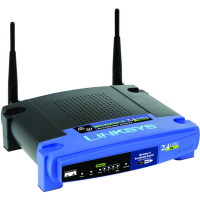
You are currently browsing comments. If you would like to return to the full story, you can read the full entry here: “How to Reset the Linksys WRT54G Wireless-G Router”.
Related posts:
- How to Reset the Linksys WRT160N Wireless-N Router
Learning to reset the Linksys WRT160N wireless-N router is important if you currently change the settings within the administrative pages. The reason it is important is because one wrong setting... - Linksys WRT54G Wireless-G Router Not Connecting to Internet
Recently, my Linksys WRT54G wireless router could not connect to the Internet. The odd thing about this was that just the day before I didn’t have any problems. I have... - How to Reset the Linksys WRT54GL Wireless-G Router
The most popular posts on Technically Easy involve wireless routers. The two that seem to generate the most attention are the posts explaining how to reset a particular wireless router.... - Securing the Linksys WRT54G Wireless-G Router
I discussed securing your wireless network in a post titled Securing a Wireless Network. I currently have a Linksys WRT54G Wireless-G router. When I work from home I use this... - How to Reset the D-Link DI-524 Wireless Router
Some time ago I wrote a post titled Securing D-Link DI-524 Wireless Router. In that post I outlined the steps needed to secure that particular wireless router. More recently I...


if you are getting the REALM LEVEL 15 ACCESS ERROR when you try to login it is from not typing http:// in front of your ip. the new internet explorer requires you to type it.
type ALL of below and you will gain acces.
http://192.168.1.1
hope this helps.
All these things work find and are documented in the Linksys documentation. The problem I am having is that after reset, my firmware still says 4.21.1 which may be true, but the admin page is dog slow and didn’t used to be that way. It is amazingly slow. I don’t know what happened, but everything was working fine. Comcast, of course, will not admit anything wrong with their network even though I was having intermitent disconnects directly from their Motorola modem. But anyhow, I did a DHCP renew on the admin page and it went silly after that. I finally got it working by resetting the router, but now I don’t know if should re-apply the firmware update or why it admin page is so slow.
Have you tried disconnecting your router from the modem, and then access the admin pages? If it still slow, then it isn’t your ISP that’s at fault.
If you have applied the firmware update, the reset button should set that back to factory defaults – just the settings within the admin pages. You can try the firmware update again, and see if it takes this time.
Hi -
I read all the post here im still having a problem.My internet works i just cant secure it. i had it secured until i moved into my new place. Ive been to the http://192.168.1.1/ page but the default password doesn’t work. i then ran the command promp ipconfig and noticed that i do not have an address next to my “default gateway”?
thanks for your help in advance.
wait a sec it does show it. nevermind that . it shows the address of the 198.168,,,,, so now i just need help logging on. ive tried using the defaults. admin, admin and leaving it blank with password admin. ive also tried using my old password and log in. nothing works. how can i secure my connection?
Try resetting your router again. Sometimes you need to hold the button in a little longer than suggested. Don’t know why, it sometimes is like that.
hey paul thanks for your reply. I figured it half way out. because i have verizon dsl, the log in was admin, and the password is password! something that is unique to verizon . my problem now is that when i enter in the http://192.168 address it takes me directly to verizon. so now im still stuck with my original problem of securing my connection. where can i get the secured network key that it is asking for? i’ve searched everywhere, even inputing the the numbers on the back of my router. is there a way i can get this key? would I call verizon for help or would i call linksys?
right now i can click on wireless network properties>security tab> and it gives me a drop down menu titled “security type” and below that it has “encryption type” which is set at none because it wants me to enter in my security key .
Thanks
Enter your user ID And password when prompted. Hopefully this has been changed, but if it hasn’t, the default is no ID and “admin” as the password.
and unluckily my id and password was changed by somebody i dont know and recently we are having difficulty connecting to the net what can i do?
If you reset your router, the user ID and password should be reset back to factory defaults. You can then log into your router using those credentials, and then setup the password to whatever you wish.
Question, i was ablet to reset the initial password but everytime i go back to password change, my orginal password (that I don’t know) is still saved….I know this because it is 16 digits and the password i have change to is only 9 digits. Also, i have a laptop and it wont work now because it needs the old password that i don’t have. So, it’s not truly changing the password? Help
Just to let some of you know. If you are still having trouble accessing the router after reset. Try using “root” as the username and “admin” as the password. Took forever for me to figure that out. Hope it helps.
I was mucking around trying to setup dnsmasq with my home fedora Linux machines, and I logged into the router and disabled DHCP… I’m not sure if that is the cause of my problems, but now I can’t connect to the router or the internet (by Firefox at 192.168.1.1) wirelessly or by direct connection.
I am thinking that my only choice is to reset the router which won’t be too big of a deal to re-program with security, etc.
I am pretty sure that I have reset the /etc/resolv.conf files and turned off the dnsmasq daemon so they shouldn’t be playing any role.
Any other suggestions? Thanks in advance.
To make things a lot easier, unplug your router from the DSL modem and have your single computer connected to the router. Set your PC in network TCP/IP settings static to be 192.168.1..X (where “X” can be any number between 2 and 254). Then reset your modem to 192.168.1.1 by default. See your DHCP on your modem makes your PC to be in another sub net (I think that is the term- but for example 102.168.254.x – and .254 will not “talk to” .1). Then follow the above sugestions. I hope this helps.